2 min readUpdated  TuneSera
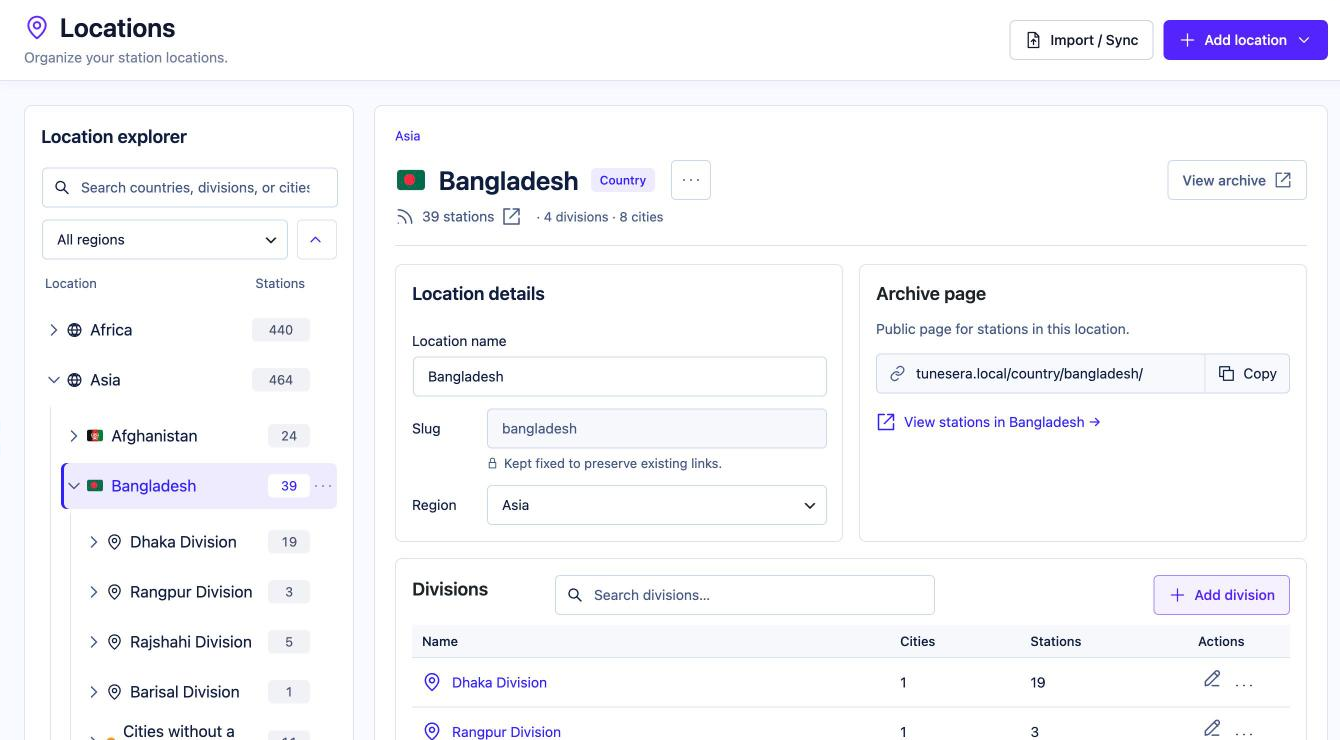
The Location explorer gives you a tree of every region, country, division and city in your directory, with station counts, so you can find and manage any location quickly.
Open the Location explorer#
Go to TuneSera → Locations. The explorer is on the left. Select a location to see its details on the right.
Browse and search#
- Click the arrow next to a region, country or division to expand it. Use the collapse button next to the region filter to close everything again.
- Type in Search countries, divisions, or cities to jump to a location.
- Use the All regions menu to show one region only.
- The number next to each location is how many published stations it has.
Location details#
When you select a location, the right-hand panel shows:
- Its name, type (Country, Division or City), number of stations, divisions and cities. Click the station count to open those stations in TuneSera → Stations.
- Location details: edit the Location name and, for countries, the Region. The slug is kept fixed to preserve existing links.
- Archive page: the public address for this location. Click Copy to copy it, View archive to open it, or View stations in… to see its stations.
- Divisions or Cities: the locations inside it, with their own counts. Search them, edit them or add new ones.
Click Save changes after editing, or Cancel to discard your edits.
Click Import / Sync at the top right to go straight to Import Stations and add more countries.
Related articles#
Was this article helpful?