2 min readUpdated  TuneSera
Started an import and want more countries? You can add them to the same import instead of starting a new one. The new countries join the end of the queue.
Add countries#
- Open the import’s progress screen, either straight after starting it or from Import history → ⋯ → View report.
- Below Country results, click Add countries.
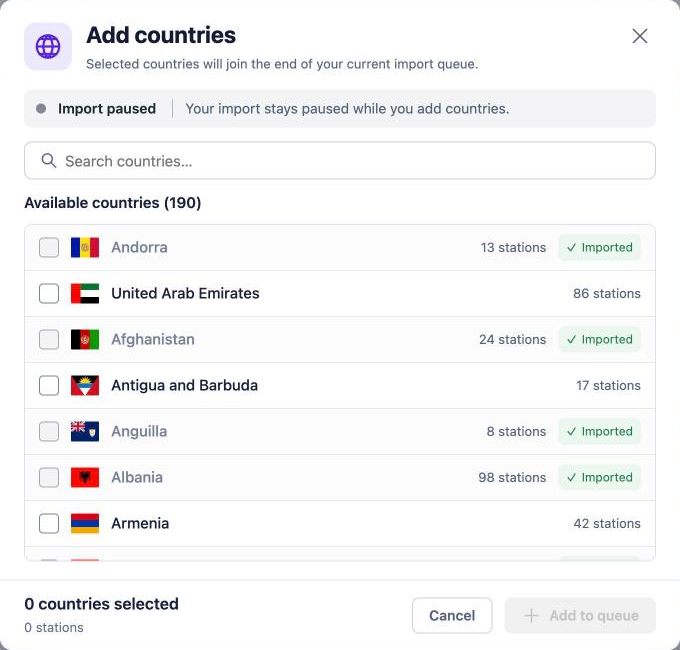
- Search for and tick the countries you want. Each shows its number of stations.
- Click Add to queue.
What happens to the import#
- Import running: the import keeps going while you choose.
- Import paused: it stays paused while you add countries. Click Resume import when you are ready.
- Import finished: you can’t add to a finished import. Start a new import from TuneSera → Import Stations instead.
Countries you can’t add#
Some countries in the list are greyed out and labelled:
- Imported: already imported. Use Re-import from the Imported filter instead.
- In queue: already part of this import.
- In another import: queued in a different import.
- Unavailable: no station data is available for this country right now, or it needs TuneSera Pro.
Related articles#
Was this article helpful?