3 min readUpdated  TuneSera
On this page
Already have a list of stations in a spreadsheet? Save it as a CSV file and import it into TuneSera. You will review every record before anything is created.
Prepare your CSV file#
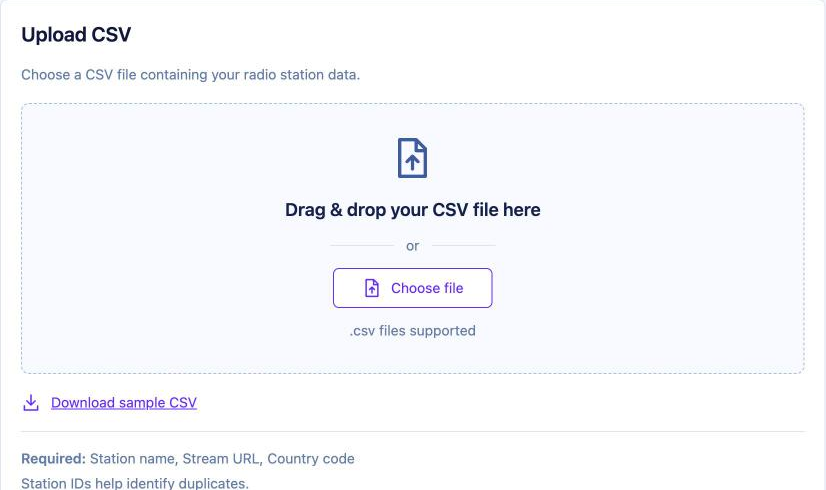
- Go to TuneSera → Import Stations, open the Upload CSV tab and click Download sample CSV.
- Open the sample in a spreadsheet app (Excel, Google Sheets, Numbers) and add your stations, one per row. Keep the column names in the first row.
- Save or export the file as CSV (UTF-8, comma-separated).
Every row needs three values. Rows missing any of them are skipped and listed in the import report:
- Station name
- Stream URL: a full http:// or https:// address
- Country code: a valid two-letter code, such as
GB,USorBD
Supported columns#
| Column | What it holds | |
|---|---|---|
| station_id | Your own unique ID for the station. Used to spot duplicates. | Recommended |
| station_name | The station name. | Required |
| stream_url | The direct audio stream address (http:// or https://). | Required |
| country_code | Two-letter country code, such as GB, US or BD. | Required |
| description | A short description. | |
| logo_url | Link to the station logo image. | |
| genres | One or more genres, separated by | or a comma. | |
| language | Broadcast language. | |
| state_province_division | State, province or division. | |
| city | City. | |
| timezone | Time zone, such as Asia/Dhaka. | |
| broadcast_type | For example FM, AM or Online. | |
| frequency | For example 98.4 MHz. | |
| website_url | Station website. | |
| facebook_url, twitter_url, instagram_url, youtube_url, tiktok_url, wikipedia_url | Social and reference links. | |
| whatsapp_number | WhatsApp number. | |
| address, phone_number, email_address, additional_contact_info | Contact details. |
Add a station_id to every row. TuneSera uses it to recognise stations you have imported before. Without one, TuneSera builds an ID from the row itself, so changing any value in a row makes it look like a brand-new station next time.
Upload and import#
- Go to TuneSera → Import Stations and open the Upload CSV tab.
- Drag your file onto the upload area, or click Choose file. Use Replace file or Remove file if you picked the wrong one.
- Click Continue.
- In Map fields, check that your columns are recognised, then continue. In the free plugin, your file needs the sample column names. With Pro, you can map any column names.
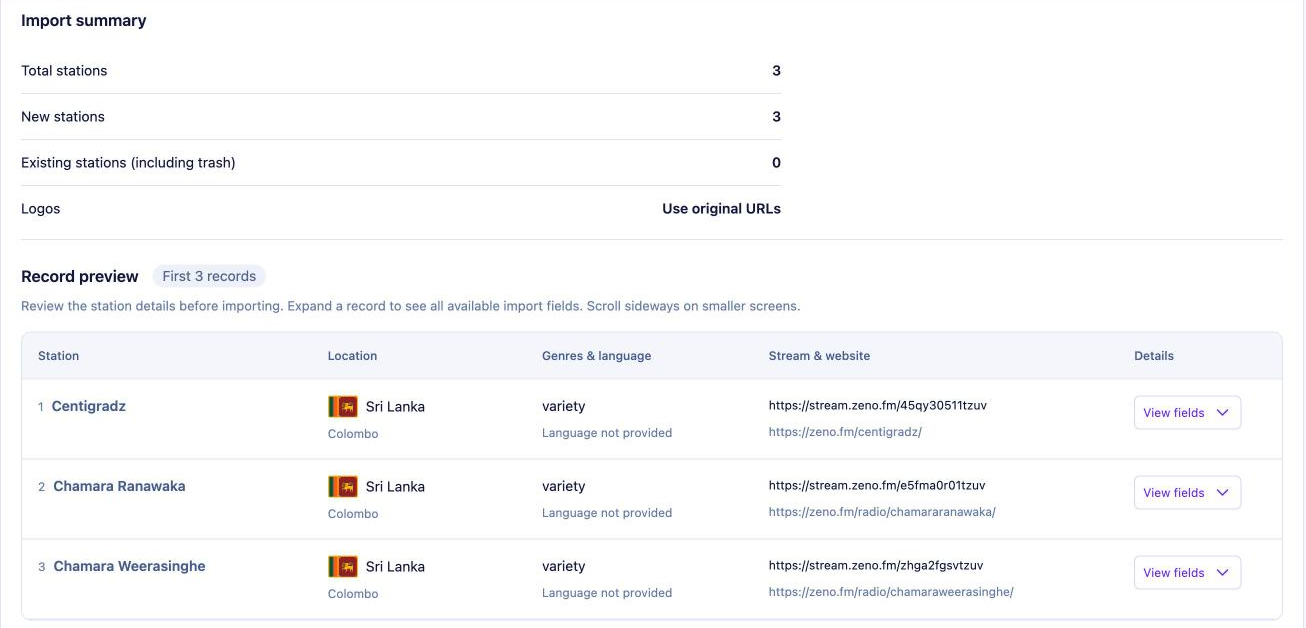
- In Review & import, check the countries found in your file, the import summary and the Record preview. Choose how to handle existing stations.
- Click Start import.
File requirements#
- File type:
.csv, UTF-8 encoded, with a header row and comma-separated columns. - Maximum size: 10 MB, or your server’s upload limit if that is lower.
- Uploaded files are stored privately on your site for up to 30 days, then removed automatically.
Troubleshooting#
- “Upload a UTF-8 CSV containing a header row and comma-separated columns.” Re-save the file as CSV UTF-8. Files saved with semicolons (common in some regions) need to be converted to commas.
- “Record X needs a station name, an HTTP(S) stream URL, and a valid two-letter country code.” Fix that row and upload the file again.
- No countries detected. Check the
country_codecolumn uses two-letter codes, not country names.
Related articles#
Was this article helpful?