3 min readUpdated  TuneSera
On this page
Importing the same stations again is safe. TuneSera recognises stations it has already imported, so you won’t end up with duplicates. You decide whether existing stations are kept as they are or refreshed.
How TuneSera spots duplicates#
Every imported station stores a source ID: the station’s ID in the directory, or the station_id column in your CSV file. When you import again, TuneSera looks for a station with the same source ID, including stations in the Trash.
- Stations from the directory always have a source ID.
- In a CSV file, add a
station_idto every row. If you leave it out, TuneSera creates an ID from the row’s contents, so editing any value in that row makes it count as a new station. - Stations you add by hand have no source ID, so imports never change them.
Choose what happens to existing stations#
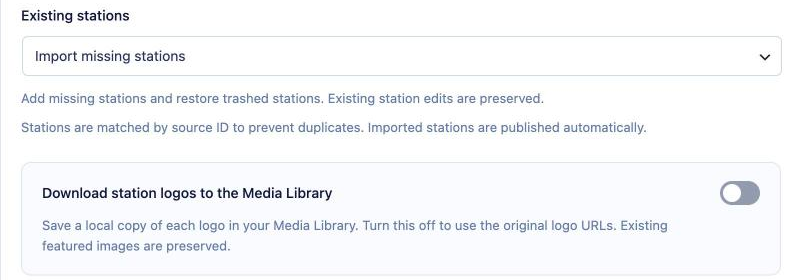
On the Review & configure step (or Review & import for CSV files), pick an option under Existing stations:
| Option | What happens | Use it when |
|---|---|---|
| Import missing stations (default) | Adds stations you don’t have yet and restores matching stations from the Trash. Stations you already have are skipped, so your edits are kept. | You have edited stations and want to keep your changes. |
| Update existing and import missing | Adds missing stations and overwrites existing stations with the imported values. | You want the latest details from the directory or your updated CSV file. |
Update existing and import missing overwrites manual edits to the imported fields, such as descriptions or links you changed yourself. Choose it only when you want the source data to win.
Reading the results#
The import summary and progress screen tell you what happened to each station:
- Stations imported: new stations created.
- Trashed stations recovered: matching stations brought back from the Trash.
- Existing stations skipped: stations you already had, left unchanged.
- Updated: existing stations refreshed (update mode only).
- Failed stations: rows that couldn’t be imported. Open the report to see why.
- Duplicates created: this should stay at 0. If it doesn’t, check your CSV for repeated or missing
station_idvalues.
Re-import a country#
To refresh a country you imported before, go to TuneSera → Import Stations, open the Imported filter, select the country and click Re-import. Then choose your Existing stations option as above.
Imported stations are published automatically. If you don’t want a station in your directory, move it to the Trash. With the default option, a later import restores it, so delete it permanently if you never want it back.