1 min readUpdated  TuneSera
The popup player opens the current station in its own small window, so listening carries on even if the visitor closes your site’s tab or browses somewhere else.
Pro feature. This feature needs TuneSera Pro with an active license. Get TuneSera Pro
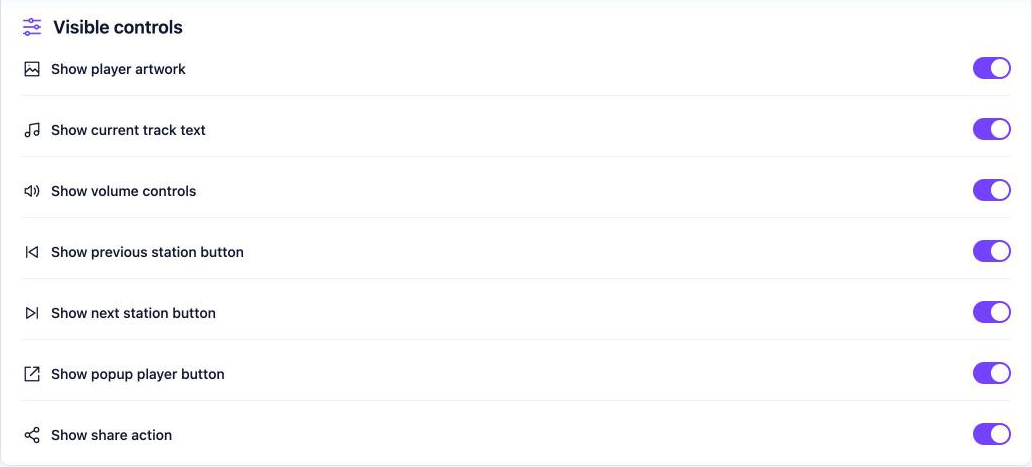
Turn on the popup player#
- Go to TuneSera → Settings → Player → Visible controls.
- Turn on Show popup player button.
- Click Save changes.
How visitors use it#
- Start a station, then click the expand button in the sticky player.
- Under Listening options, click Open popup player.
- The station continues in a separate window.

Good to know#
- Opening the popup stops the main player first, so the station never plays twice.
- The popup keeps playing even if the original page is closed.
- Some browsers block popups. If nothing opens, visitors may need to allow popups for your site.
Related articles#
Was this article helpful?