3 min readUpdated  TuneSera
On this page
Import ready-made radio stations country by country. TuneSera creates a published station page for each one, with its stream, logo, genres, location and links already filled in.
Before you start#
- The free plugin includes 1,186 stations from 30 countries. They ship with the plugin, so no outside service is contacted.
- With TuneSera Pro, you can import from 230 countries.
Step 1: Select countries#
- Go to TuneSera → Import Stations. The Directory tab is open by default.
- Find the countries you want. Use Search countries…, or the filters: All, Available (not yet imported) and Imported.
- Tick each country to import. The Stations column shows how many stations each one has.
- Check Your selection on the right. It shows the total number of countries and stations.
- Click Continue.
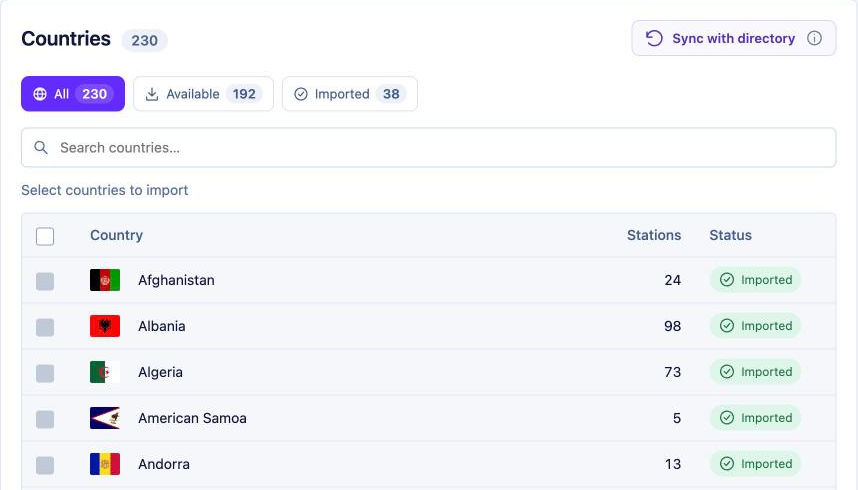
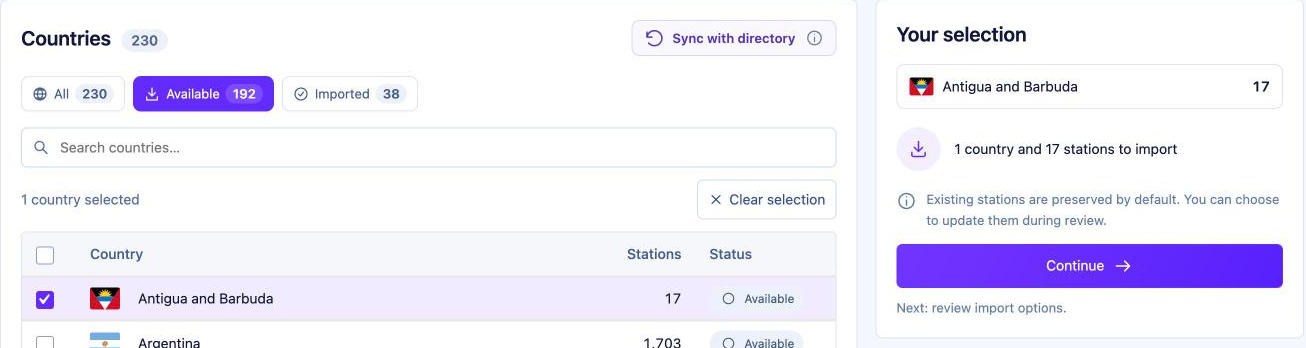
Countries you have already imported can’t be ticked from the All list. To bring in updates for them, use the Imported tab and choose Re-import.
Step 2: Review & configure#
Check your selection and choose how the import should behave.
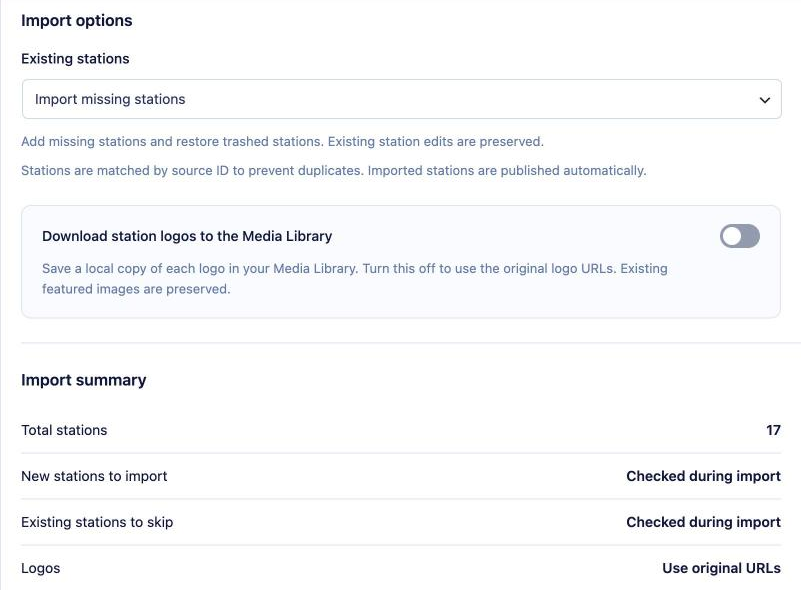
- Selected countries: click the × on a country to remove it.
- Existing stations: Import missing stations (the default) keeps your edits and only adds what is missing. Update existing and import missing refreshes stations you already have from the directory. Learn more in Handle duplicates and existing stations.
- Download station logos to the Media Library (Pro): save a copy of each logo on your site instead of loading it from its original address.
- Import summary: the total number of stations and how logos will be handled.
When you are ready, click the import button (for example, Import 17 stations).
Step 3: Import#
TuneSera imports your stations in the background and shows live progress: stations imported, existing stations skipped, updated, failed, and results for each country.
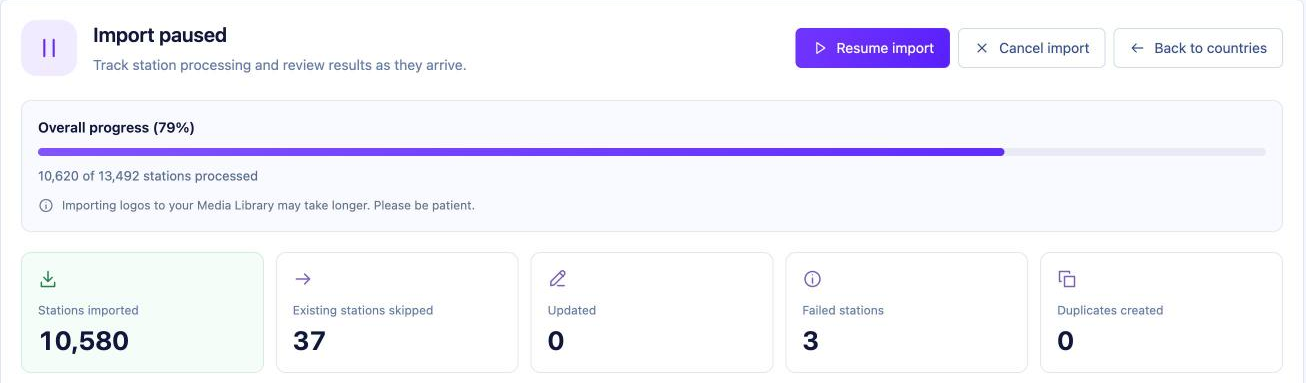
- Pause import and Resume import let you stop and continue later.
- Cancel import stops the import. Stations already imported are kept.
- When it finishes, click View imported stations to see them, or Import more countries to start another import.
Imports keep running in the background even if you close the page. You can come back to them any time from Import history.
Refresh the country list#
Click Sync with directory above the country list to refresh the available countries and station counts. Your existing stations are not affected.
After importing#
- Imported stations are published straight away and appear in your directory.
- Countries, cities and genres are created automatically. Manage them under TuneSera → Locations and TuneSera → Genres.
- Edit any station under TuneSera → Stations. With the default import option, your edits are kept if you import again.