2 min readUpdated  TuneSera
Add new countries, divisions and cities, rename existing ones, or remove locations you no longer need, all from TuneSera → Locations.
Add a location#
- Go to TuneSera → Locations and click Add location.
- Choose Add country, Add division or Add city.
- Pick the parent location: the region for a country, the country for a division, or the division (or country) for a city.
- Enter the name. For a country, select one from the list or type a custom name.
- Click the Add button.
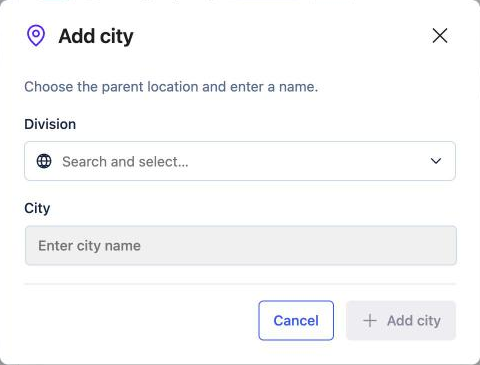
You can also add a division or city from a location’s details panel with Add division or Add city.
Edit a location#
- Select the location in the Location explorer.
- Change the Location name (and Region for a country, or the parent for a division or city).
- Click Save changes.
Slugs can’t be changed here. They stay fixed so links to existing archive pages keep working.
Delete a location#
- Select the location, or click the ⋯ next to it.
- Choose Delete location and confirm.
A location can only be deleted when it is empty. If you see “Remove child locations and unassign stations before removing this location.”, first delete its divisions or cities and reassign its stations to another location using Quick Edit or the station editor.
Regions are predefined and can’t be added or deleted.
Related articles#
Was this article helpful?