3 min readUpdated  TuneSera
On this page
Add a radio station yourself, or edit any station you have imported. Everything about a station, from its stream to its contact details, lives in the station editor.
Add a new station#
- Go to TuneSera → Stations and click Add New Station.
- Enter the station name in Add title.
- Write a description in the main editor. It appears on the station page.
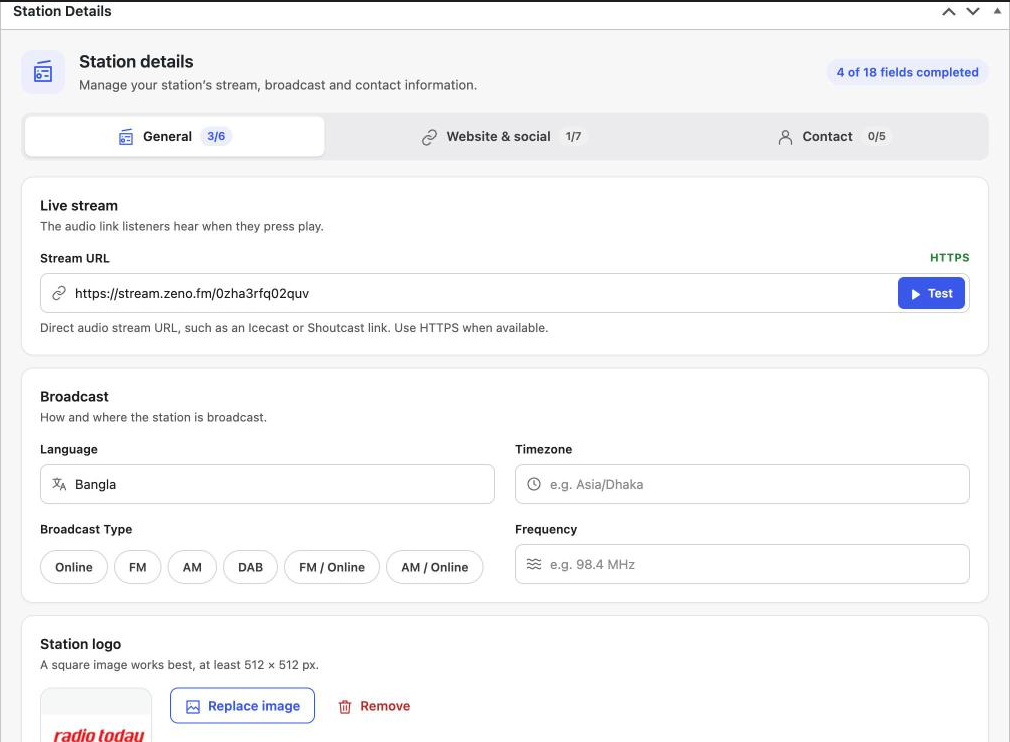
- In the Station details box, paste the Stream URL and click Test to check it plays.
- Add a Station logo, language, broadcast type and any other details you have.
- In the sidebar, tick the station’s Country (and division, if any) and City, and add Genres.
- Click Publish.
The Station details box#
Station details are split into three tabs. Each tab shows how many of its fields are filled in, and the total appears at the top (for example, 4 of 18 fields completed).
- General: the live stream, broadcast details (language, timezone, broadcast type, frequency) and the station logo.
- Website & social: the station website and links to Facebook, X/Twitter, Instagram, YouTube, TikTok and Wikipedia.
- Contact: email, phone, WhatsApp number, address and any other contact information.
See the Station fields reference for what each field does.
Changes in the Station details box are saved when you click Publish or Update. If a link or email address isn’t valid, the field is highlighted and you will see “Correct the highlighted URL or email fields before saving.”
Location and genres#
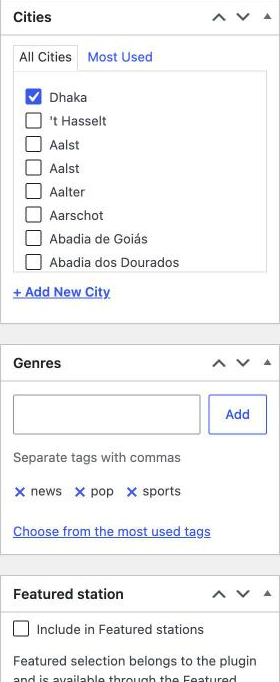
- Countries: tick the country. States and divisions appear under their country.
- Cities: tick the city, or click + Add New City.
- Genres: type genres separated by commas and click Add, or pick from Choose from the most used tags.
Pro: Tick Include in Featured stations to add the station to your featured list. Get TuneSera Pro
Edit a station#
- Go to TuneSera → Stations.
- Find the station (see Find and filter stations) and click its name.
- Make your changes and click Update.
Edited an imported station? Your changes are kept when you import again, unless you choose Update existing and import missing. See Handle duplicates and existing stations.
Remove a station#
Hover over a station in the list and click Trash. To remove several at once, tick them, choose Move to Trash from Bulk actions and click Apply.