1 min readUpdated  TuneSera
Back up your TuneSera configuration, copy it to another site, or start over with the default settings.
Export settings#
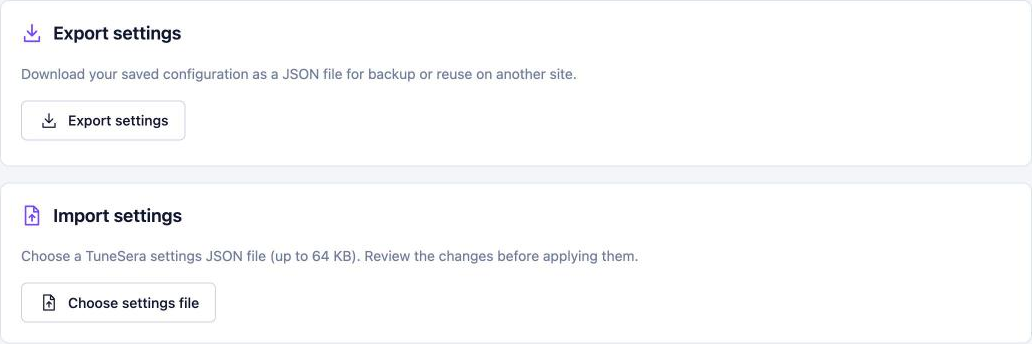
Go to TuneSera → Settings → Advanced and click Export settings. TuneSera downloads your configuration as a JSON file. Stations aren’t included, only settings.
Import settings#
- On the site you want to change, go to Settings → Advanced.
- Under Import settings, click Choose settings file and select a TuneSera settings JSON file (up to 64 KB).
- Review the changes, then apply them.
Save or discard any pending edits before importing.
Reset settings#
Under Reset settings, click Reset to defaults and confirm. All settings, including layout and design, return to their defaults. Your stations, pages, locations, genres and license are kept.
Export your settings before making big design changes, so you can always go back.
Related articles#
Was this article helpful?