2 min readUpdated  TuneSera
Show your stations as a clean list or a grid of cards, decide whether visitors can switch, and set how many columns appear on each screen size.

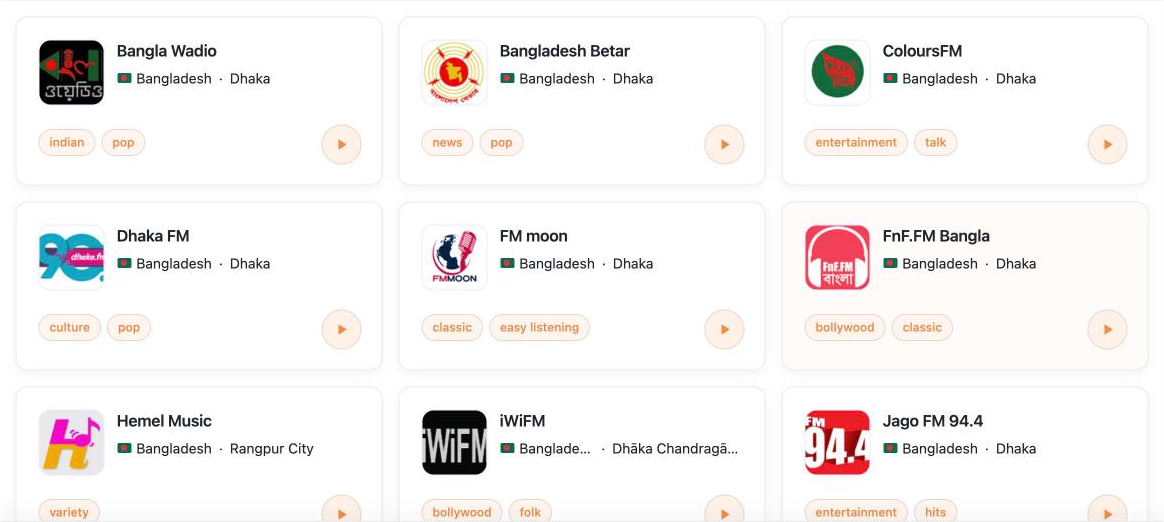
Choose the default layout#
- Go to TuneSera → Settings → Layout → Directory.
- Under Default view, choose List or Grid.
- Click Save changes.
Let visitors switch#
Turn on Allow visitors to switch views to show List and Grid buttons above the stations. Their choice is remembered for their next visit.
Grid columns#
Set how many cards appear side by side with Desktop grid columns, Tablet grid columns and Mobile grid columns. Use the Desktop, Tablet and Mobile buttons in the Live preview to check each size.
Sidebars#
Add a list of countries, divisions, cities or genres beside the stations:
- Show country sidebar, Show division sidebar, Show city sidebar, Show genre sidebar.
- Country sidebar position: left or right.
Sidebars are off by default. Visitors can still open these lists from the browse button (for example Browse Countries), which opens them in an overlay.
Grid works well with logos. If many of your stations have no logo, the list view usually looks tidier.