2 min readUpdated  TuneSera
On this page
Featured stations let you hand-pick stations to highlight, such as your own station, partners or listener favourites, and show them anywhere with a shortcode in the order you choose.
Pro feature. This feature needs TuneSera Pro with an active license. Get TuneSera Pro
Open Featured stations#
Go to TuneSera → Stations and click the Featured stations tab at the top.

Add stations#
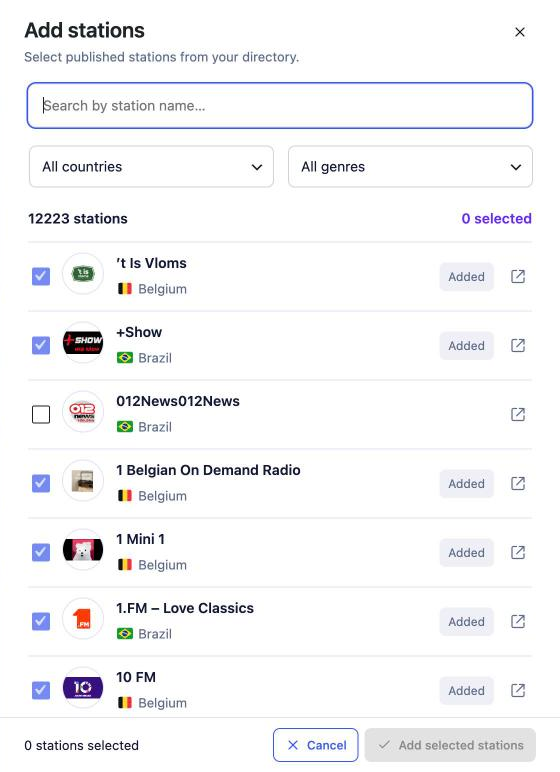
- Click Add stations.
- Search by station name, or narrow the list with the country and genre filters.
- Tick the stations you want. Stations already featured show Added.
- Click Add selected stations.
You can also feature a station from the station editor: tick Include in Featured stations in the sidebar and update the station.
Reorder and remove#
- Drag the handle (⋮⋮) next to a station to change its position. The order here is the order visitors see.
- Click Remove to take a station off the list. The station itself isn’t deleted.
- Changes save automatically.
Show featured stations on your site#
Add this shortcode to any page or post:
[tunesera_featured_stations]Customise it in TuneSera → Settings → Shortcodes, or see Featured and popular station shortcodes.
Related articles#
Was this article helpful?