2 min readUpdated  TuneSera
On this page
A good logo makes your directory look polished and helps listeners recognise stations at a glance. You can use an image from your Media Library or link to an image online.
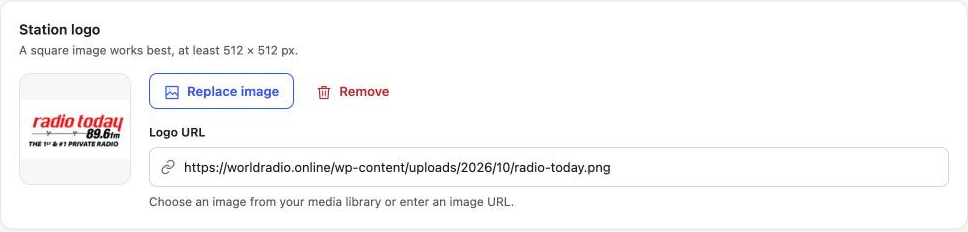
Use an image from your Media Library#
- Open the station and go to Station details → General → Station logo.
- Click Upload or choose logo (or Replace image if the station already has one).
- Upload a new image or pick one from your Media Library, then click Use this image.
- Click Update (or Publish).
Use an image URL#
Paste the image address into Logo URL. TuneSera uses it whenever no Media Library image is selected. Imported stations usually start with a logo URL.
Remove a logo#
Click Remove, then update the station. Stations without a logo show the station’s initials instead.
Logo tips#
- Use a square image, at least 512 × 512 px.
- PNG or WebP with a transparent or plain background looks best on cards.
- Choose the logo shape and size shown on station cards in TuneSera → Settings → Layout.
Pro: Save imported logos to your Media Library automatically. See Save station logos to the Media Library. Get TuneSera Pro
Related articles#
Was this article helpful?