3 min readUpdated  TuneSera
On this page
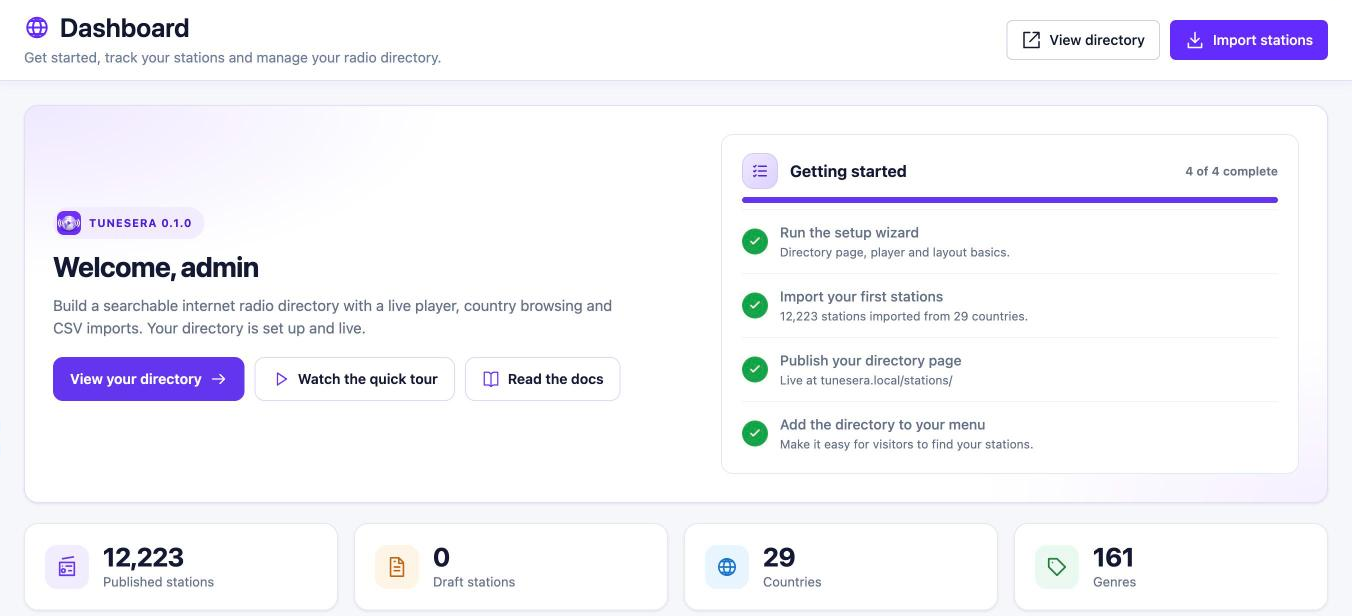
The TuneSera dashboard is your home base. It shows what is left to set up, how many stations you have, and gives you one-click access to every tool. Open it from TuneSera → Dashboard.
Quick actions#
Two buttons sit at the top right of every dashboard visit:
- View directory opens your public directory page in a new tab.
- Import stations takes you to Import Stations to add more.
Welcome panel#
The welcome panel shows your TuneSera version and three shortcuts:
- View your directory – opens your directory page. Until every checklist item is done, this button reads Next: followed by your next step, and takes you straight to it.
- Watch the quick tour – plays a short video tour right on the dashboard.
- Read the docs – opens this documentation.
The quick tour video only loads from YouTube (youtube-nocookie.com) after you click the button. Nothing loads before that, and your visitors are never affected.
Getting started checklist#
The checklist tracks the four things every directory needs and ticks each one off automatically:
- Run the setup wizard – your directory page, player and layout basics.
- Import your first stations – done once you have published stations. It shows how many stations and countries you have.
- Publish your directory page – done when your directory page is published. It shows the page address.
- Add the directory to your menu – done when your directory page appears in a site menu or block theme navigation.
Unfinished items show a button that takes you straight to the right place, such as Run setup, Import, Choose page or Edit menus.
Directory totals#
- Published stations – stations visitors can see.
- Draft stations – stations saved but not published yet.
- Countries and Genres – how many countries and genres have at least one published station.
Recently added stations and directory details#
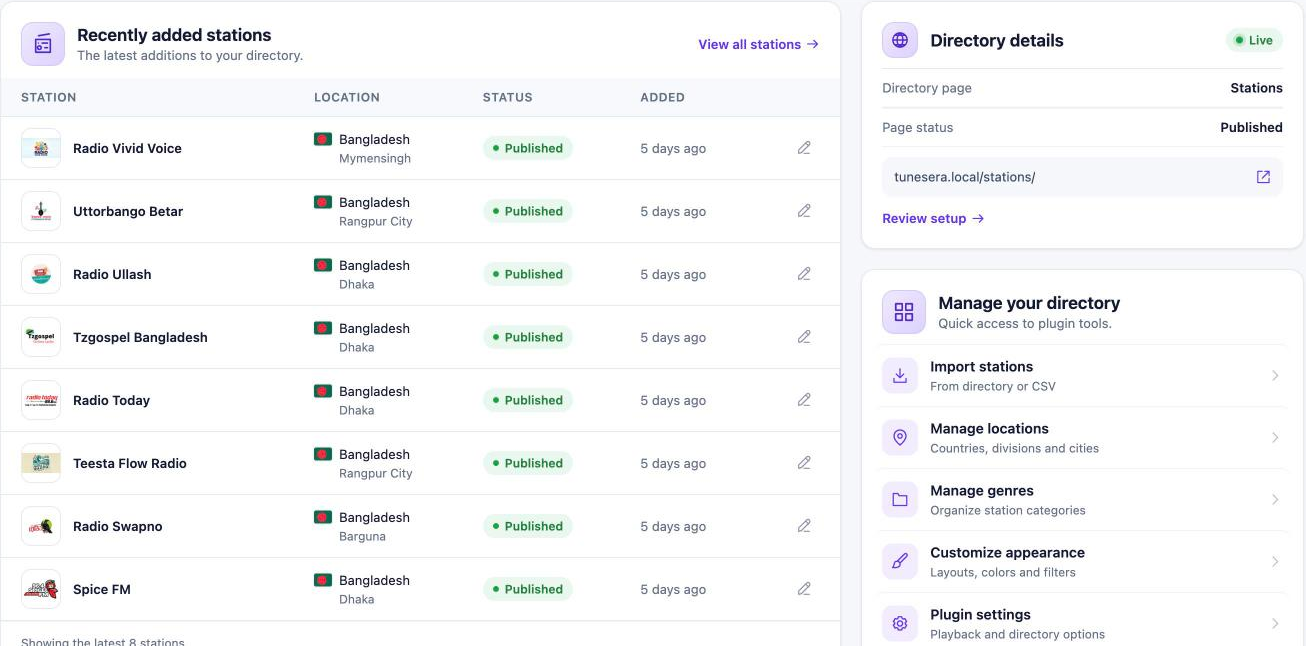
Recently added stations lists your 8 newest stations with their location, status and when they were added. Click the pencil icon to edit a station, or View all stations to open the full list.
Directory details shows which page holds your directory, whether it is published, and its address. A green Live badge means visitors can reach it. Click Review setup to reopen the setup wizard.
Manage your directory#
Shortcuts to the tools you will use most:
- Import stations – from the directory or a CSV file.
- Manage locations – countries, divisions and cities.
- Manage genres – organize station categories.
- Customize appearance – layouts, colors and filters.
- Plugin settings – playback and directory options.
Help & resources#
At the bottom of the dashboard you will find links to the Documentation, Video tutorials on the WPSera YouTube channel, Get support to open a ticket, and Leave a review. You can also follow WPSera on YouTube, Facebook, X and LinkedIn, or join the Facebook community.
Country and genre counts only include published stations, so they go up as soon as you publish new stations.