1 min readUpdated  TuneSera
Get a summary of listening trends, top stations and playback health in your inbox, without logging in.
Pro feature. This feature needs TuneSera Pro with an active license. Get TuneSera Pro
Set up email reports#
- Go to TuneSera → Settings → Analytics → Email reports.
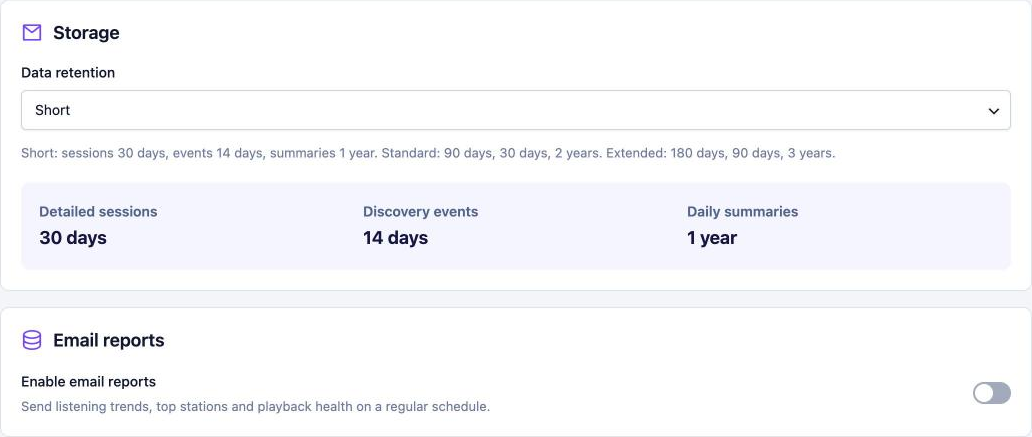
- Turn on Enable email reports.
- Enter the recipient email address. It defaults to your site’s admin email.
- Choose how often: daily or weekly. For weekly reports, pick the day.
- Choose the time to send.
- Click Save changes.
What the email includes#
- Listening trends for the period.
- Your top stations.
- Playback health, so you can spot broken streams.
Emails are sent by WordPress’s scheduler. On quiet sites they may arrive a little late. Using a real cron job (ask your host) makes timing reliable. If emails don’t arrive at all, check your site can send email, for example with an SMTP plugin.
Related articles#
Was this article helpful?