1 min readUpdated  TuneSera
On this page
Change the look of the sticky player, show it before anyone presses play, and choose which station it starts with.
Pro feature. This feature needs TuneSera Pro with an active license. Get TuneSera Pro
Choose a player style#
- Go to TuneSera → Settings → Player → Sticky player.
- Under Sticky player style, choose a style.
- Click Save changes.
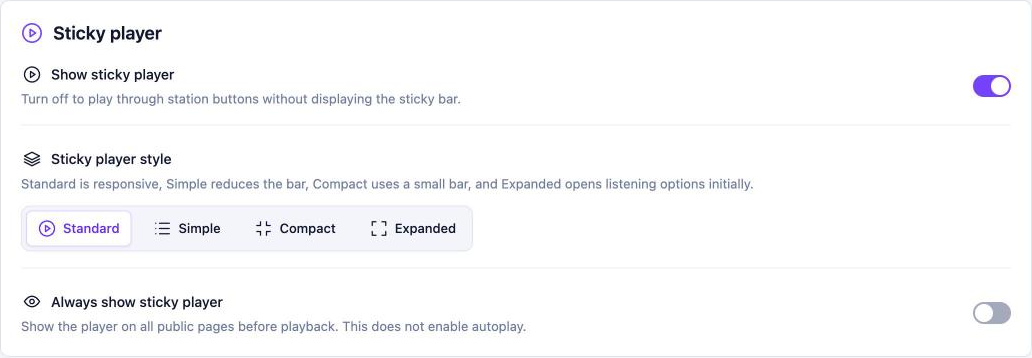
| Style | Best for |
|---|---|
| Standard | Most sites. Responsive, with all your chosen controls. |
| Simple | A reduced bar with fewer details. |
| Compact | A small bar that takes up less space. |
| Expanded | Opens the listening options panel straight away. |
Always show the sticky player#
Normally the player appears once a visitor presses play. Turn on Always show sticky player to show it on every public page from the start, inviting visitors to listen. This doesn’t autoplay.
Choose a default station#
When Always show sticky player is on, a Default station option appears. Pick the station the player is ready to play, such as your own station. If you leave it as First available station, the first playable station is used.
A visitor’s remembered station takes priority. Returning listeners see the last station they played.
Related articles#
Was this article helpful?