2 min readUpdated  TuneSera
Field mapping lets you import a CSV file with any column names. Match each column in your file to a TuneSera station field, and you don’t need to rename anything in your spreadsheet first.
Pro feature. This feature needs TuneSera Pro with an active license. Get TuneSera Pro
Map your columns#
- Go to TuneSera → Import Stations, open Upload CSV, choose your file and click Continue.
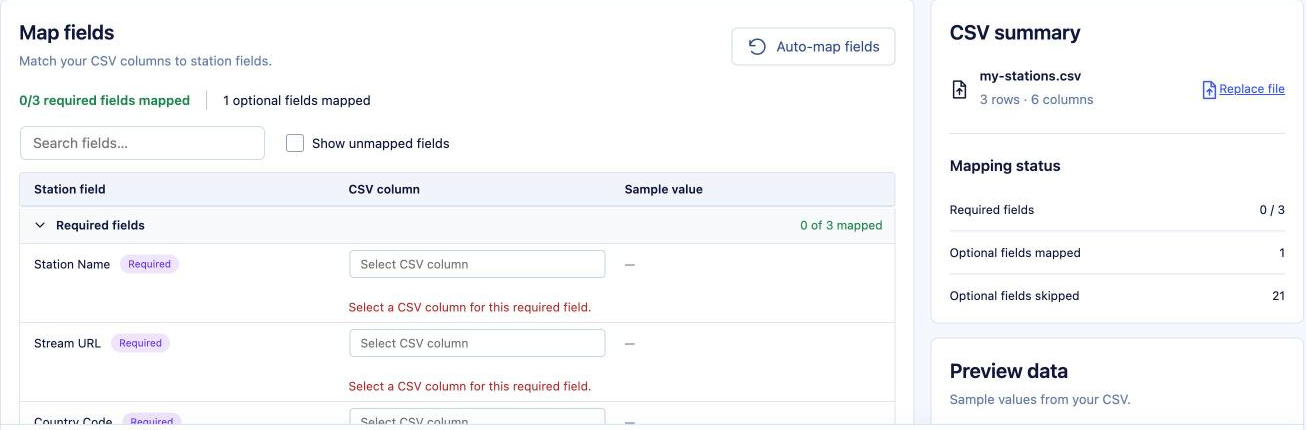
- On the Map fields step, click Auto-map fields. TuneSera matches any columns that use the standard sample names.
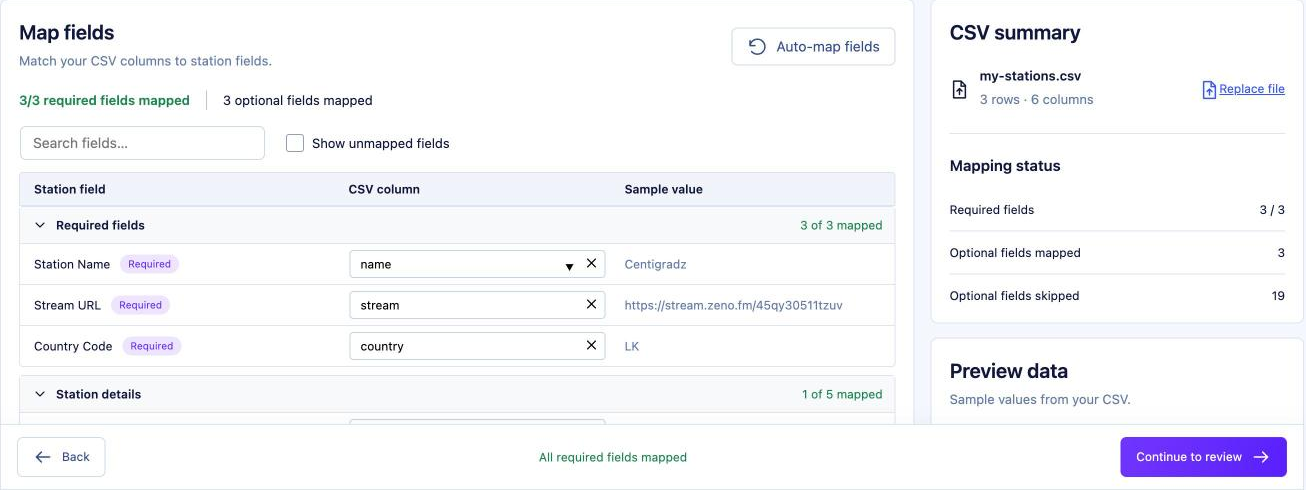
- For every field that is still empty, click the CSV column box and pick the matching column from your file. The Sample value column shows data from your file so you can check the match.
- Map the three required fields: Station Name, Stream URL and Country Code. The button stays disabled until all three are mapped.
- Map any optional fields you want to import. Leave a field empty to skip it (“Do not import”).
- Click Continue to review.
Helpful tools on this screen#
- Search fields…: find a station field quickly.
- Show unmapped fields: show only the fields you haven’t matched yet.
- Clear (×): remove a mapping and choose again.
- CSV summary: your file name, number of rows and columns, and Replace file.
- Mapping status: how many required and optional fields are mapped or skipped.
- Preview data: flick through sample rows from your file to check the values.
Fields are grouped into Required fields, Station details, Location, Broadcast details, Website & social links and Contact information.
Each CSV column can only be mapped to one station field. Column names are matched without regard to capital letters.
Without Pro#
The free plugin imports CSV files that use the standard column names from the sample CSV. Field mapping is shown as a preview with a PRO badge. See Import from a CSV file for the column list.
Related articles#
Was this article helpful?