2 min readUpdated  TuneSera
On this page
Your directory page is where visitors search, filter and play your stations. TuneSera can create it for you, or you can add the directory to any page you already have.
Choose or create the directory page#
The setup wizard does this for you. To change it later:
- Go to TuneSera → Settings → URLs and Pages.
- Under Directory page, choose the page to use.
- Click Save changes. Click View page to open it.
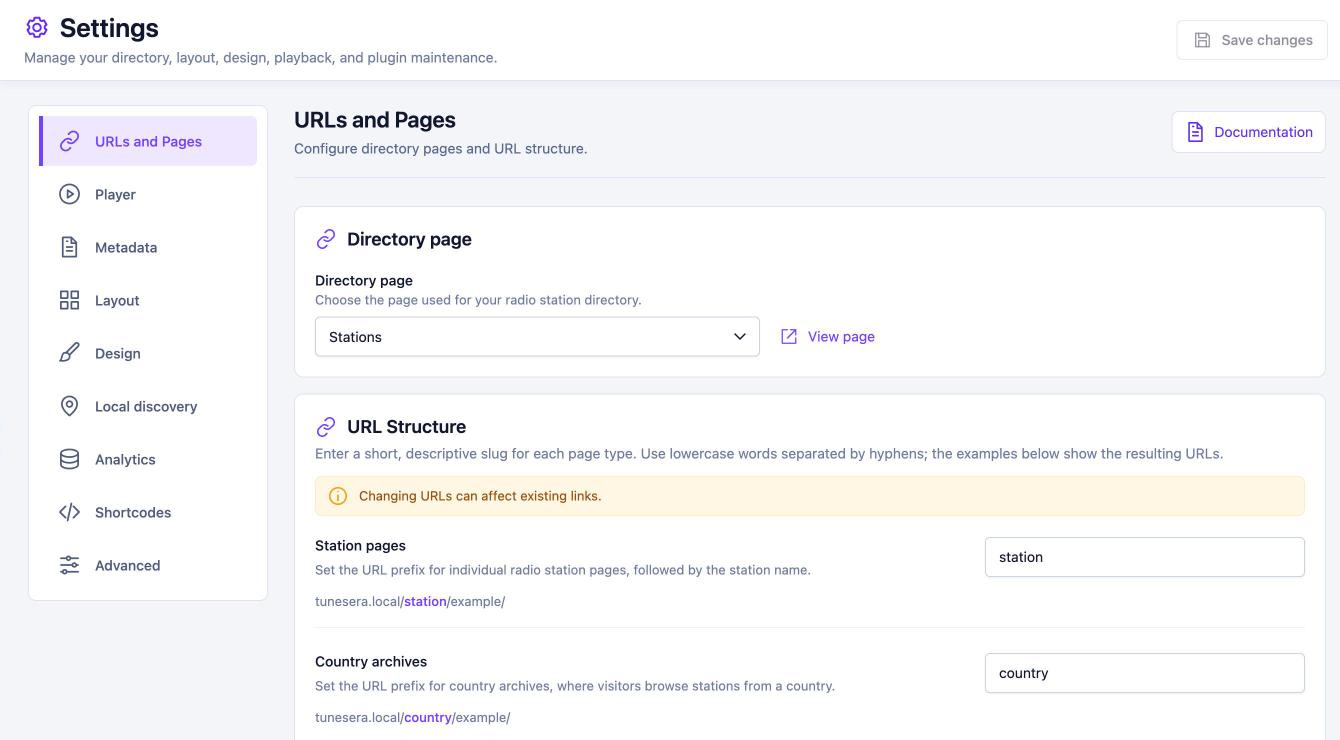
TuneSera adds the directory to the page and keeps any content already on it. The page must be published for visitors to see it. The dashboard’s Directory details panel shows a green Live badge when it is.
Add the directory to any page#
You can also place the directory yourself with a shortcode. Add a Shortcode block to any page and enter:
[tunesera_directory]Add an optional heading above the directory with the title and subtitle attributes:
[tunesera_directory title="World Radio" subtitle="Live stations from around the globe"]Use the directory on one page only. Station pages, archives and breadcrumbs link back to the page selected under Directory page.
Repair a missing page#
If you deleted the directory page by mistake, go to TuneSera → Settings → Advanced and click Repair required plugin pages, or choose another page under URLs and Pages.