1 min readUpdated  TuneSera
On this page
Choose which buttons appear in the player and how playback behaves, from the starting volume to resuming a station when a visitor comes back.
Visible controls#
Go to TuneSera → Settings → Player → Visible controls and turn each control on or off:
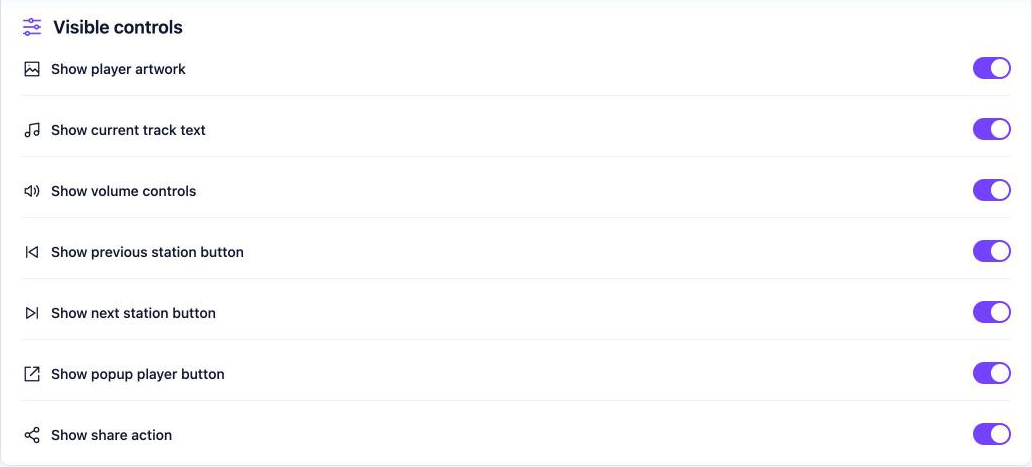
| Setting | What it shows |
|---|---|
| Show player artwork | The station logo or track artwork. |
| Show current track text | The current song. Needs current-song metadata to be on. |
| Show volume controls | The volume slider and mute button. |
| Show previous station button / Show next station button | Buttons to move through the stations in the current list. |
| Show popup player button | The popup player option (Pro). |
| Show share action | The Share option. Needs sharing to be on. |
Playback#
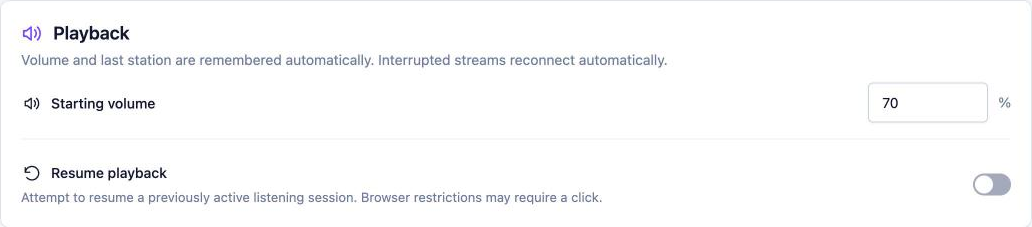
- Starting volume: the volume (0–100%) for first-time listeners.
- Resume playback: try to continue the station a visitor was listening to when they return. Browsers may still require a click before audio starts.
Some things happen automatically, with nothing to set up:
- Each visitor’s volume and last station are remembered.
- If a stream drops, the player reconnects automatically.
Click Save changes at the top right when you are done.
Related articles#
Was this article helpful?