2 min readUpdated  TuneSera
TuneSera gives stations and archives clean, readable addresses. You can change the word used for each type of page, for example /radio/ instead of /station/.
Change URL slugs#
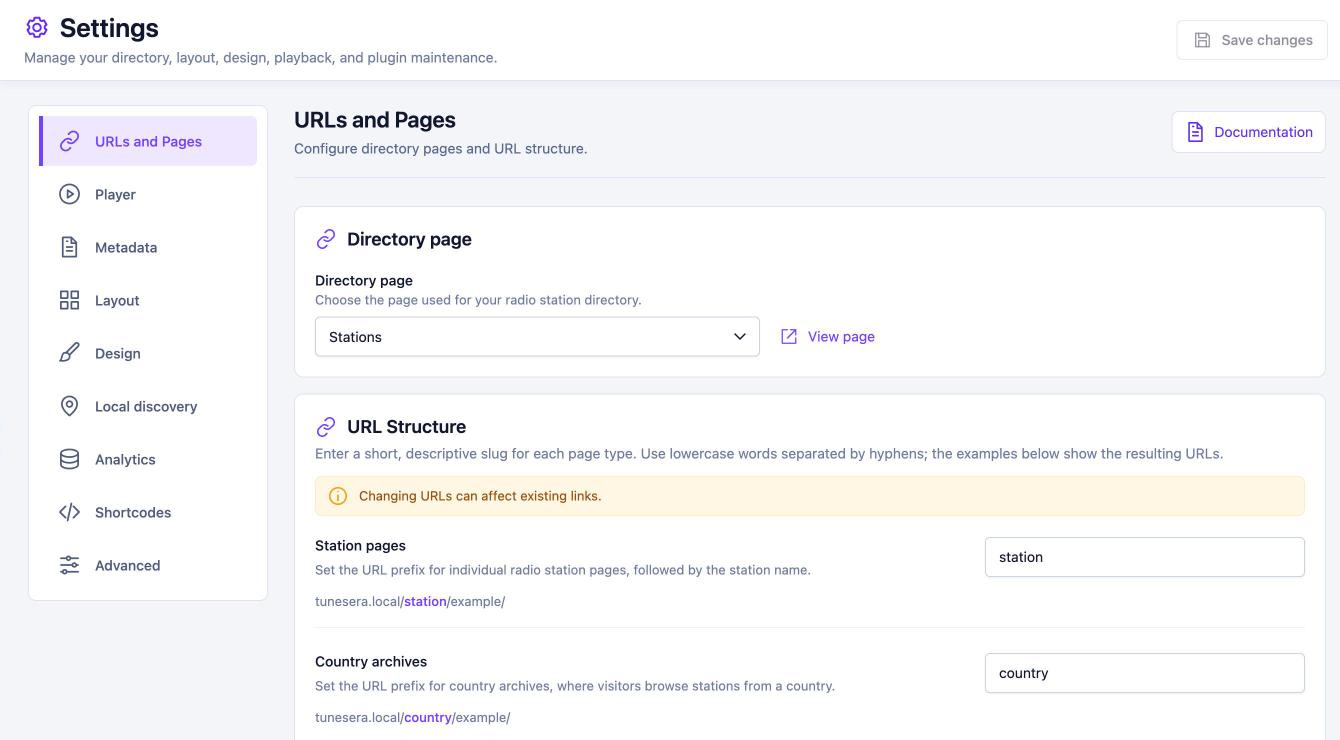
- Go to TuneSera → Settings → URLs and Pages.
- Under URL Structure, edit the slug for each page type. The example below each field shows the resulting address.
- Click Save changes.
| Setting | Default | Example address |
|---|---|---|
| Station pages | station | /station/bbc-radio-1/ |
| Country archives | country | /country/bangladesh/ |
| Division / state archives | division | /division/dhaka-division/ |
| City archives | city | /city/dhaka/ |
| Genre archives | genre | /genre/jazz/ |
Use short, lowercase words separated by hyphens. Spaces and capital letters are tidied up automatically when you save. You can set the same slugs in the setup wizard under Advanced URL settings.
Changing URLs can affect existing links. Old addresses stop working after you change a slug, so update links in menus, posts and anywhere you have shared them. Choose your slugs before you launch if you can.
The directory page address#
The directory itself lives on a normal WordPress page, for example /stations/. Change it by editing that page’s permalink, or by choosing a different page under Directory page.
Pages don’t load after changing slugs? Go to Settings → Permalinks in WordPress and click Save Changes to refresh your site’s links.