2 min readUpdated  TuneSera
Match your radio directory to your brand in a couple of clicks. Pick a ready-made colour preset or set each colour yourself, and see the result instantly.
Apply a colour preset#
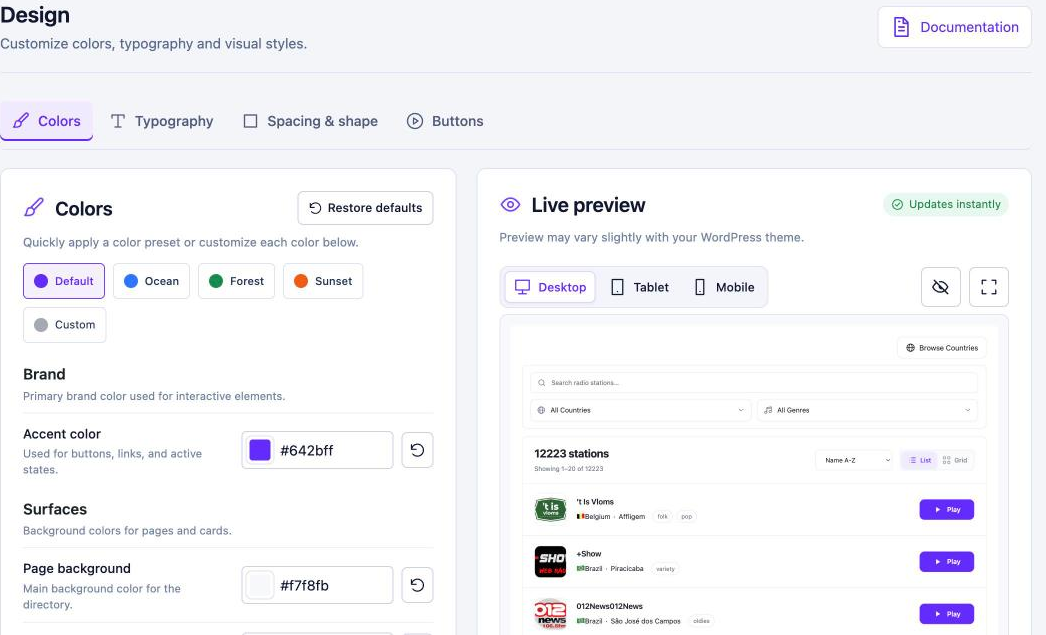
- Go to TuneSera → Settings → Design → Colors.
- Click a preset: Default, Ocean, Forest or Sunset.
- Check the Live preview on the right, switching between Desktop, Tablet and Mobile.
- Click Save changes.
Customise each colour#
Change any colour by clicking its swatch or typing a hex code. Once you change a colour, the preset switches to Custom.
| Setting | Where it is used |
|---|---|
| Accent color | Buttons, links and active states. Your main brand colour. |
| Page background | The background behind the directory. |
| Card background | Station cards and panels. |
| Card hover background | Cards when a visitor hovers over them. |
| Text color | Titles and main text. |
| Secondary text | Descriptions and less important text. |
| Border color | Borders, dividers and subtle lines. |
| Button text color | Text on buttons, such as Play. |
Click the reset icon next to a colour to restore just that colour, or Restore defaults to reset the whole section.
Make sure text stays easy to read. A light accent colour needs a dark Button text color, and vice versa.
You can also set your brand colour in the setup wizard’s Appearance step.
Pro: Go further with typography, spacing, card shapes and button styles. See Typography and Spacing, shape and buttons. Get TuneSera Pro
Related articles#
Was this article helpful?