On this page
StreamSera Pro is an add-on for the free StreamSera plugin. You keep the free plugin installed and active, add StreamSera Pro next to it and activate your license. Your stations, players and settings stay exactly as they are.
Step 1: Choose a plan and buy#
- Open the StreamSera pricing page.
- Choose Yearly (renews every year) or Lifetime (pay once).
- Click Buy Pro on the plan that fits the number of websites you need.
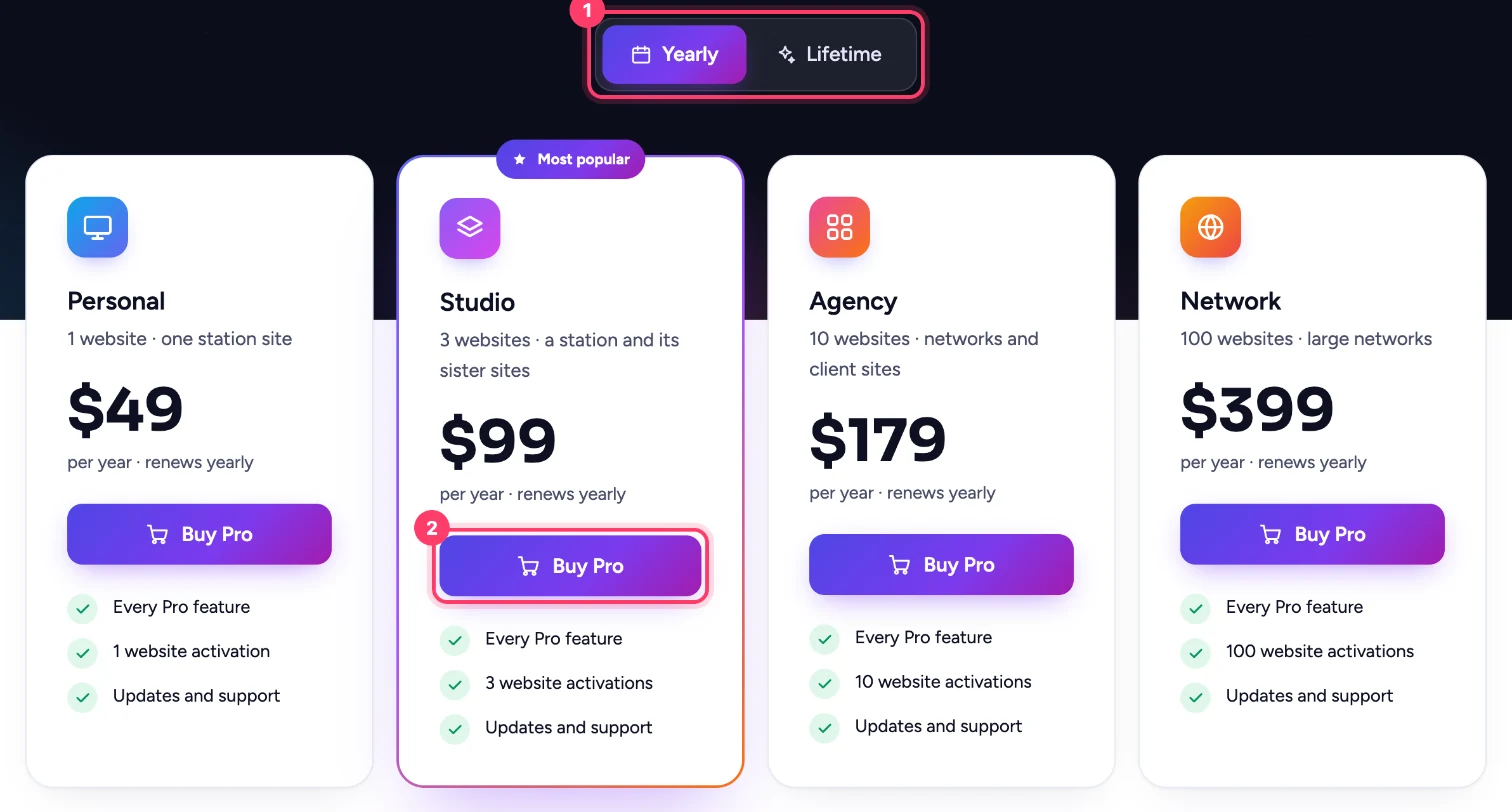
| Plan | Websites |
|---|---|
| Personal | 1 |
| Studio | 3 |
| Agency | 10 |
| Network | 100 |
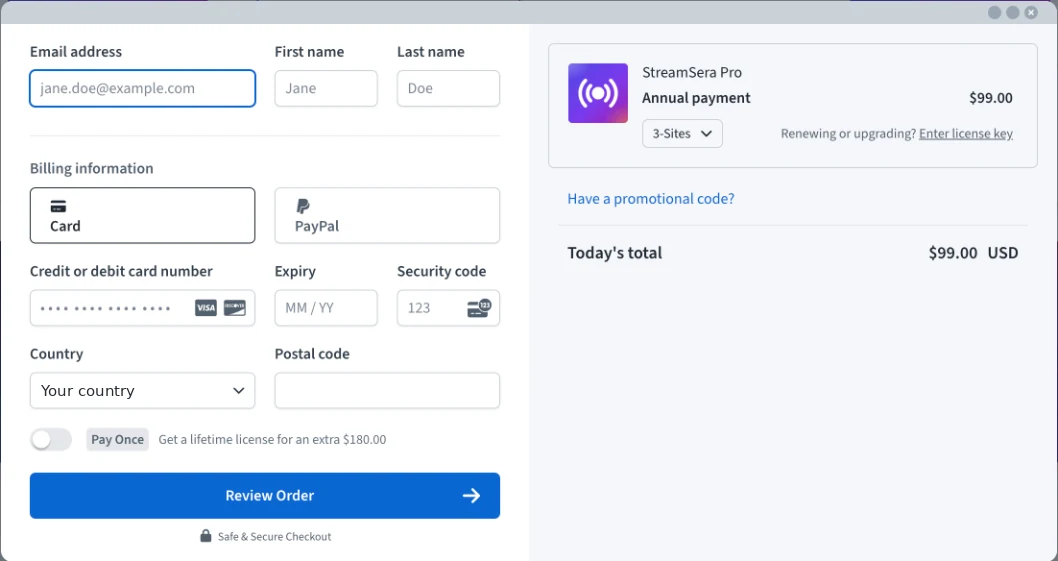
- In the checkout window, enter your email address and name, choose Card or PayPal and fill in your billing details.
- Click Review Order and complete your purchase.
You receive an email with your license key, a link to download StreamSera Pro and your invoice.
Tip: Have a coupon? Click Have a promotional code? in the checkout window.
Step 2: Make sure the free plugin is active#
StreamSera Pro needs the free StreamSera plugin. If it is not on your site yet, install StreamSera from WordPress.org first.
Step 3: Install StreamSera Pro#
- Download the StreamSera Pro zip file from your purchase email.
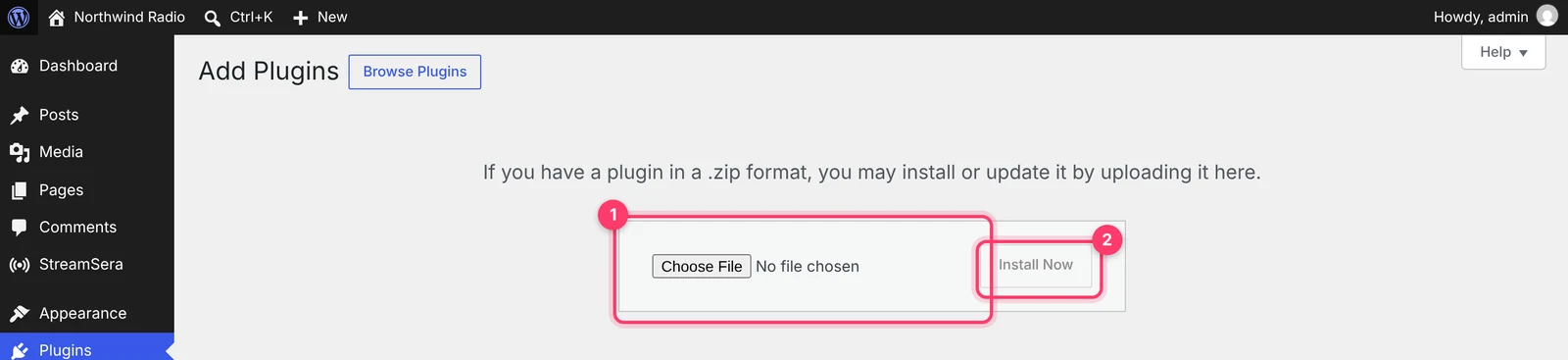
- In WordPress, go to Plugins → Add New Plugin and click Upload Plugin.
- Click Choose File and select the zip file. Do not unzip it.
- Click Install Now, then Activate Plugin.
Step 4: Activate your license#
Right after activation, StreamSera shows the license screen. Until the license is active, every StreamSera page shows this screen and the menu shows only Activate license.
- Copy the license key from your purchase email.
- Paste it into the License key box.
- Click Activate License.
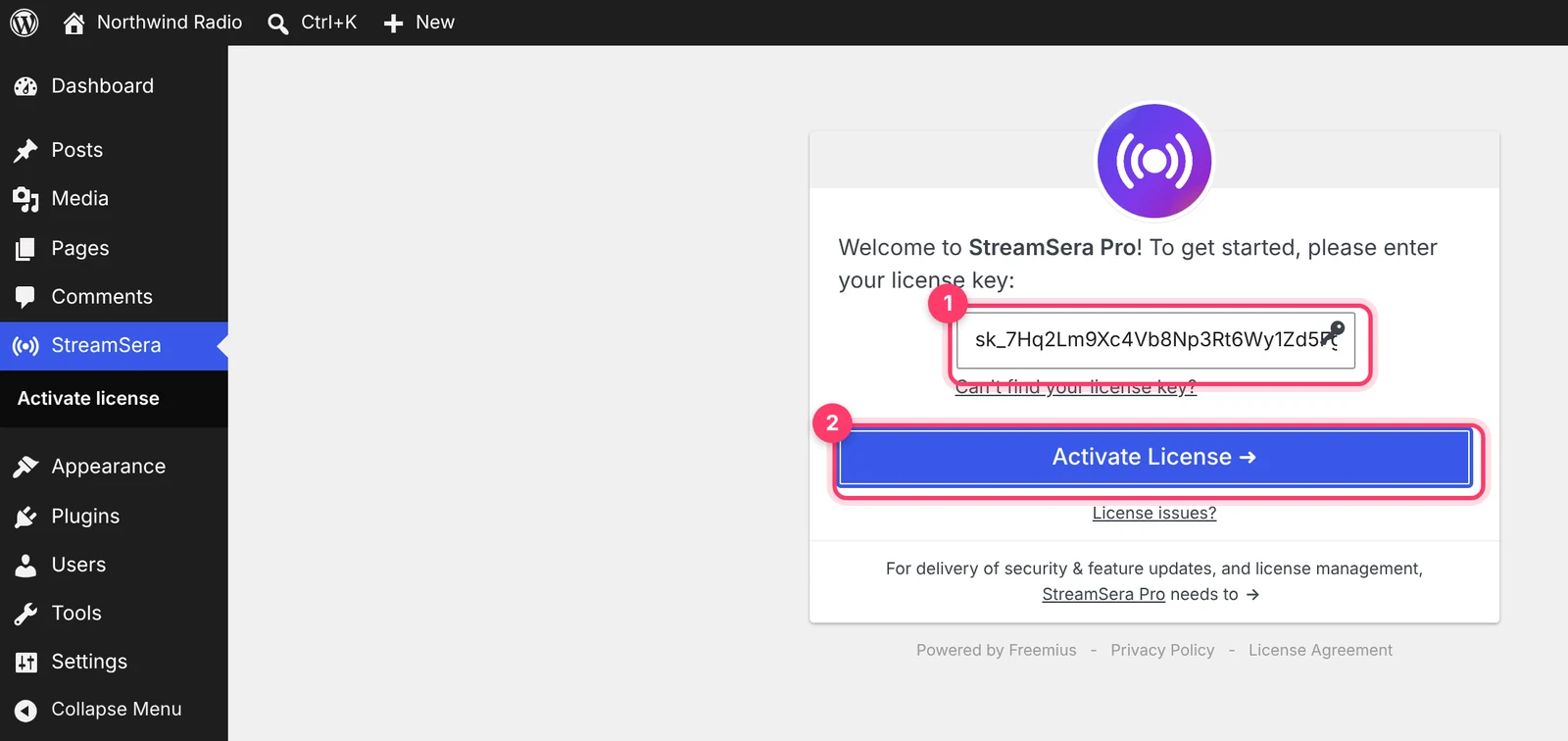
When the license is active, you go to the StreamSera dashboard and the Pro menus appear: Playlists, Schedule, Requests and Account.
Check that everything is installed#
Go to Plugins → Installed Plugins. You should see both plugins, active:
- StreamSera – Live Radio Player & Station Manager (the free plugin)
- StreamSera Pro
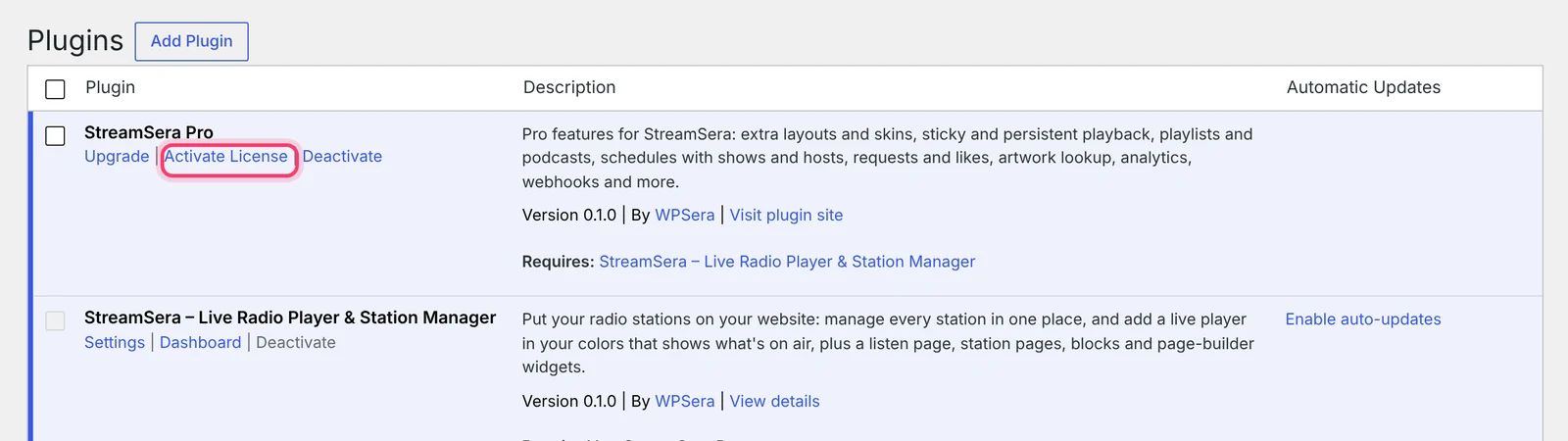
Important: Do not delete the free plugin after installing Pro. Pro adds to the free plugin and needs it to run.
Updates#
With an active license, StreamSera Pro updates appear in Dashboard → Updates and on the Plugins screen, just like any other plugin.
Troubleshooting#
“License key is invalid”#
Copy the key again from your email and make sure there are no spaces before or after it.
“License has reached its activation limit”#
Your plan is already active on as many sites as it allows. Deactivate it on a site you no longer use (see Manage your license) or choose a plan with more websites.
I can’t find my license key#
On the license screen, click Can’t find your license key? and enter the email you used to buy. Still stuck? Contact our support team.