On this page
- Create a player
- The builder at a glance
- Station: what the player plays
- Layout: the shape of the player
- Style: colors, fonts, artwork and background
- Theme
- Text
- Artwork
- Background
- Parts: what the player shows
- Behavior: how it starts and sounds
- Engagement [Pro]
- Start from a template
- Next: put the player on your site
A player is a saved design: which stations it plays, how it looks and how it behaves. You can make as many players as you like, for example a big hero player for your home page and a compact one for the sidebar, and use each one in as many places as you want.
Create a player#
- Go to StreamSera → Players.
- Click New player and pick a template to start from, or open an existing player with Open in builder.
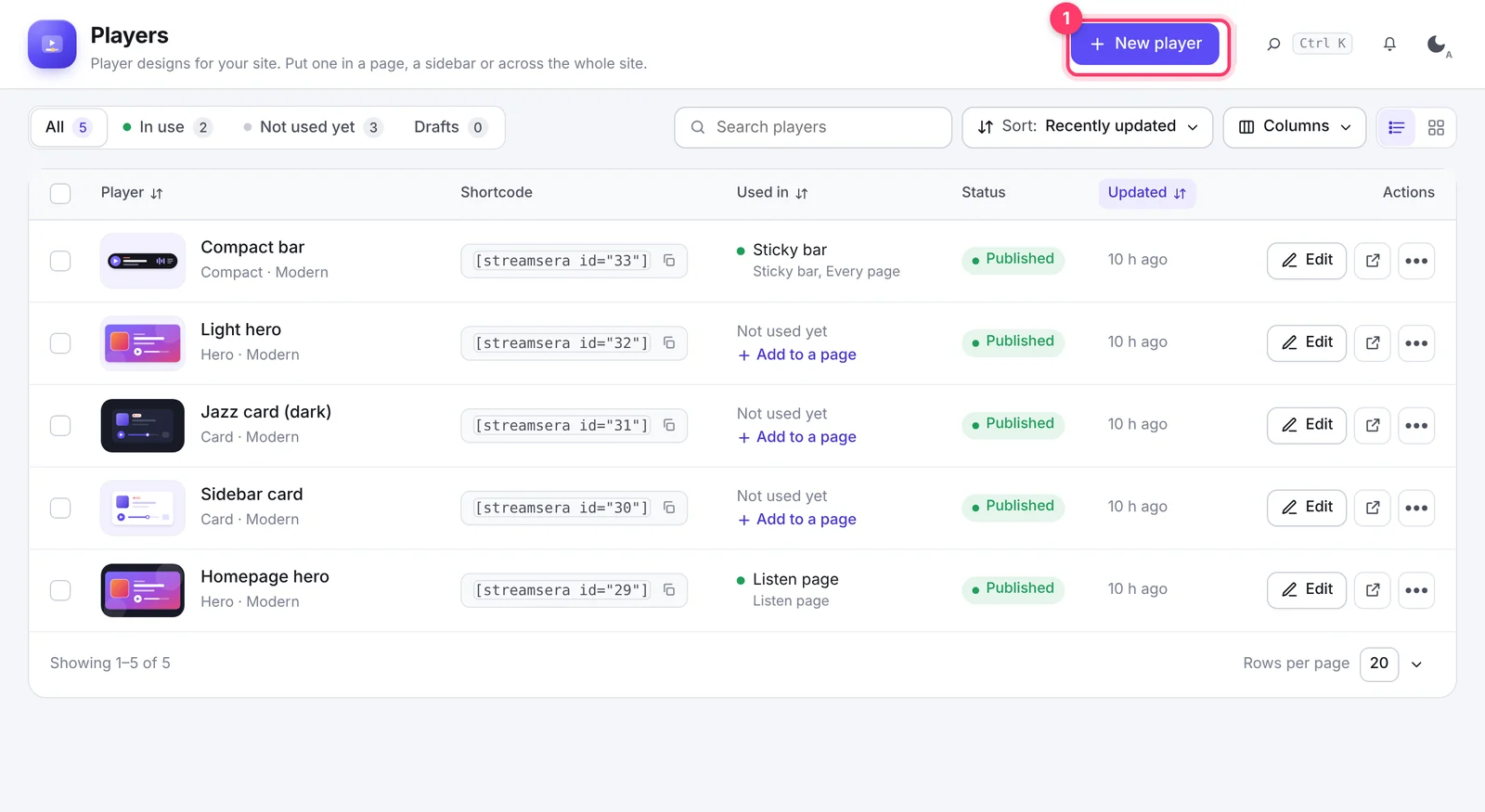
The list shows where each player is used and its shortcode. The tabs filter players that are In use, Not used yet or Drafts.
The builder at a glance#
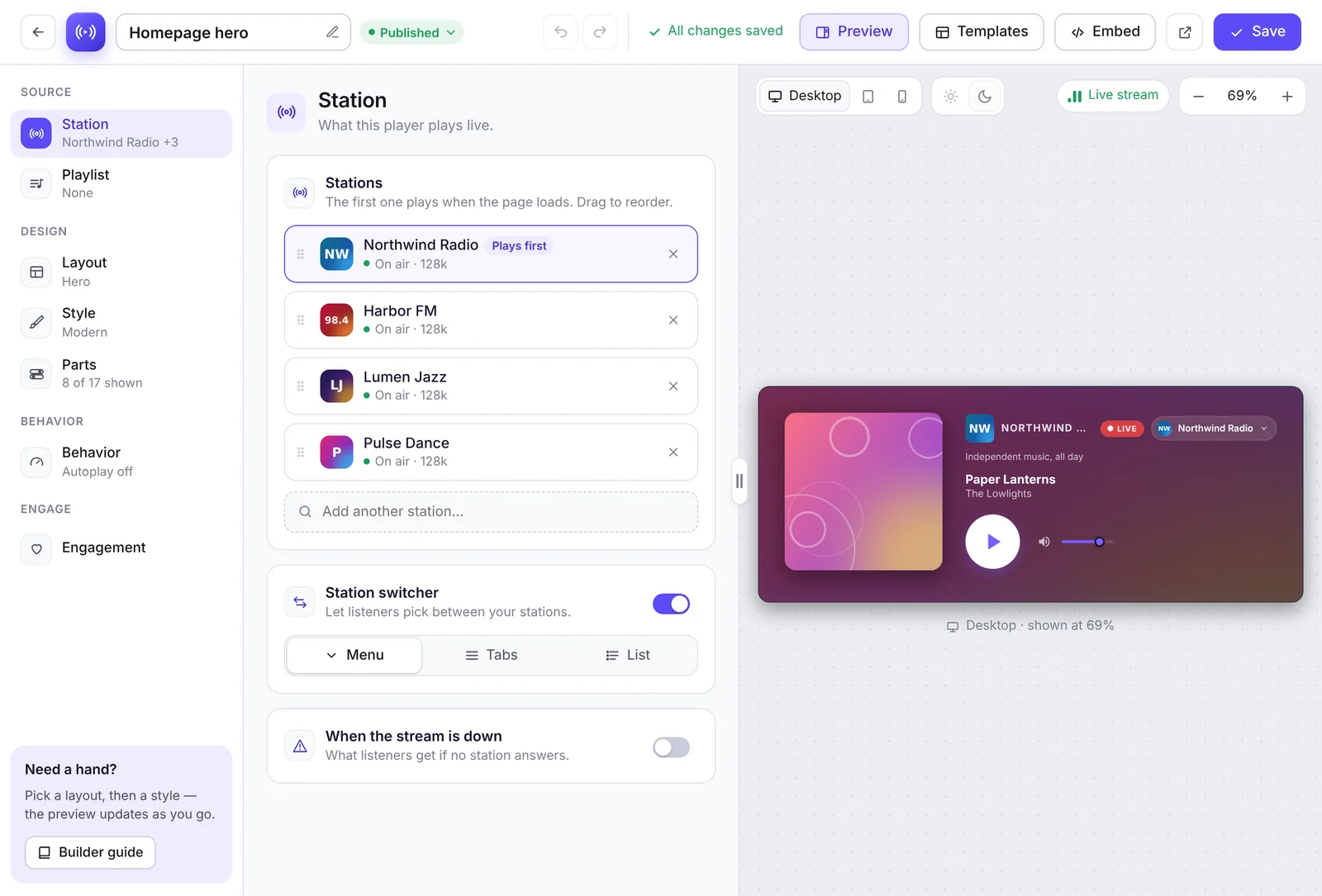
- Left: the builder sections: Station, Playlist [Pro], Layout, Style, Parts, Behavior and Engagement [Pro].
- Middle: the settings of the section you picked.
- Right: a live preview that plays your real stream. Switch between Desktop, Tablet and Mobile, preview in light or dark, and zoom in or out.
- Top bar: the player name (click to rename), status (Published or Draft), Undo and Redo, Preview, Templates, Embed and Save.
Tip: Changes save automatically (“All changes saved”). You can turn this off under Settings → Access & data → Saving and save with the button instead.
Station: what the player plays#
- Stations: add one or more stations. The first one plays when the page loads. Drag to reorder or click Play first.
- Station switcher: with more than one station, let listeners change stations inside the player. Choose how the stations appear: Menu, Tabs or List.
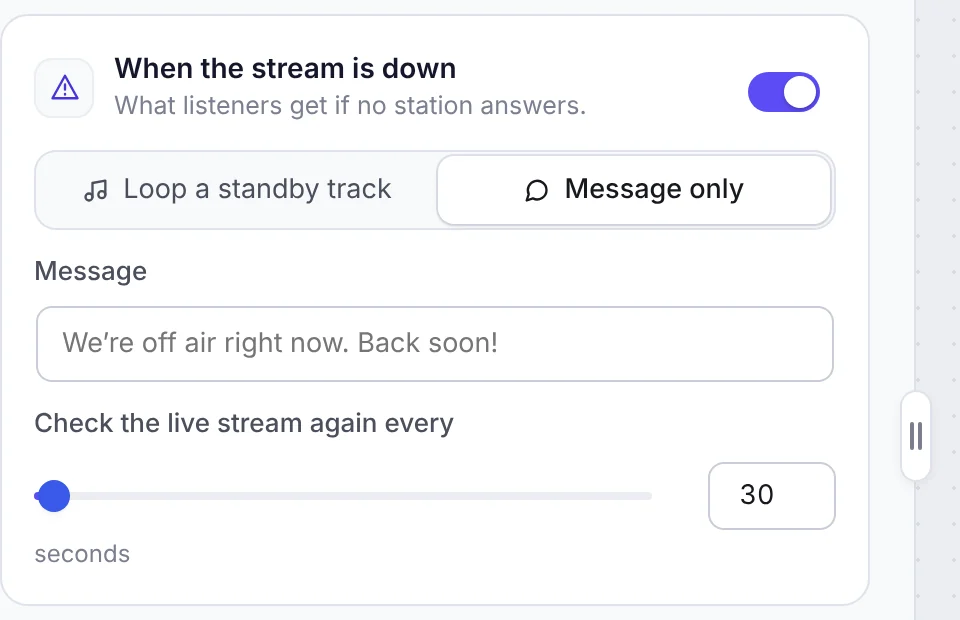
- When the stream is down: what listeners get if no station answers. Choose Loop a standby track (pick an audio file) or Message only, type your message (for example “Back on Monday at 8”), and how often to check the live stream again.
Layout: the shape of the player#
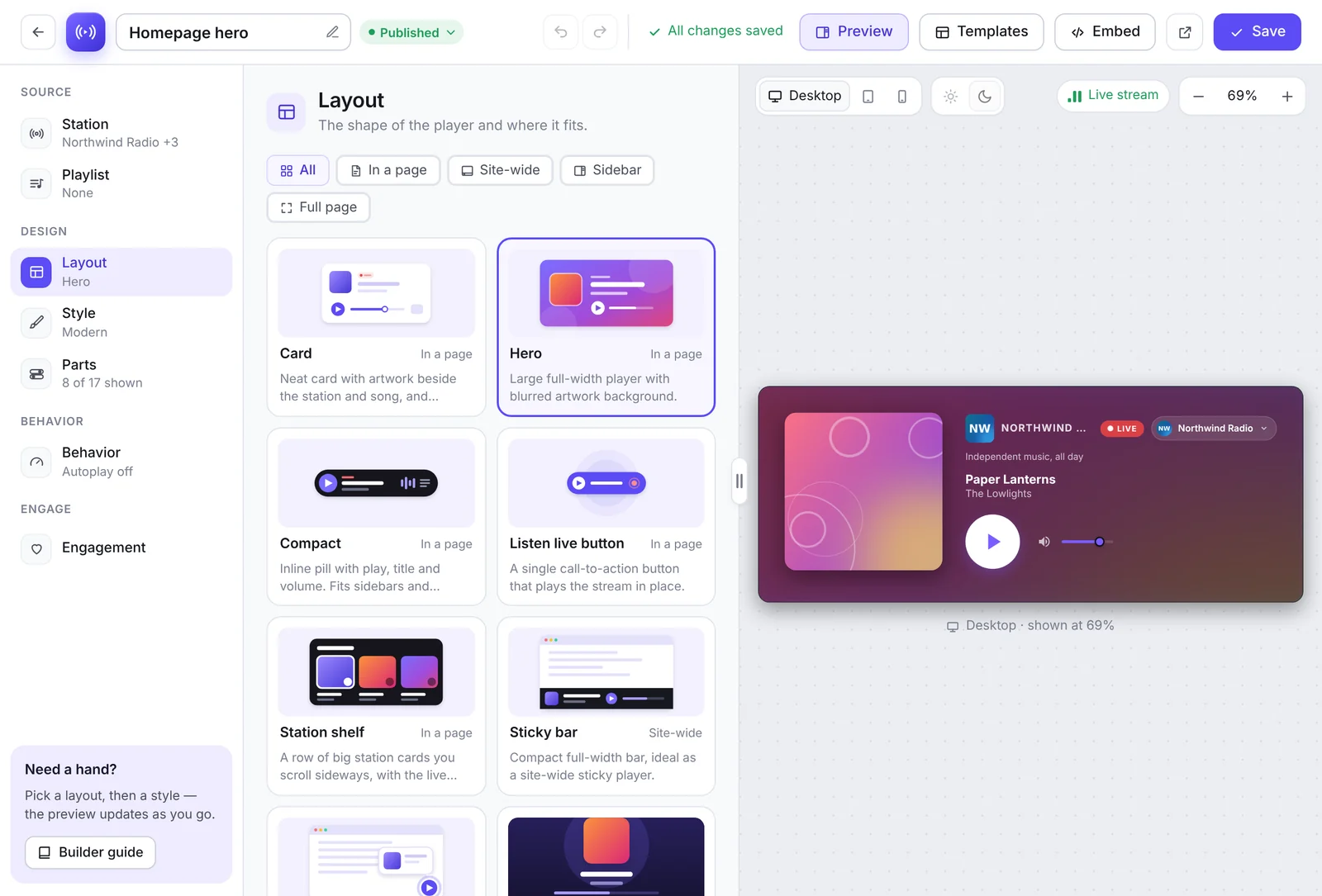
Filter layouts by where they go (In a page, Site-wide, Sidebar, Full page) and click one to use it.
| Layout | Best for | Plan |
|---|---|---|
| Card | Artwork beside the station and song, controls below | Free |
| Hero | A large, full-width player with blurred artwork | Free |
| Compact | An inline pill for sidebars and menus | Free |
| Listen live button | A single button that plays the stream | Free |
| Station shelf | A row of big station cards you scroll sideways | Free |
| Sticky bar, Mini bubble, Full page, Widget | Site-wide bars, floating players, full-screen pages, narrow sidebars | Pro |
| Vinyl, Retro radio, Kiosk, Station grid, Podcast | Themed looks, touch screens, networks and on-demand audio | Pro |
| Custom | Arrange the parts yourself with drag and drop | Pro |
Style: colors, fonts, artwork and background#
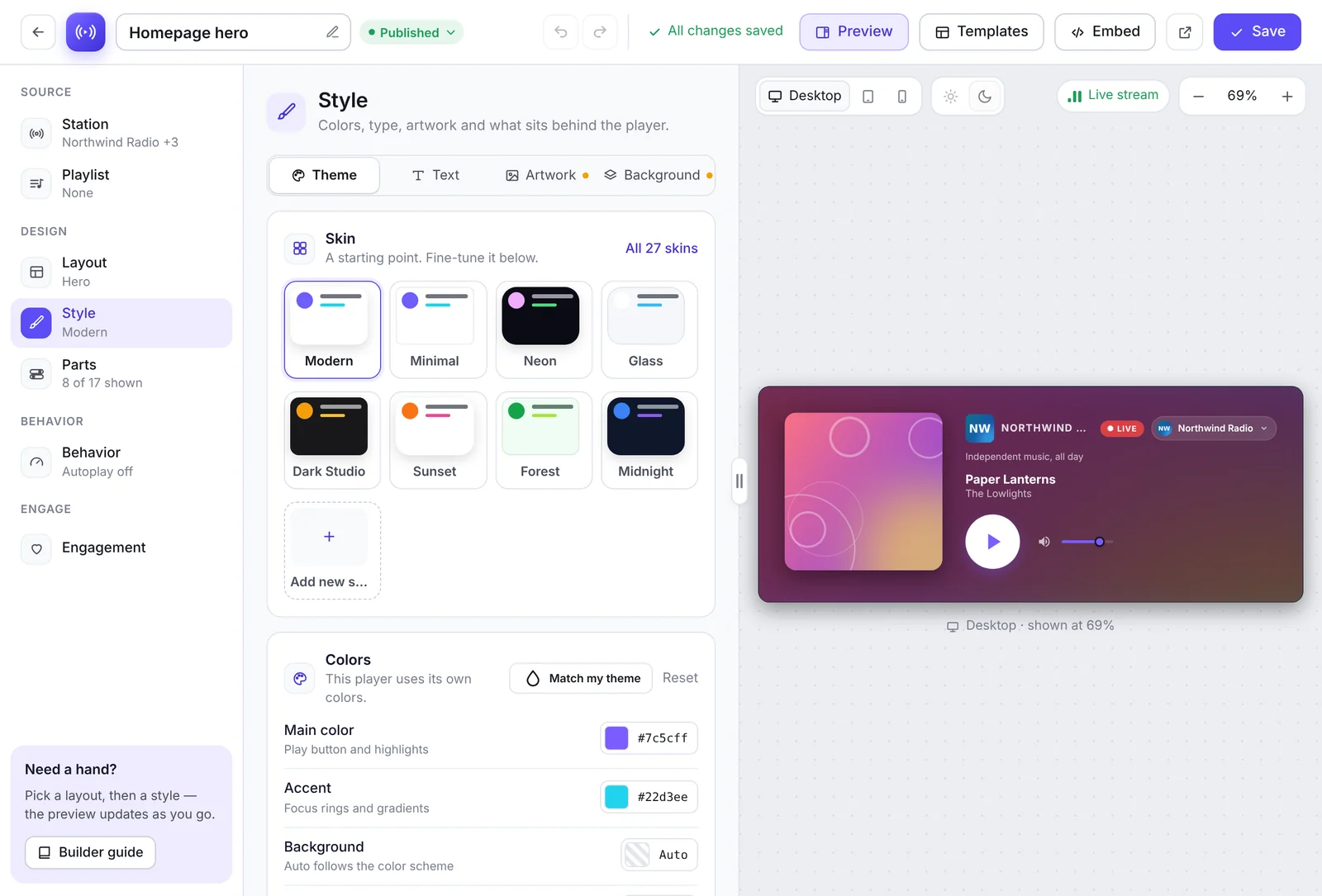
The Style section has four tabs.
Theme#
- Skin: a starting look. Modern, Minimal, Neon, Glass and Dark Studio are free; Pro adds more (Sunset, Forest, Midnight and others). Click Add new skin to save your own.
- Colors: main color (play button and highlights), accent and background. Match my theme picks colors from your WordPress theme. Use global brand colors follows your site brand [Pro], and Match colors to artwork [Pro] tints the player with each song’s cover.
- Corner radius: Square, Soft, Round or Pill.
Text#
Pick a font and the type scale (Small, Default or Large). Google Fonts are a Pro feature; the free plugin uses your site’s fonts.
Artwork#
The shape of the cover image (square, rounded, circle and more), effects such as a shadow, brand glow, polaroid or duotone, and motion like Spin while playing or Zoom on hover.
Background#
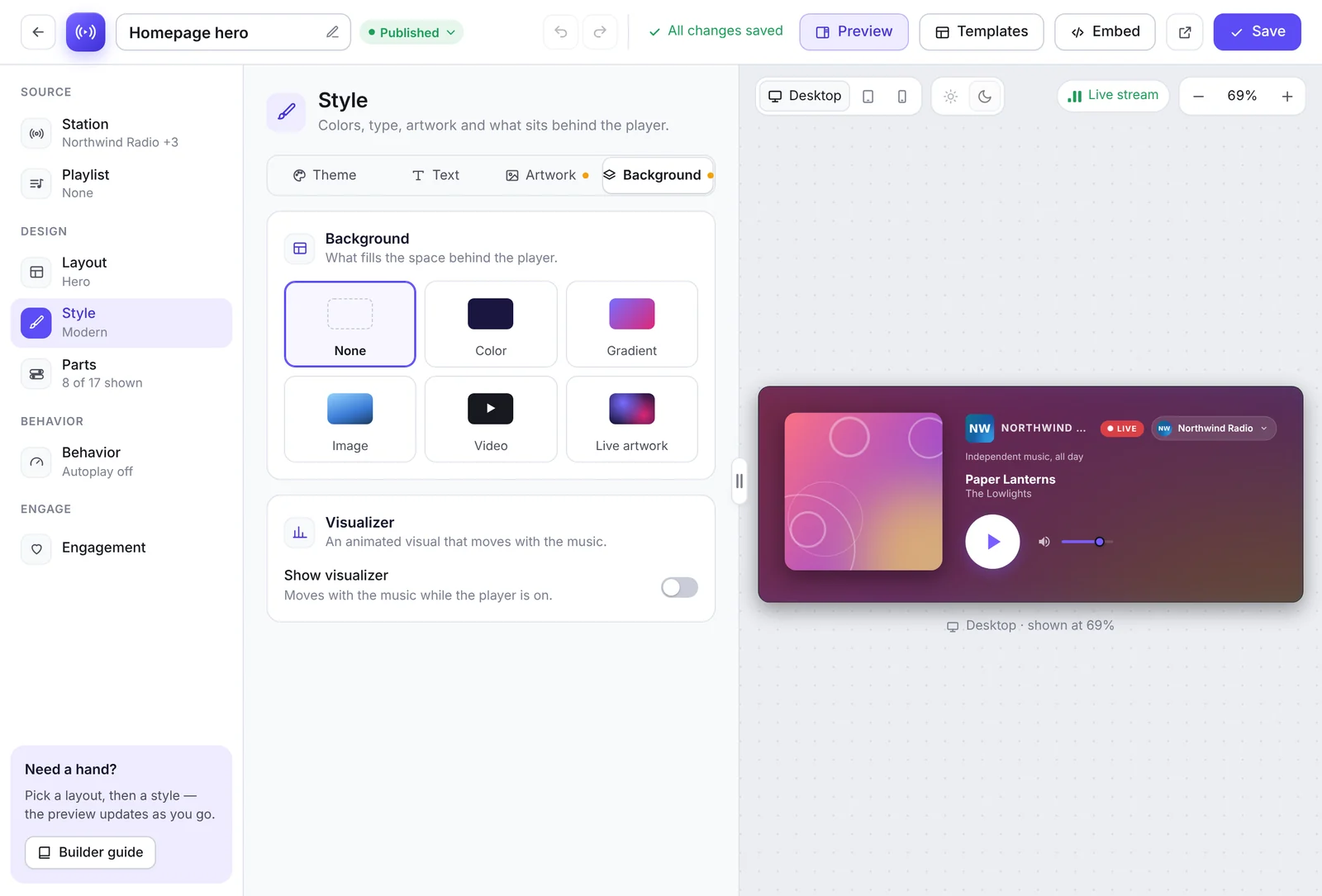
What sits behind the player: none, a color, a gradient, an image, a video or the live artwork. Show visualizer adds an animated visual that moves with the music [Pro].
Parts: what the player shows#
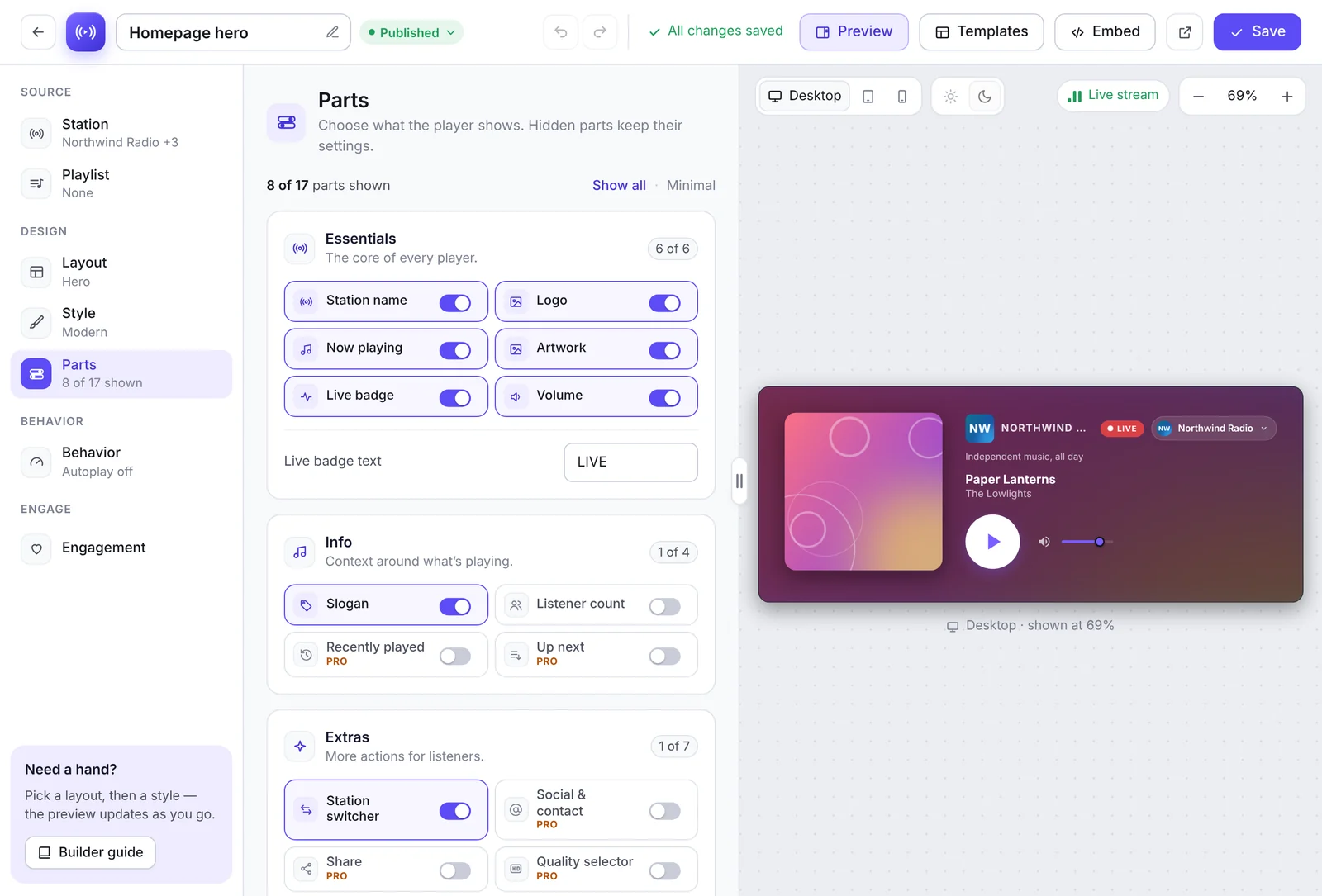
Turn parts on or off. Hidden parts keep their settings. Use Show all or Minimal for a quick start.
- Essentials: station name, logo, now playing, artwork, live badge (with your own badge text) and volume.
- Info: slogan, listener count, recently played [Pro] and up next [Pro].
- Extras: station switcher, social & contact [Pro], share [Pro], quality selector [Pro], pop-out button [Pro], open in another app [Pro] and playlist [Pro].
- Per device: hide the whole player or single parts on mobile (up to 480 px) or tablet (up to 820 px).
- Track extras [Pro]: the next track and buy / stream links.
Behavior: how it starts and sounds#
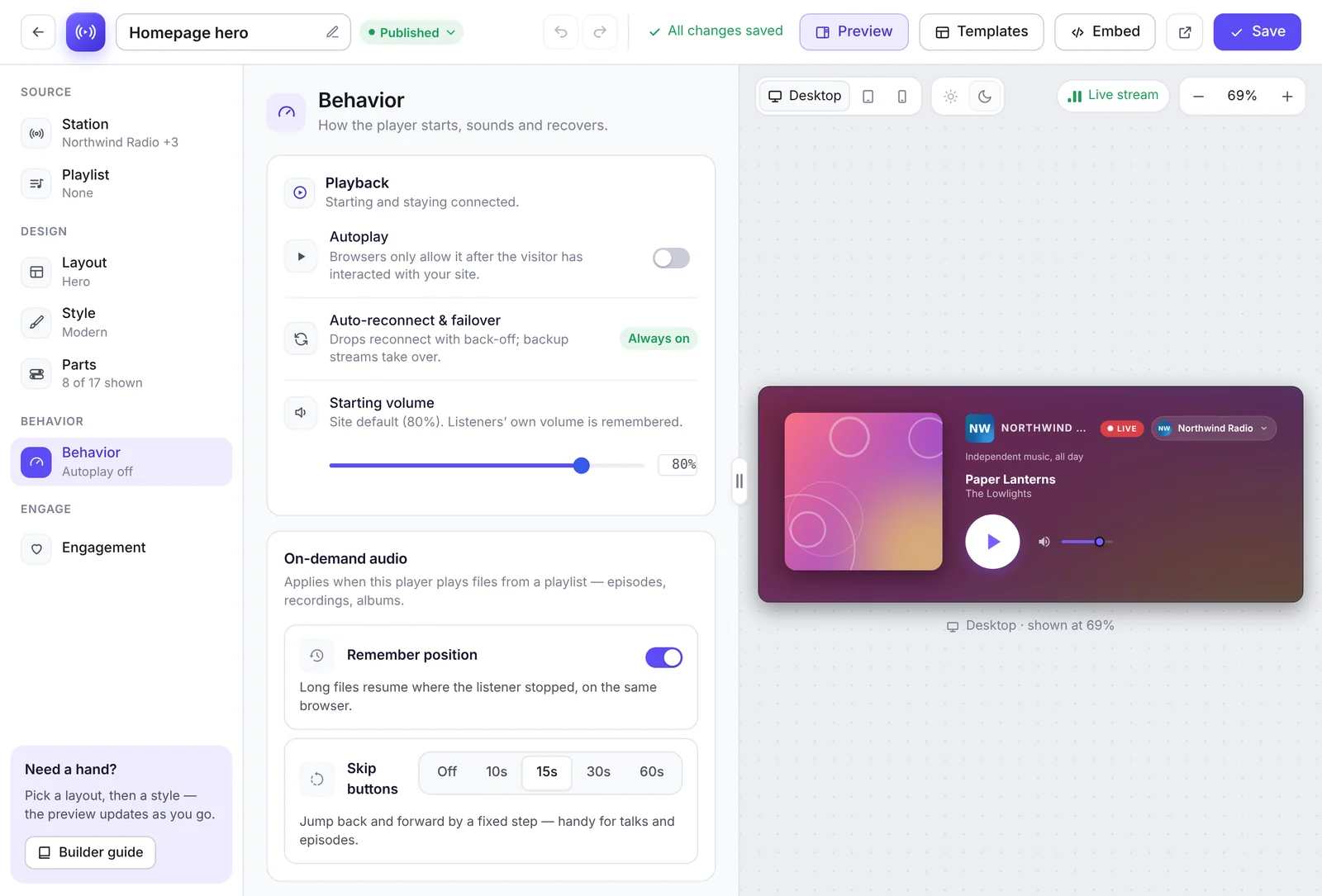
- Autoplay: browsers allow it only after the visitor has interacted with your site.
- Auto-reconnect & failover: always on. Drops reconnect with back-off and backup streams take over.
- Starting volume: the first volume; after that each listener’s own volume is remembered.
- On-demand audio [Pro]: remember the listening position and add skip buttons for playlists and podcasts.
- Listener audio tools [Pro]: equalizer, loudness normalization, playback speed and sleep timer.
- Crossfade [Pro]: fade between stations when listeners switch.
- Follow the schedule [Pro]: switch to a show’s stream or playlist automatically when the show starts.
Engagement [Pro]#
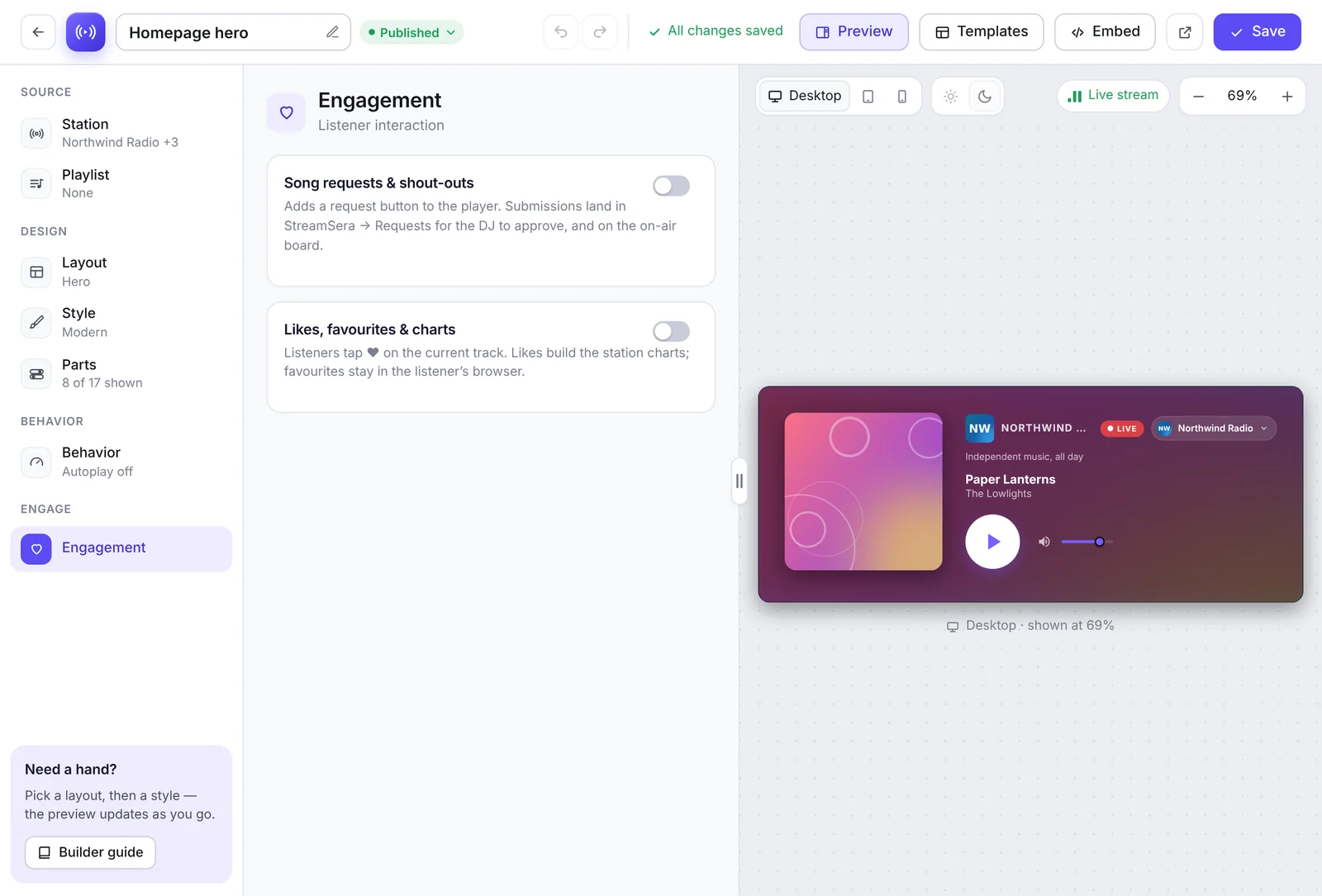
Add a Song requests & shout-outs button and a Likes heart to the player. See How to Take Song Requests and Shout-Outs from Listeners.
Start from a template#
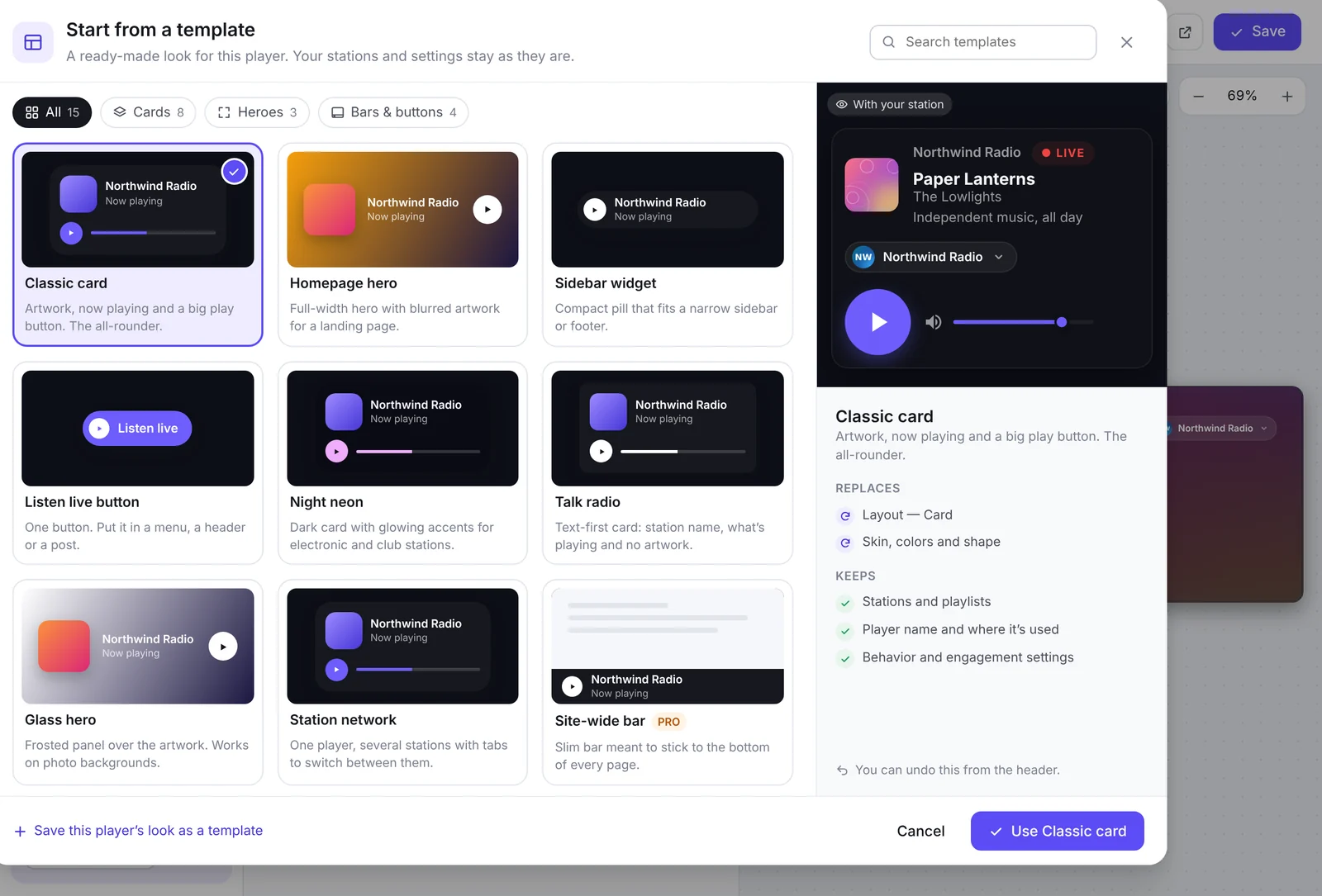
Click Templates to give the player a ready-made look. A template replaces the layout, skin, colors and shape, and keeps your stations, the player name, where it is used and its behavior settings. You can undo it from the header. Save this player’s look as a template stores your own design for reuse.
Next: put the player on your site#
Click Embed in the builder, or see How to Add a Radio Player to Any Page, Post or Sidebar.