Move your whole StreamSera setup to a new site, keep a backup, or copy a station set-up to a sister site.
Export#
- Go to StreamSera → Settings → Access & data.
- Under Backup & move, click Download next to Export.
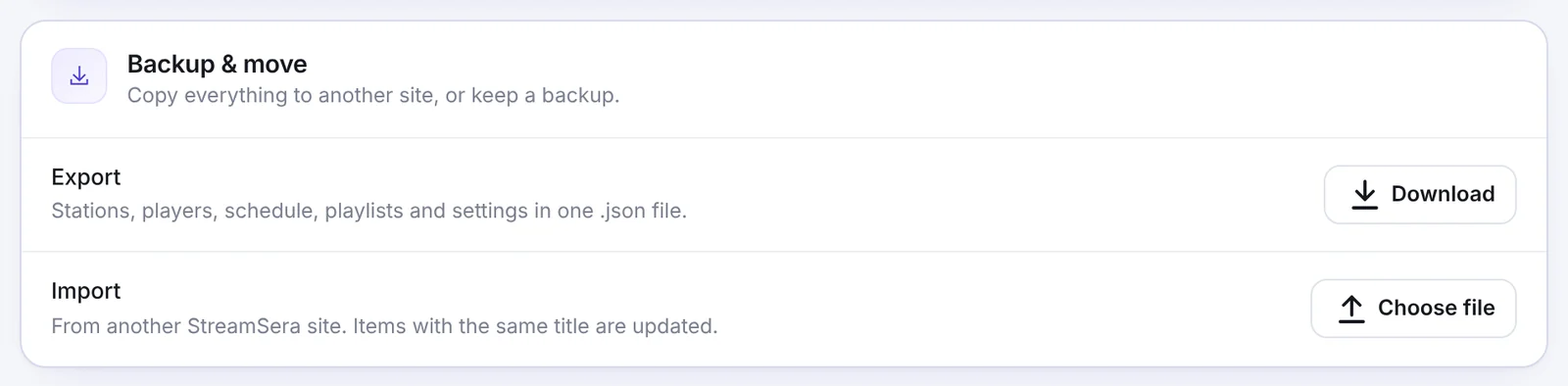
You get one .json file with your stations, players, schedule, playlists and settings. Passwords and API keys are left out by default.
Import#
- On the new site, install and activate StreamSera (and StreamSera Pro if you exported Pro data).
- Go to StreamSera → Settings → Access & data.
- Click Choose file next to Import and select the
.jsonfile. - Review the changes. Nothing is saved until you confirm.
Items with the same title are updated; new ones are added.
Tip: Media files such as station logos are not inside the export. Move your Media Library too, or add the logos again.
From the command line#
wp streamsera export streamsera-backup.json
wp streamsera export streamsera-backup.json --include-secrets --force
--include-secrets keeps provider API keys and other credentials. --force replaces an existing file.
Multisite networks#
StreamSera works on WordPress multisite. Activate it per site or for the whole network. Each site has its own stations, players and settings; use export and import to copy a set-up from one site to another.
Clear caches and remove data#
- Caches → Clear reads song info again from every stream server.
- Danger zone → Remove all data when the plugin is deleted deletes stations, players, saved skins and settings when you delete the plugin. Deactivating never removes anything.

Was this article helpful?