On this page
This is a StreamSera Pro feature. Try Pro free for 3 days or see the plans.
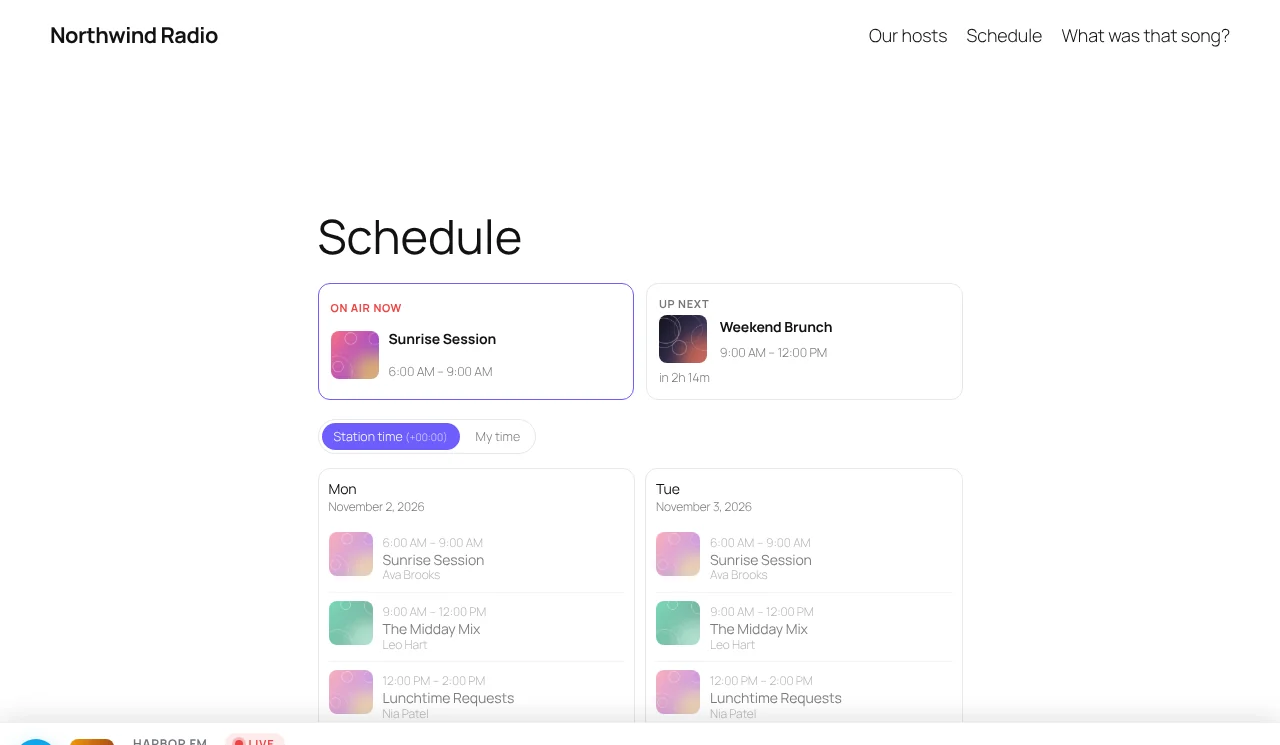
With a schedule, listeners always know what is on: players show the current show and host, station pages show today’s line-up, and you can add a full programme grid to any page.
The schedule screen#
Go to StreamSera → Schedule. You see the week for the chosen station, the show on air now and what is up next.
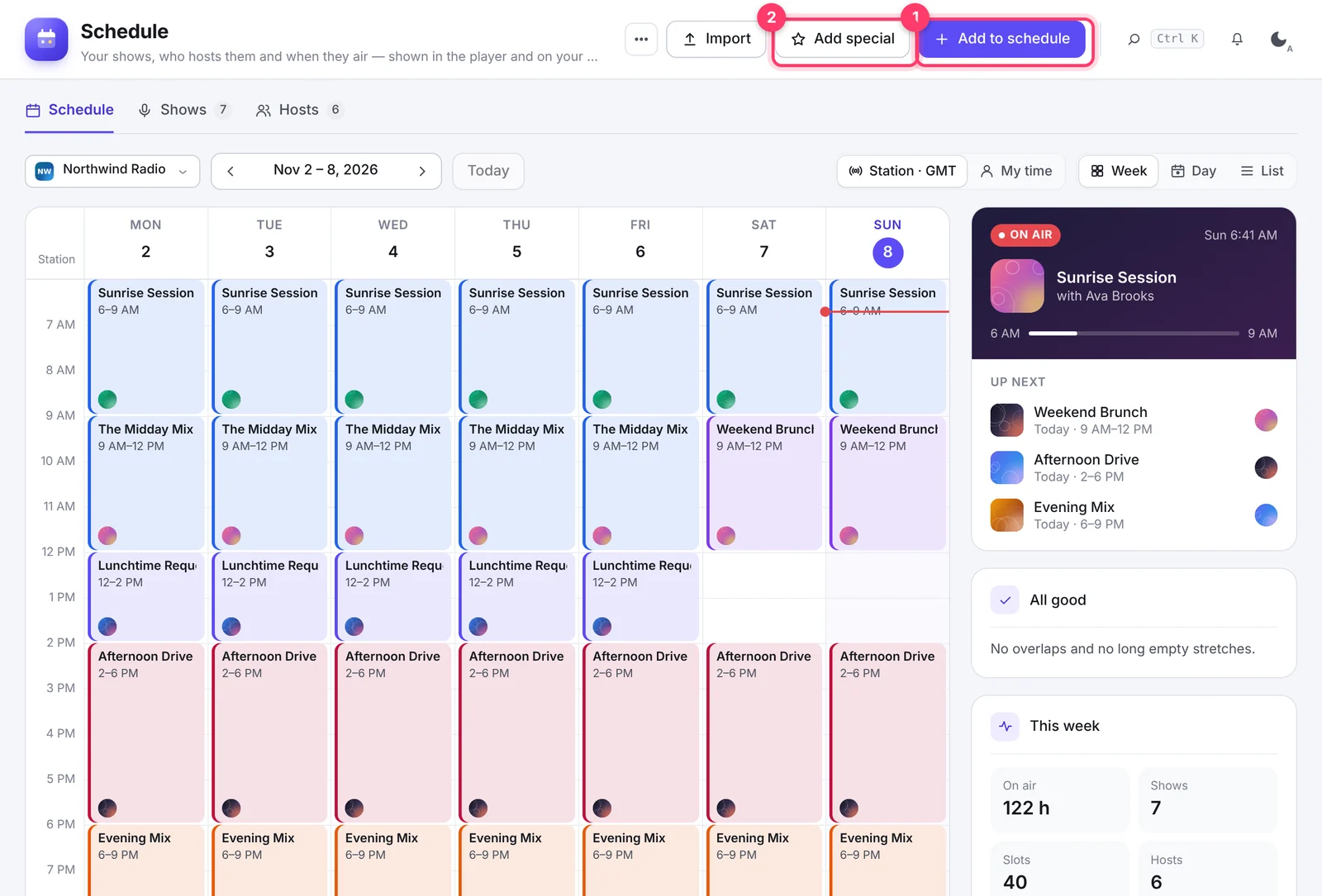
- Switch between Week, Day and List views and move between weeks with the arrows or Today.
- Choose the station at the top left. Times show in the station’s time zone; click My time to see them in yours.
- The panel on the right shows the show on air, up next, warnings about overlaps or long empty stretches, and totals for the week.
Step 1: Add your hosts#
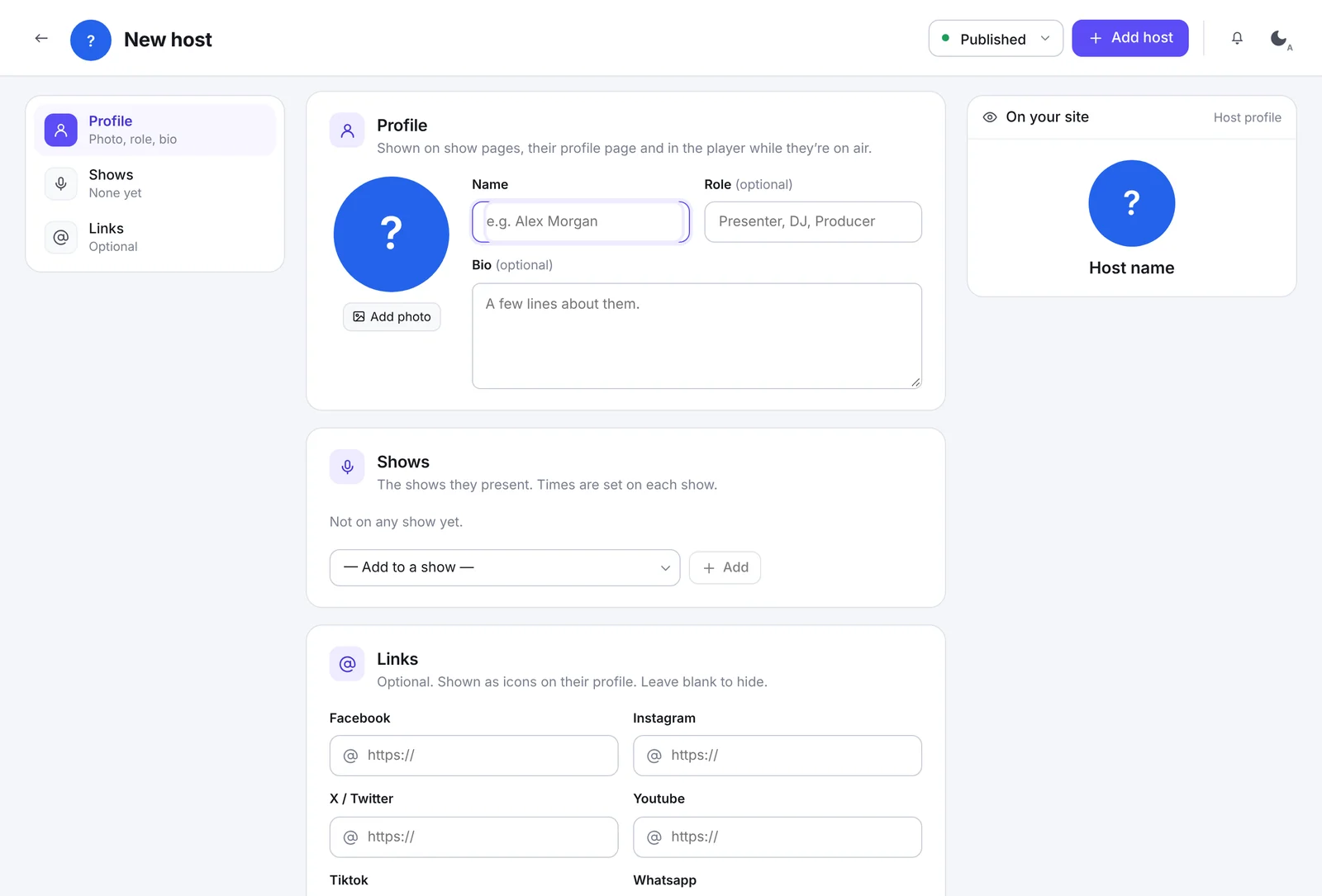
- Open the Hosts tab and click New host.
- Add a photo, name, role (for example Presenter or DJ) and a short bio.
- Optionally add social links (Facebook, Instagram, X, YouTube, TikTok, WhatsApp).
- Click Add host.
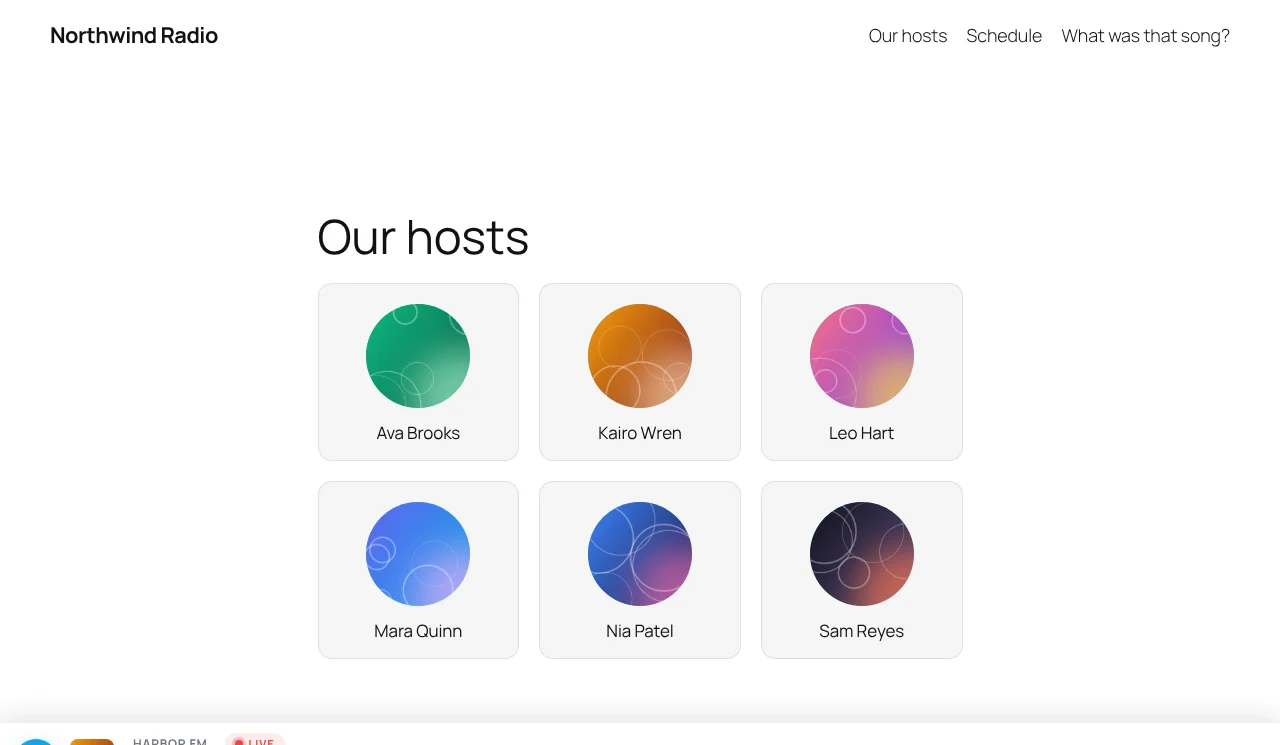
Each host gets a profile page that lists their shows.
Step 2: Create your shows#
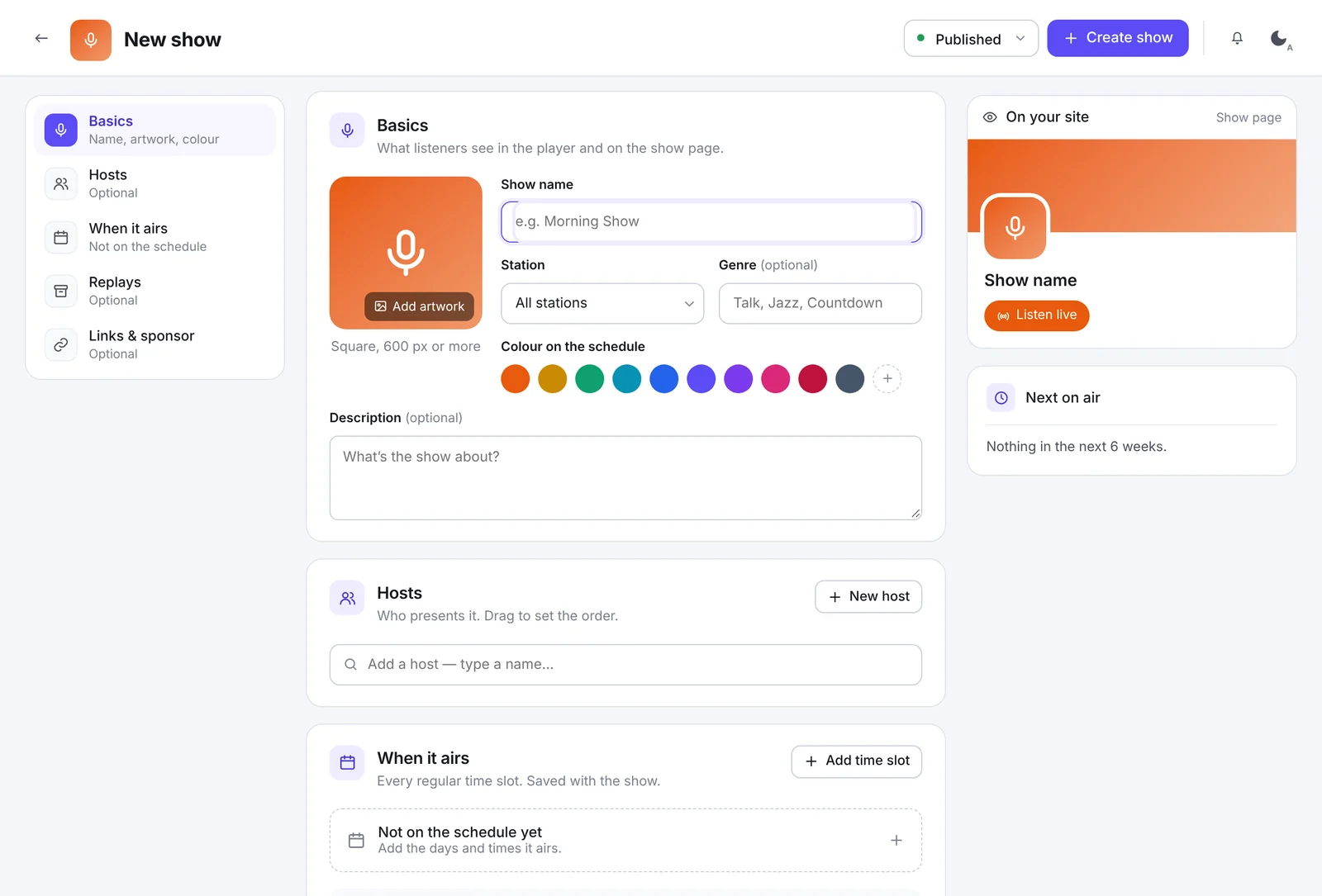
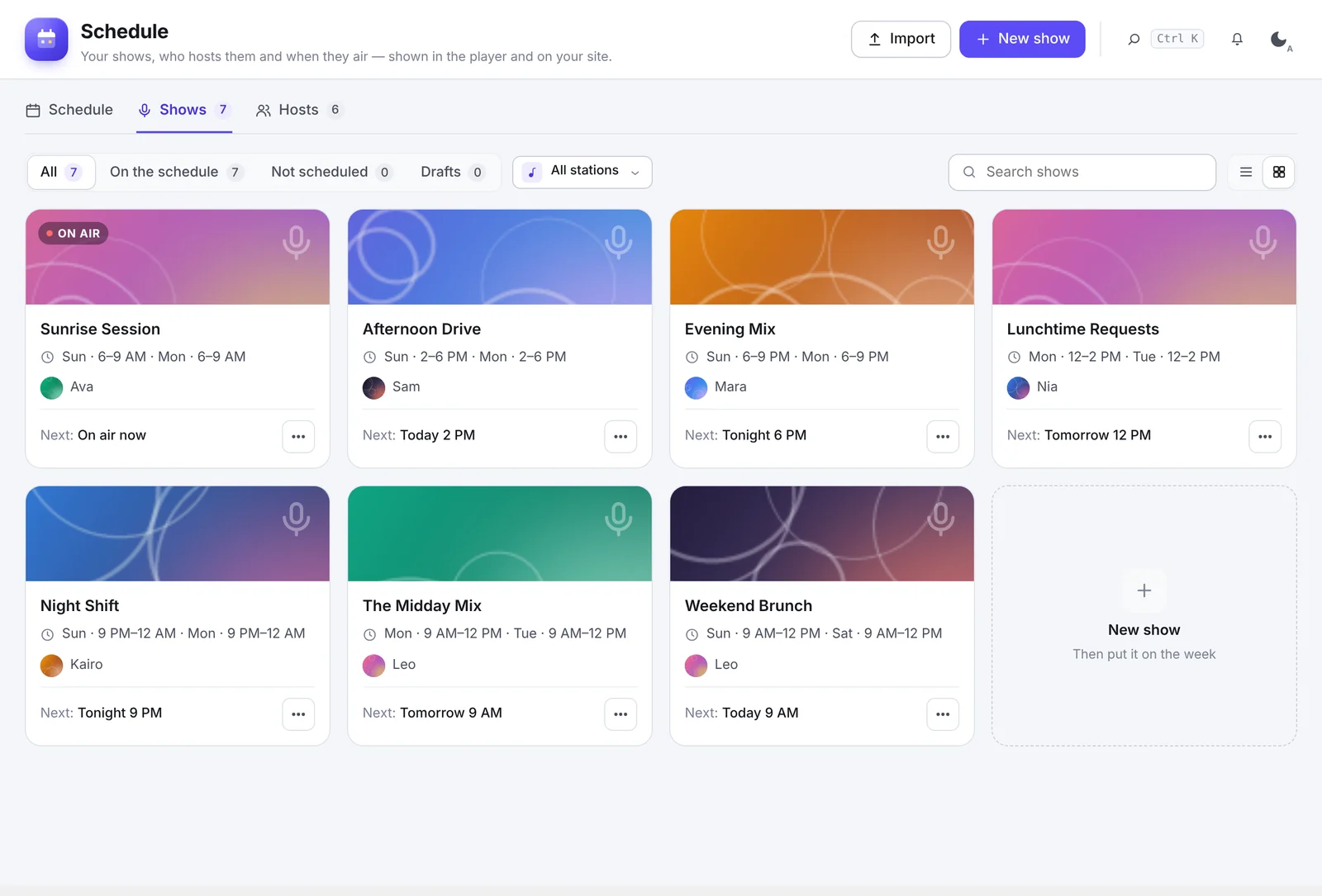
- Open the Shows tab and click New show.
- Fill in the Basics: show name, artwork (square, 600 px or more), station, genre, a color for the schedule and a description.
- Under Hosts, add the people who present it. Drag to set the order.
- Under When it airs, click Add time slot to put it on the week (or do this later from the schedule).
- Optionally add Replays and Links & sponsor.
- Click Create show.
Step 3: Put shows on the week#
Click Add to schedule, or click an empty spot in the week.
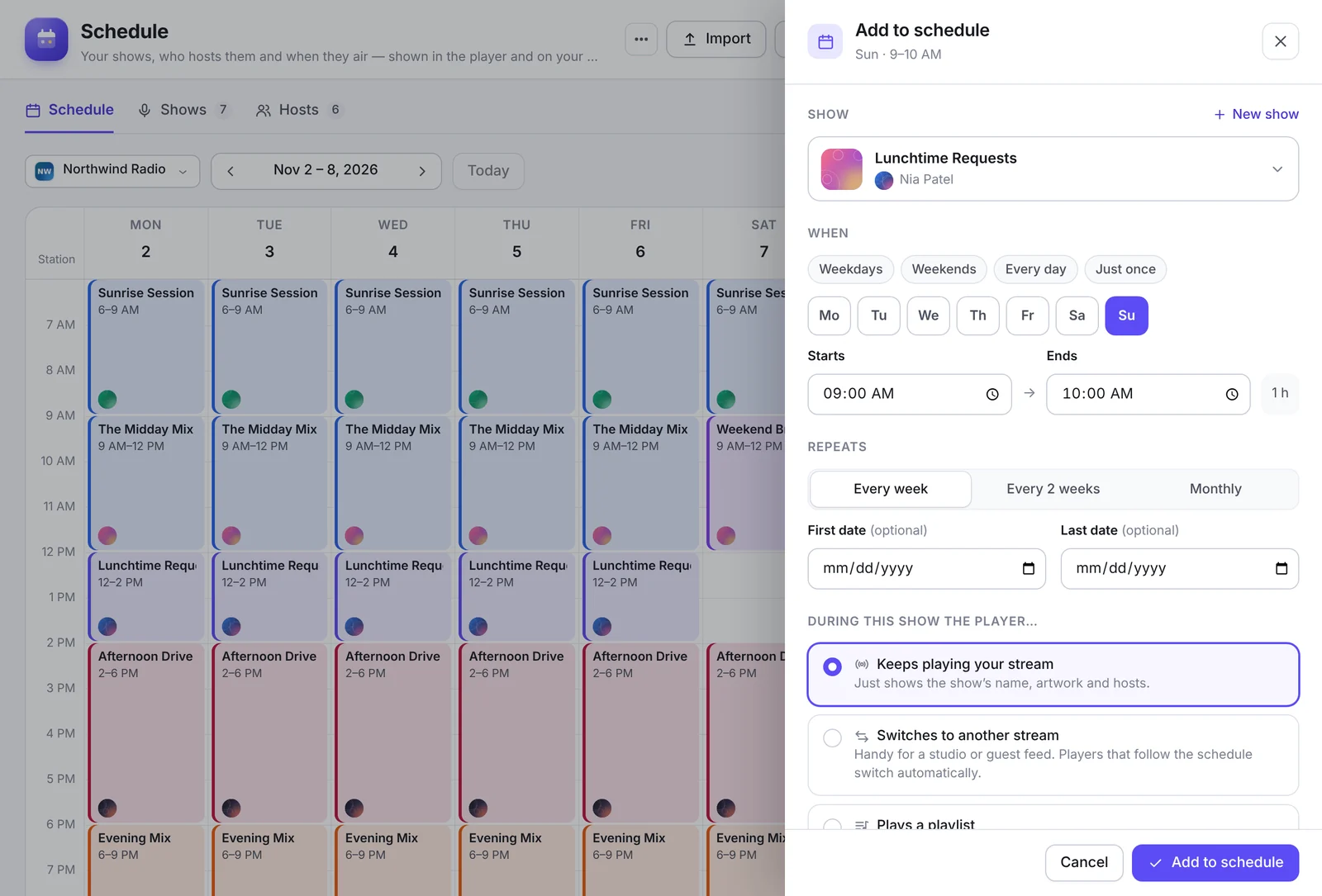
- Pick the Show (or create a New show).
- Choose the days: Weekdays, Weekends, Every day, Just once or single days.
- Set the Starts and Ends times.
- Choose how often it repeats: Every week, Every 2 weeks or Monthly, with optional first and last dates.
- Choose what plays during the slot: Keeps playing your stream (just shows the show’s name and hosts), Switches to another stream (a studio or guest feed) or Plays a playlist (replays and pre-recorded episodes).
- Click Add to schedule.
Tip: Players switch to a slot’s stream or playlist automatically when Follow the schedule is on in the player’s Behavior settings.
Specials and one-off changes#
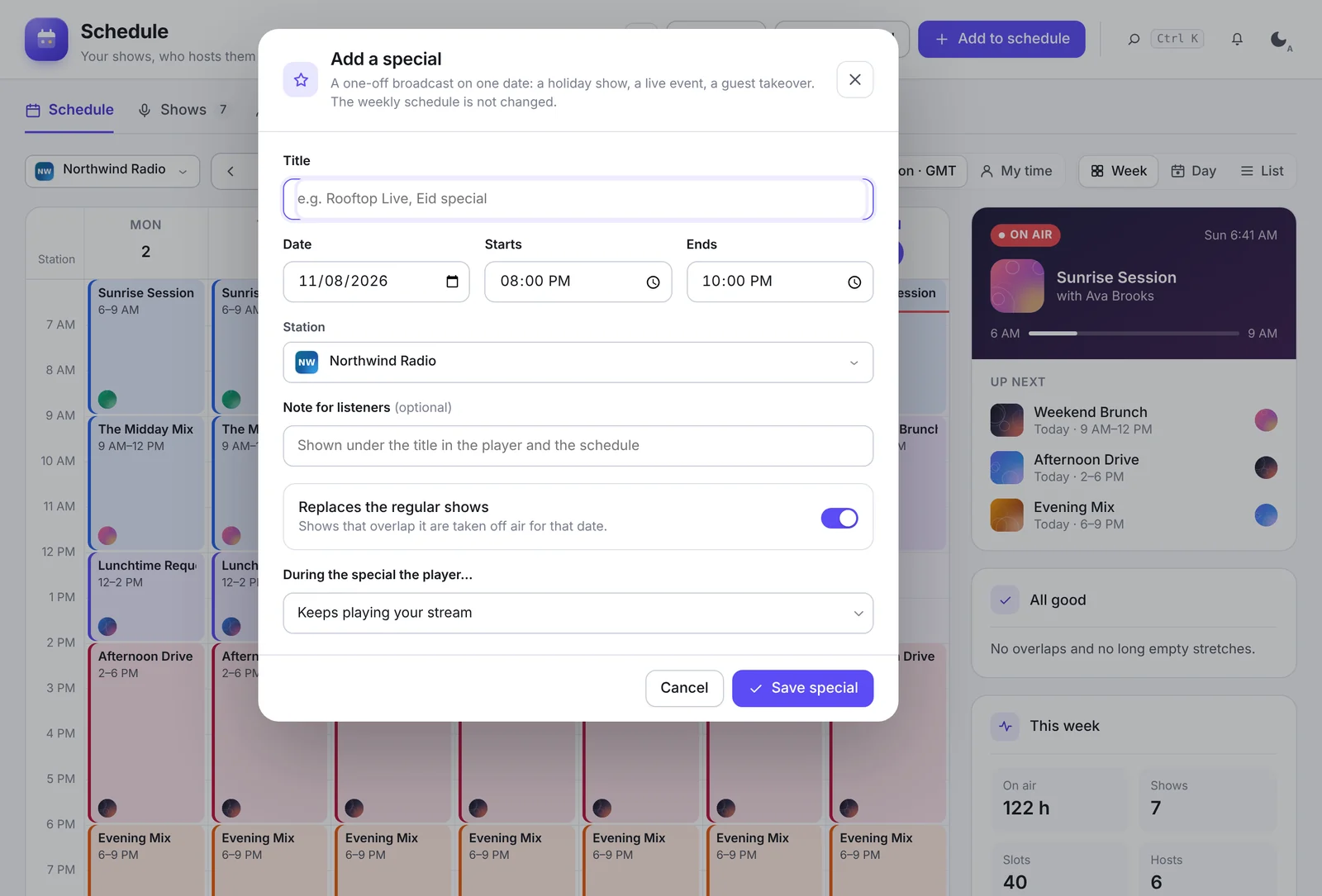
Click Add special for a one-off broadcast: a holiday show, a live event or a guest takeover. Give it a title, date, start and end time, station and a note for listeners. Turn on Replaces the regular shows to hide the normal slots during the special.
Import an existing schedule#
Click Import to bring shows, hosts and times in from somewhere else. Nothing changes until you confirm the preview.
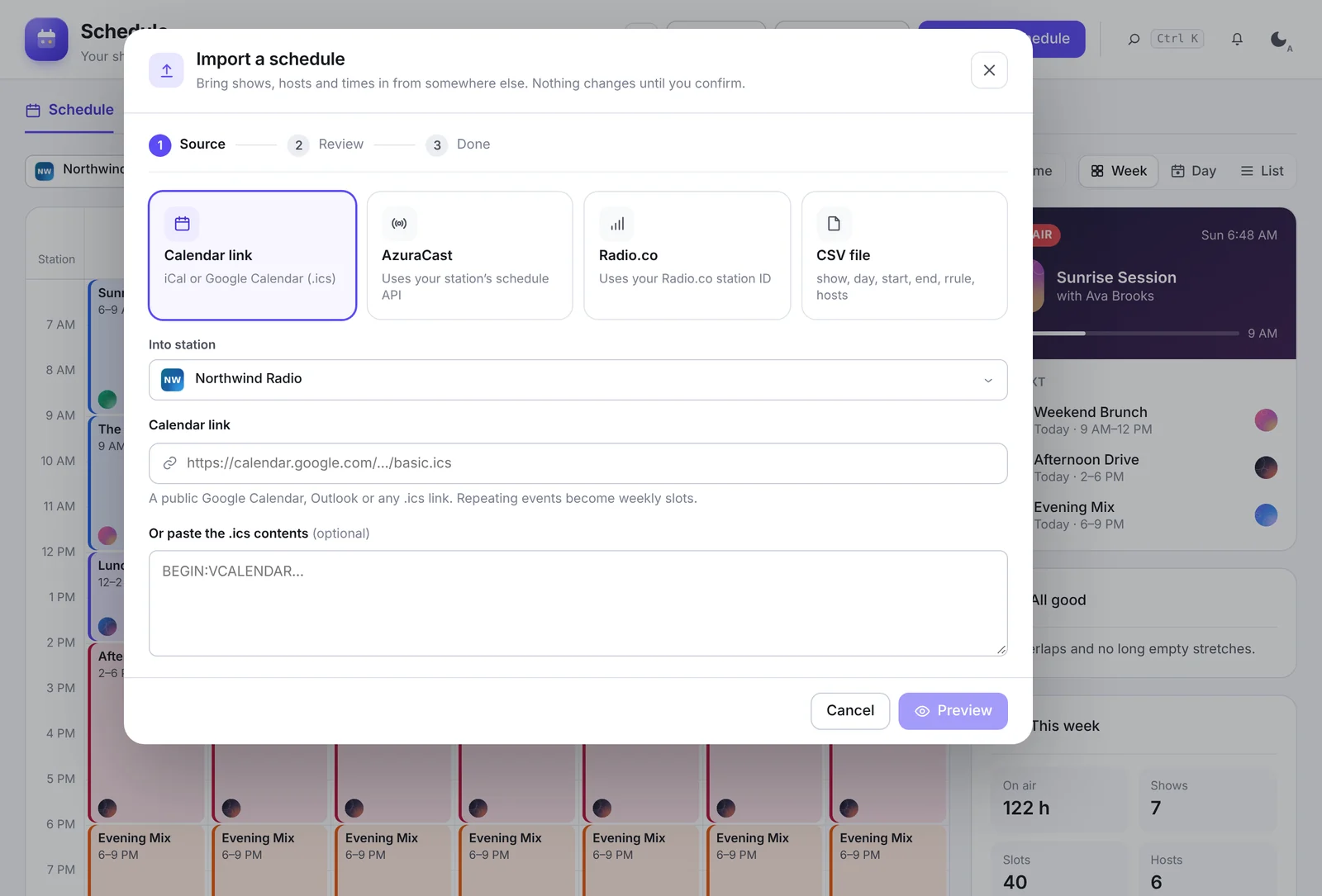
- Calendar link: a public Google Calendar, Outlook or any
.icslink, or paste the.icscontents. Repeating events become weekly slots. - AzuraCast: uses your station’s schedule API.
- Radio.co: uses your Radio.co station ID.
- CSV file: columns for show, day, start, end, rule and hosts.
Show the schedule on your site#
- Players show the current show and host automatically.
- Station pages and the listen page can show On air now / up next and Today’s schedule (Settings → General).
- Blocks and shortcodes: Schedule, Now & next, Show, Shows, Host and Hosts. For example
[streamsera_schedule station="5" layout="week"]or[streamsera_now_next station="5"]. - Calendar links: listeners can add your shows to Google Calendar or subscribe with iCal.