On this page
The StreamSera dashboard is your home screen. It shows which stations are on air, what is playing, how many people are listening and what to set up next. Open it from StreamSera → Dashboard.
The top bar#
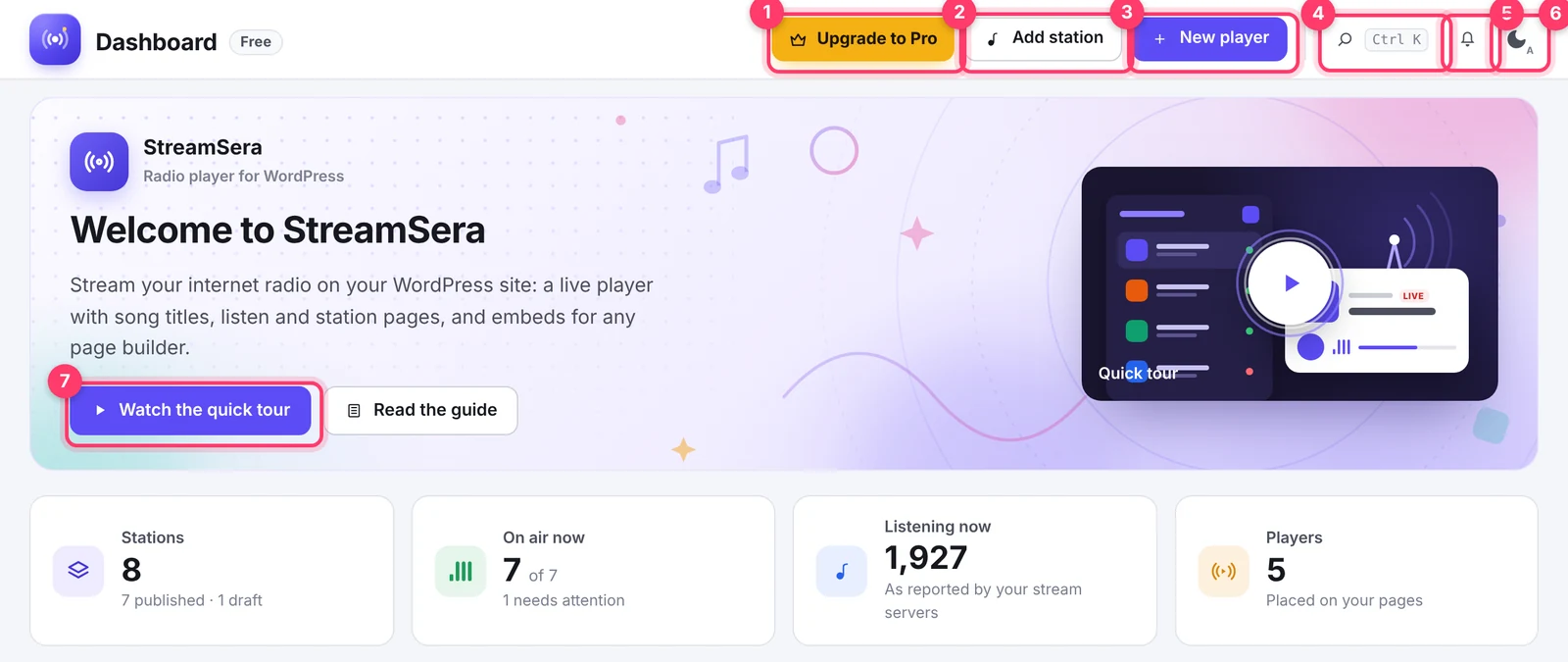
- Upgrade to Pro opens the Pro plans (free plugin only).
- Add station adds a new station.
- New player starts a new player design in the builder.
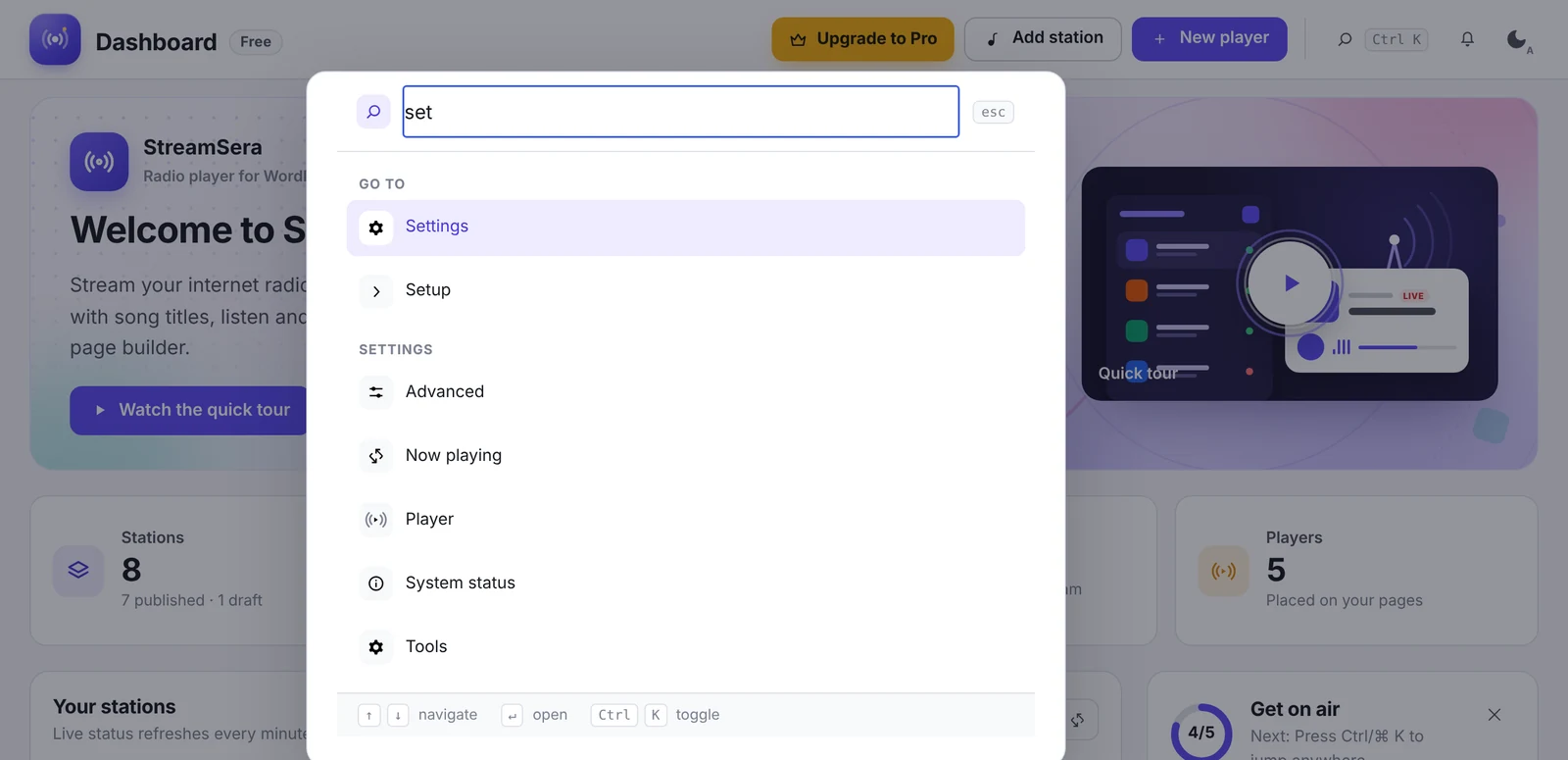
- Search (or press Ctrl + K, ⌘ + K on a Mac) finds any screen, setting, station or player.
- Notices lists anything that needs your attention, such as a stream that will not play on a secure site.
- Dark mode switches the StreamSera screens between light and dark.
- Watch the quick tour plays a 3-minute video. Read the guide opens these docs.
Your numbers at a glance#

- Stations: how many stations you have, published and drafts.
- On air now: how many stations are streaming, and how many need attention.
- Listening now: the total number of listeners, as reported by your stream servers. Some hosts do not report listener numbers.
- Players: how many players you have designed and placed on your pages.
Your stations#
The list shows every station with its genre, bitrate, the song that is playing and the number of listeners. The live status refreshes every minute.
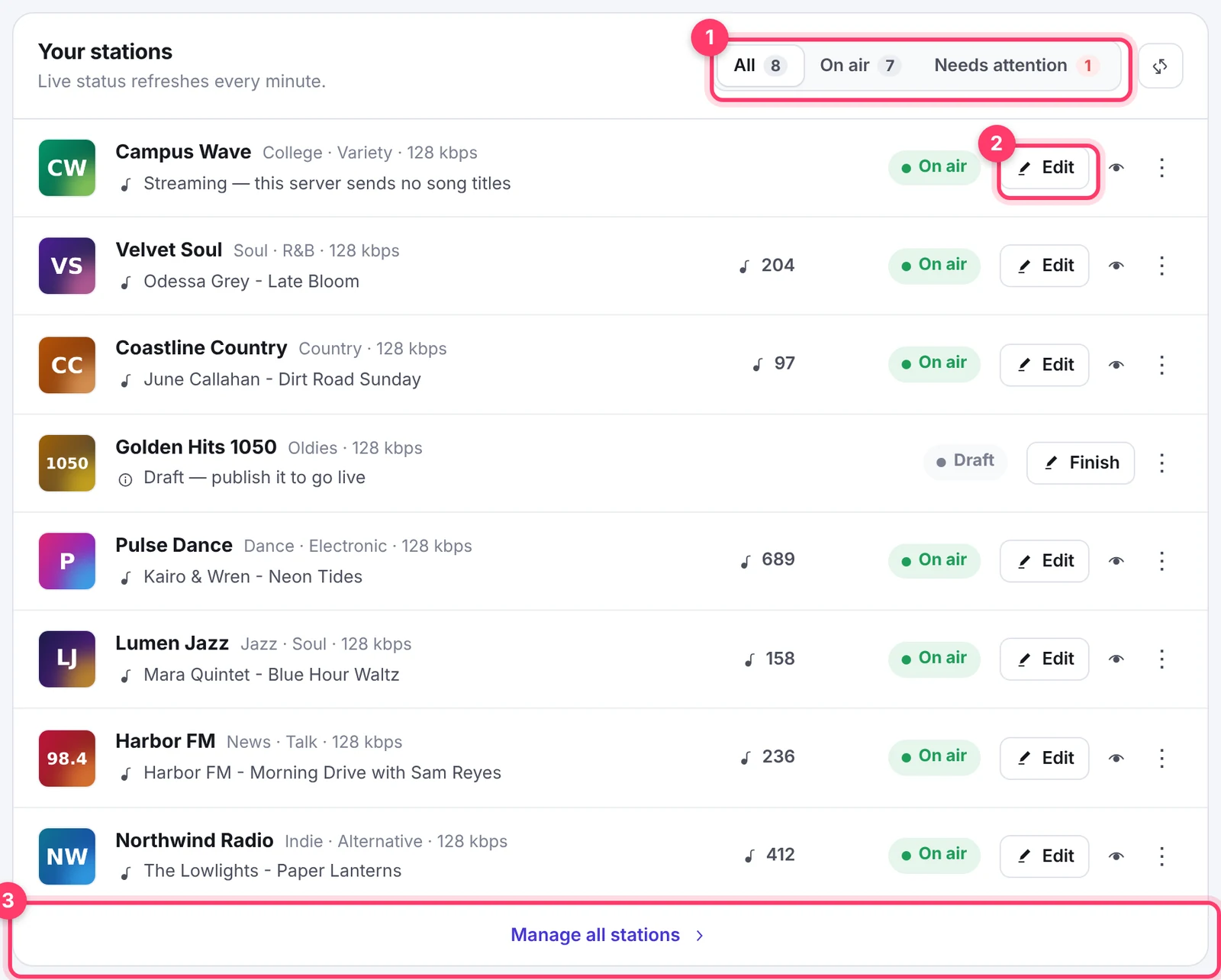
- Use the tabs All, On air and Needs attention to filter the list. The arrows button refreshes the status now.
- Click Edit to change a station. Drafts show Finish instead. The eye icon previews the station, and the ⋮ menu has more actions.
- Click Manage all stations to open the full station manager with search and bulk actions.
Below the stations you find your Players. Click a player to open it in the builder, the arrow icon to preview it on your site, or New player to start from a template.
Get on air checklist#
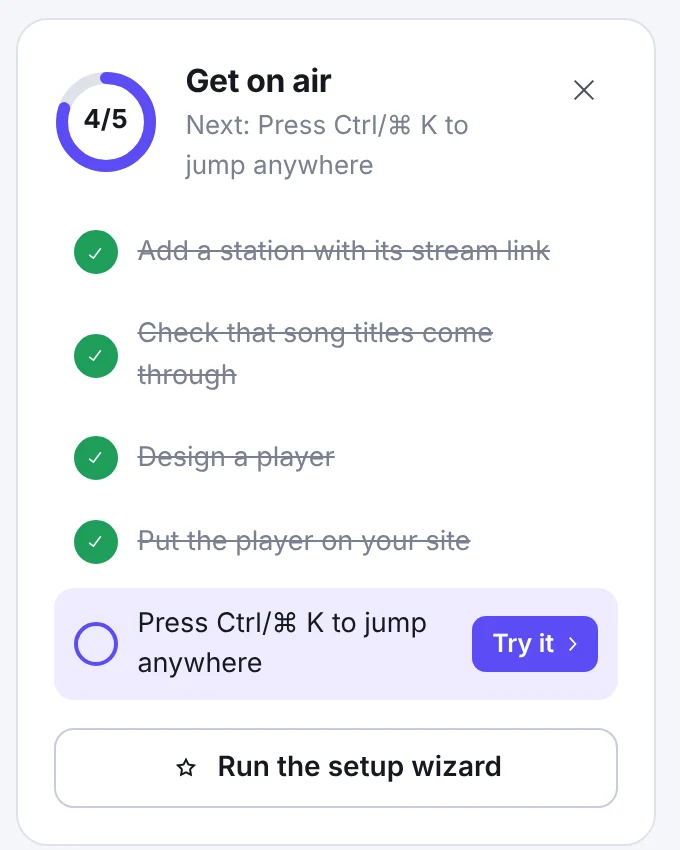
The checklist walks you through the essentials: add a station, check that song titles come through, design a player, put it on your site and try the quick search. Click Run the setup wizard to run the wizard again, or × to hide the checklist when you are done.
Quick actions#
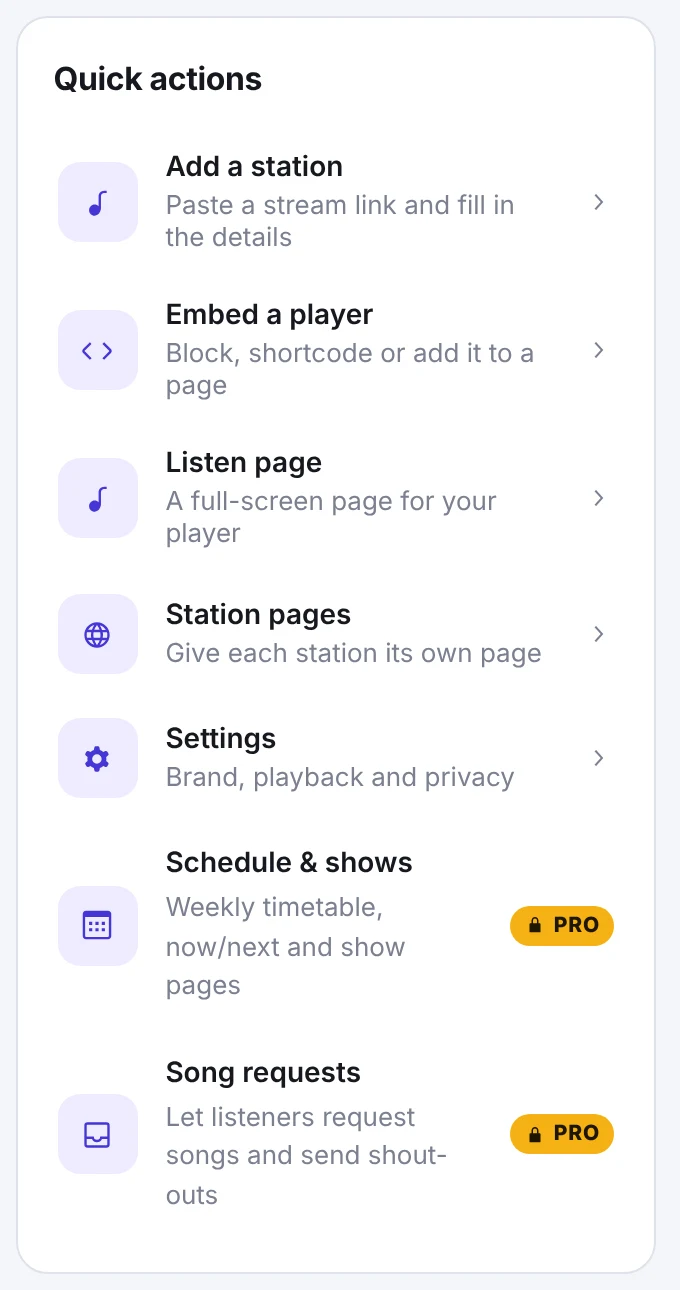
Shortcuts to common tasks: add a station, embed a player, set up the listen page and station pages, and open the settings. Items with a Pro badge are part of StreamSera Pro.
Search everything with Ctrl + K#
Press Ctrl + K (⌘ + K on a Mac) on any StreamSera screen, or click the search button in the top bar. Start typing to jump to a screen, a settings section, a station or a player. Use the arrow keys and Enter to open a result, and Esc to close.
Pro features on the dashboard#
In the free plugin, a Do more with StreamSera Pro panel shows the Pro features. Click × to hide it. With StreamSera Pro active, the panel disappears and the Pro menus (Playlists, Schedule, Requests and Account) are added to the StreamSera menu.