On this page
Besides players on your pages, StreamSera can add ready-made pages for listeners: a full-screen listen page, a page for every station and a station directory. Turn them on under StreamSera → Settings → General.
The listen page#
The listen page is a full-window player with share links. It is perfect for a “Listen live” link in your menu, because it opens in its own tab and keeps playing while visitors browse your site.
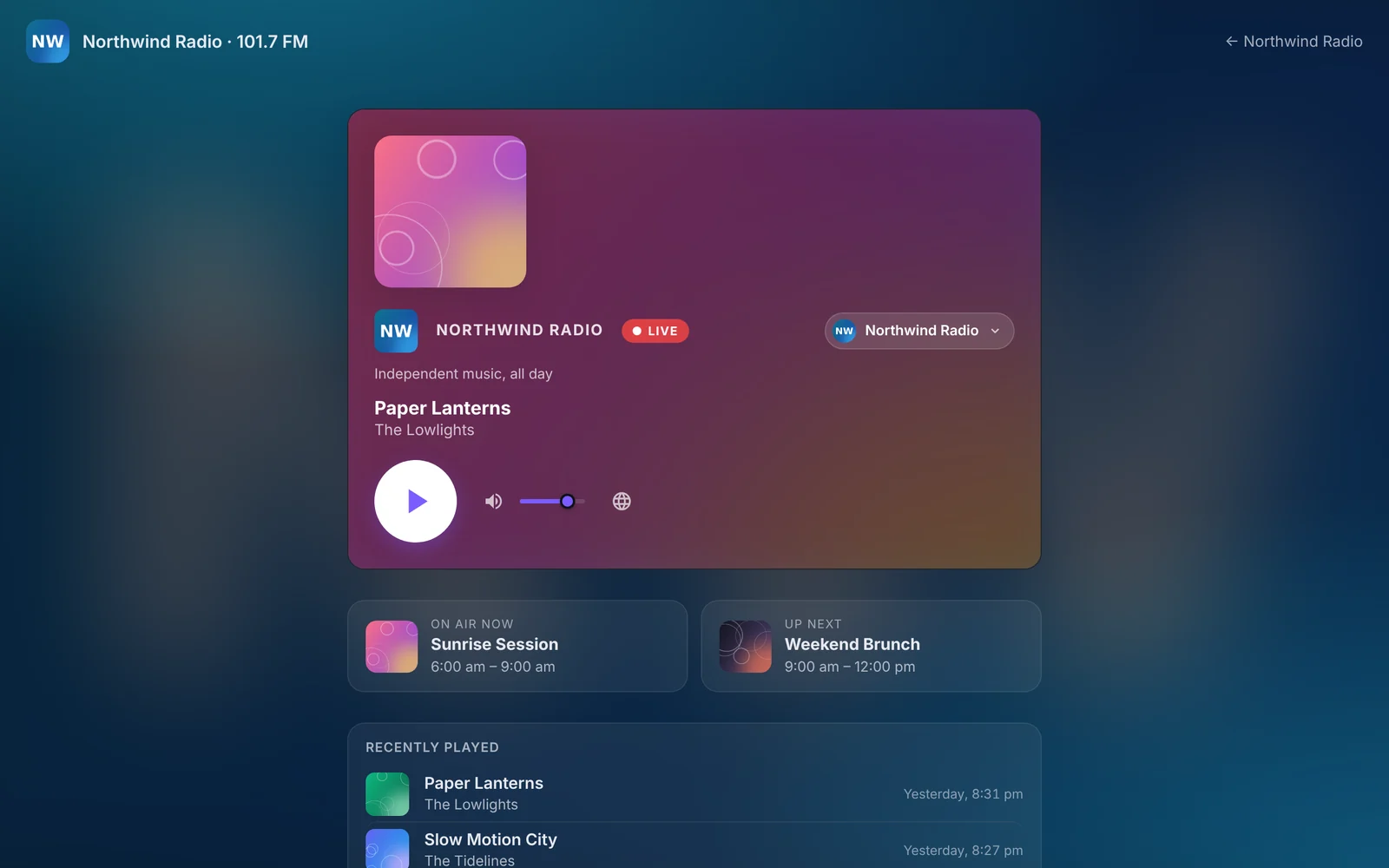
- Go to StreamSera → Settings → General.
- Switch Listen page on.
- Set the Address, for example
listenforyoursite.com/listen/. - Choose the Player to show. It is shown in the hero layout with its own skin.
- Under Show on the page, tick what appears under the player and drag to reorder: Schedule [Pro], Recently played [Pro], Share buttons and Station switcher.
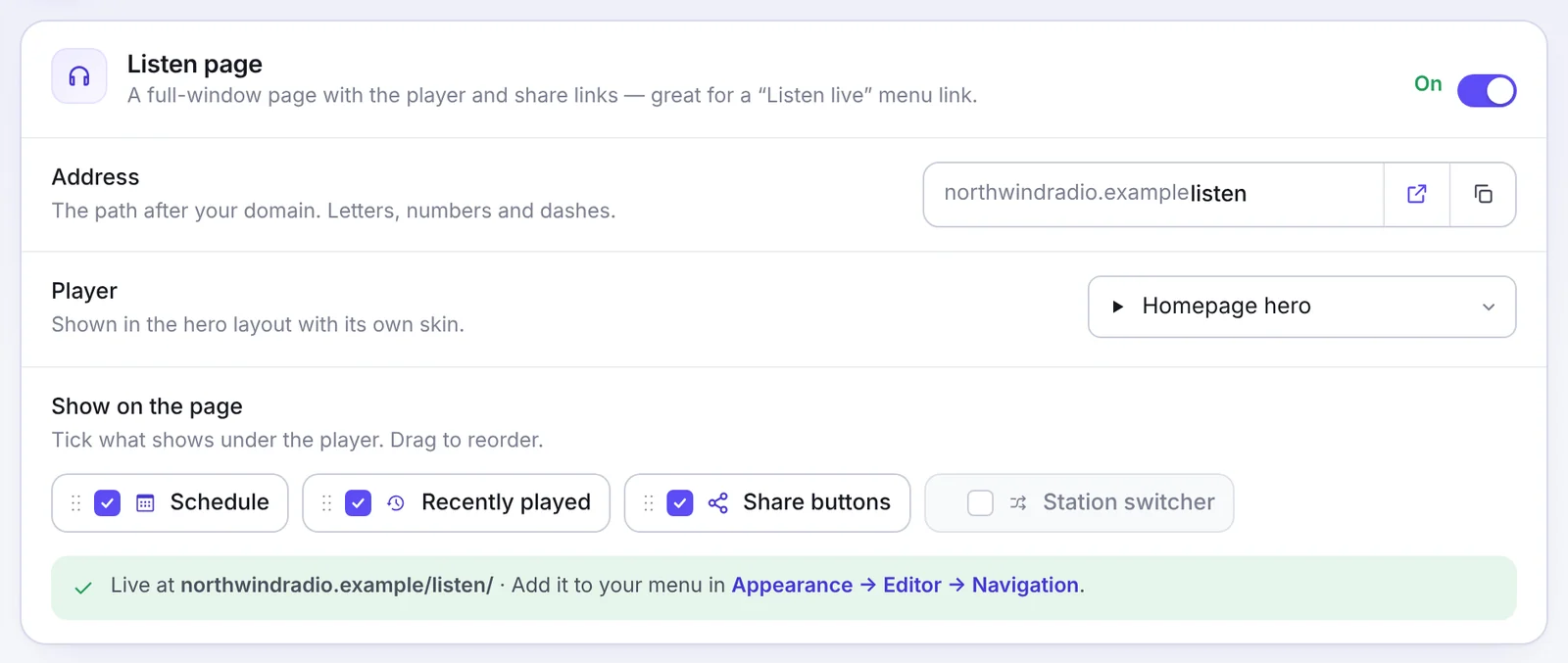
Add the listen page to your menu: go to Appearance → Editor → Navigation (block themes) or Appearance → Menus (classic themes) and add a custom link to your listen page address.
Station pages and the station directory#
Turn on Station pages to give every station its own public page, plus an overview page with search and genre filters.
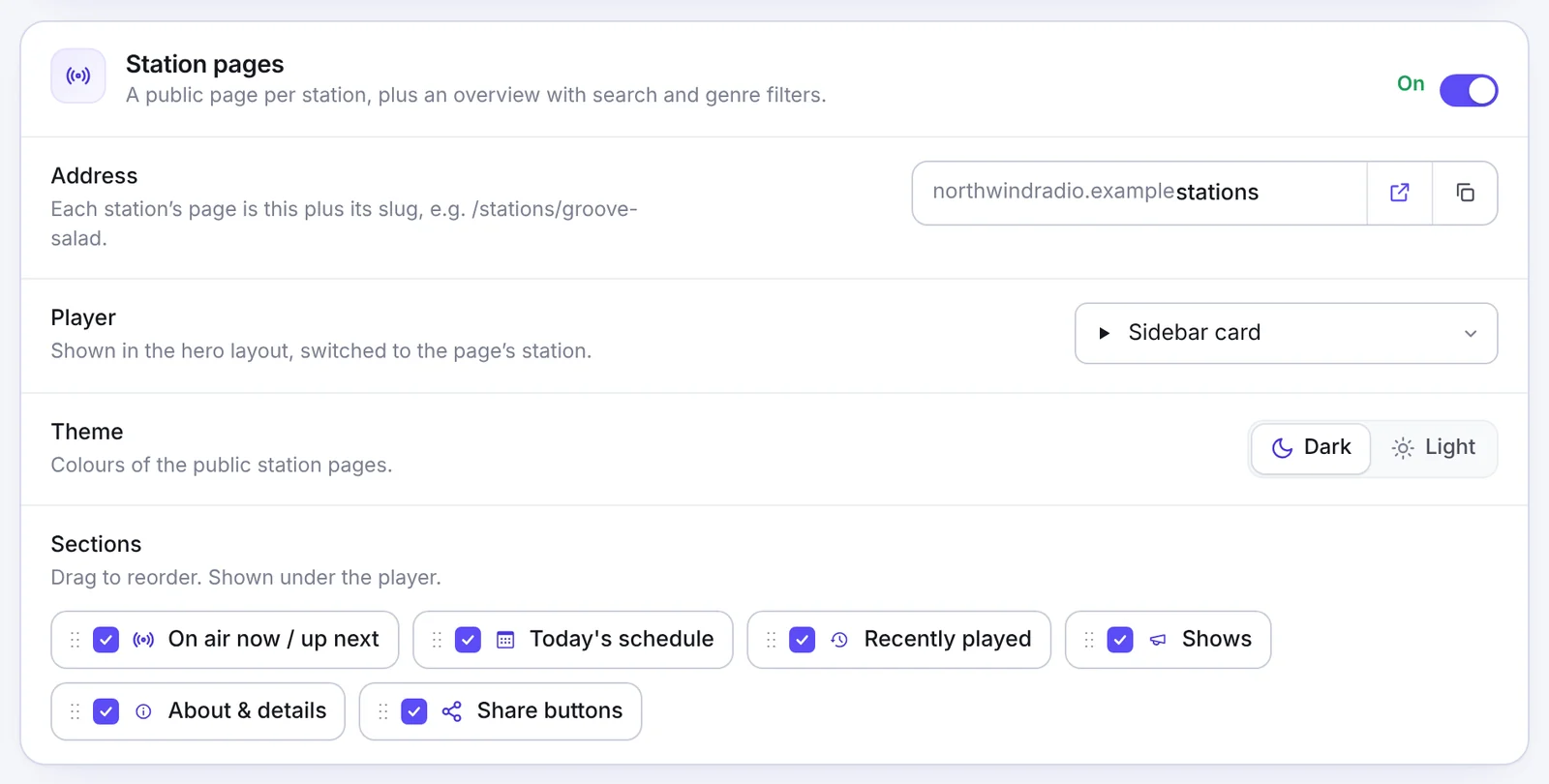
- Address: the base address, for example
stations. Each station’s page is this plus its slug, like/stations/northwind-radio/. - Player: shown in the hero layout and switched to the page’s station.
- Theme: dark or light.
- Sections: what shows under the player and in which order: On air now / up next [Pro], Today’s schedule [Pro], Recently played [Pro], Shows [Pro], About & details and Share buttons.
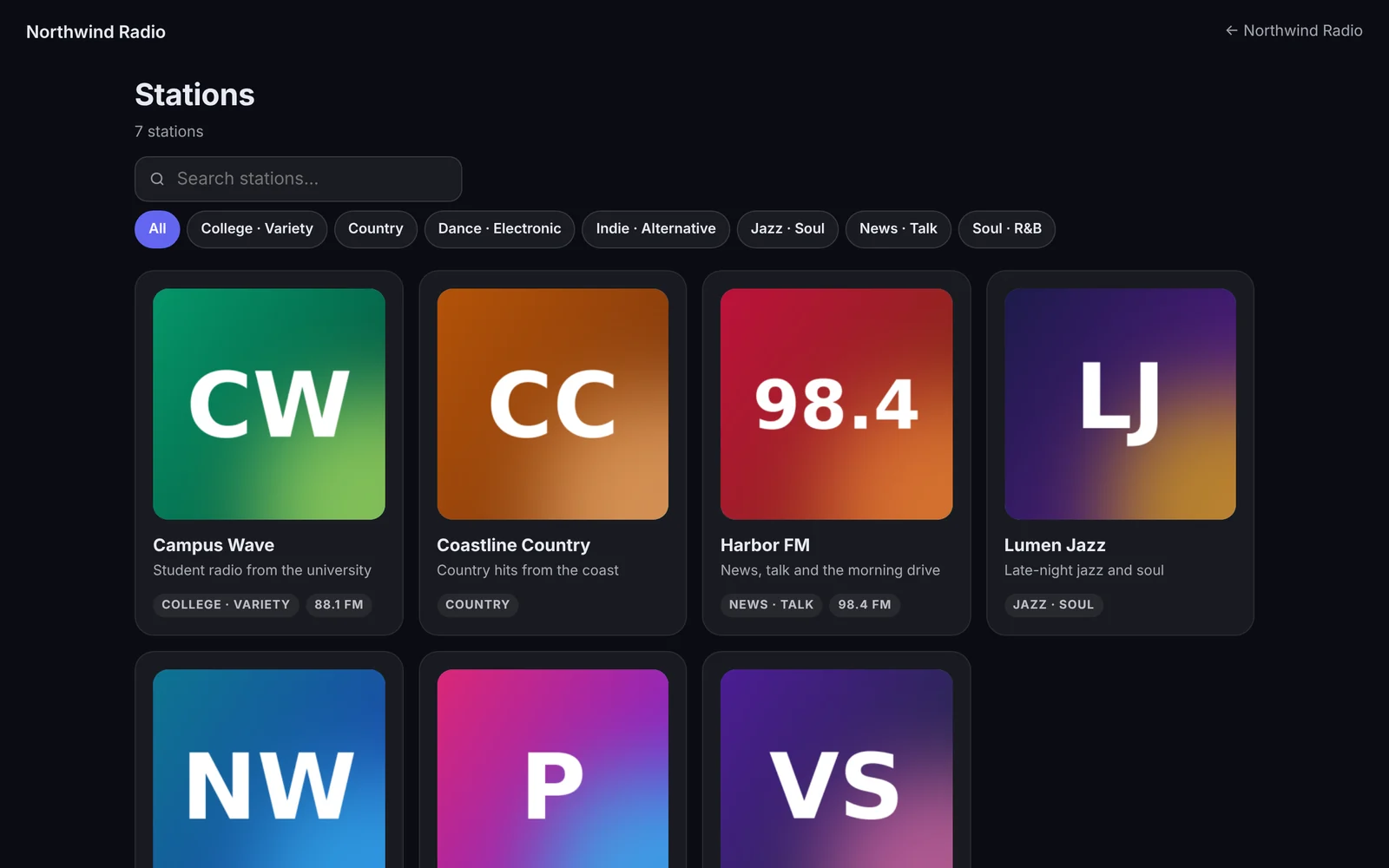
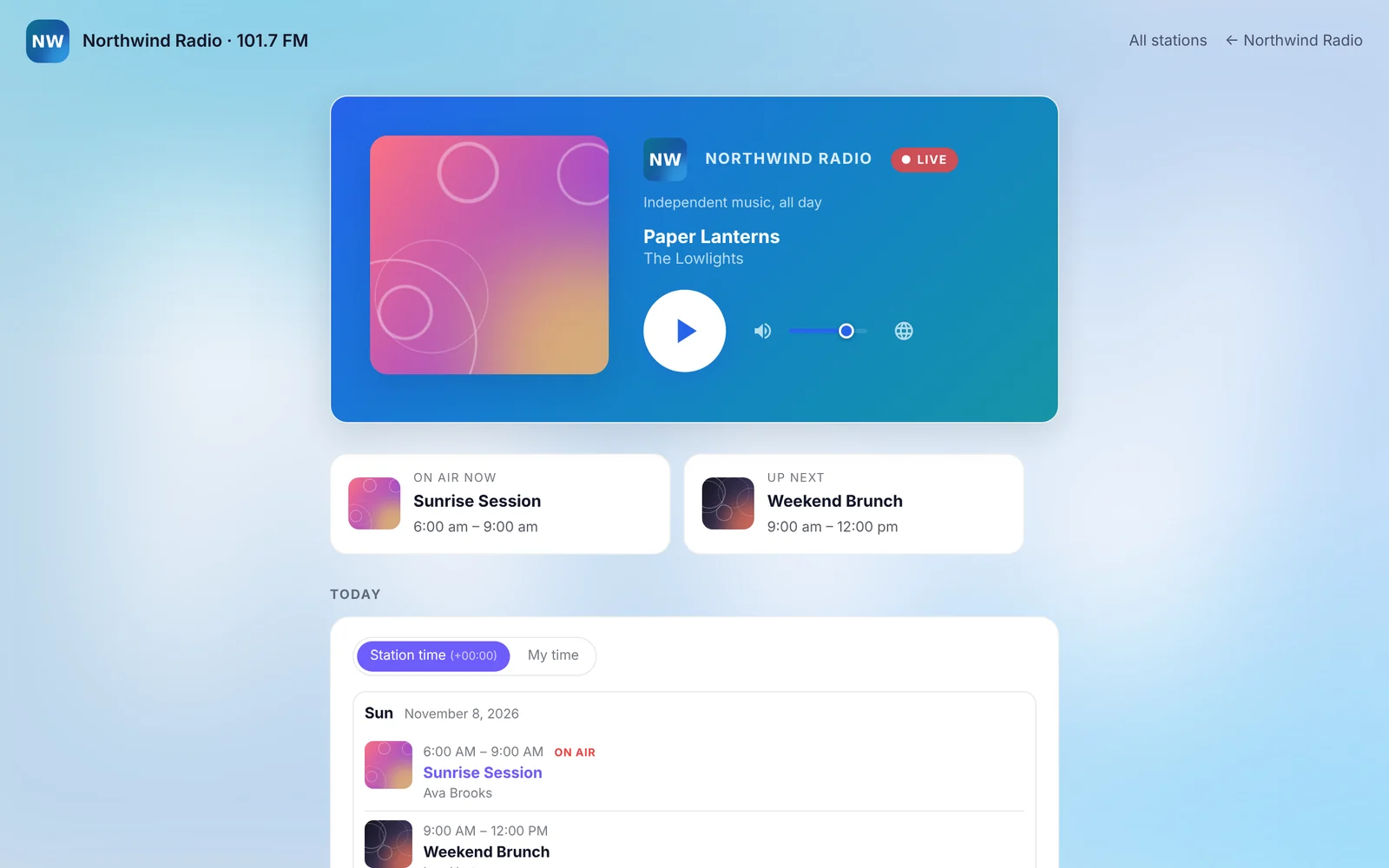
To show the directory inside one of your own pages instead, use the Station list block or the [streamsera_stations] shortcode.
Links for VLC, iTunes and other apps#
Some listeners prefer their own player app. Go to Settings → Integrations → Feeds & overlays, pick a station and copy the .m3u or .pls playlist link. Link to it where listeners expect an “Open in VLC / Winamp” option.
Now-playing overlay for OBS and vMix#
Streaming video too? Add a transparent now-playing card to OBS or vMix:
- Go to Settings → Integrations → Feeds & overlays and choose the station.
- Copy the OBS / vMix overlay link.
- In OBS, add a Browser source and paste the link.
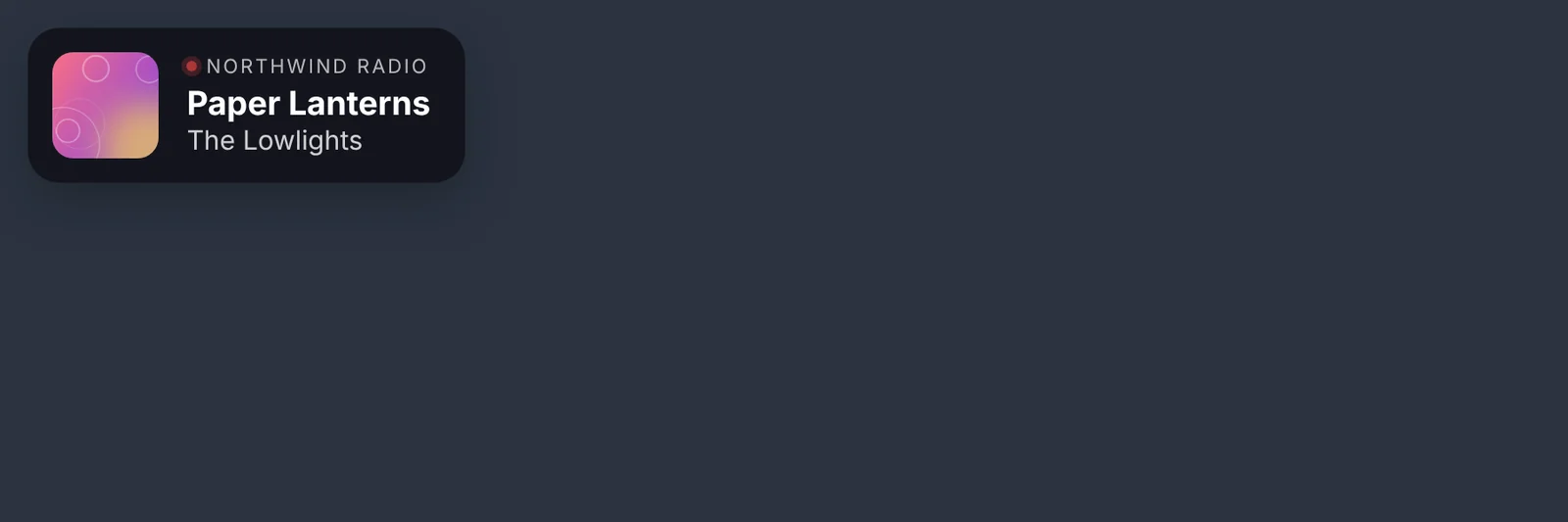
Add options to the link: &theme=light, &art=0 (no artwork), &size=sm or &size=lg, and &align=center.
Now playing as text or JSON#
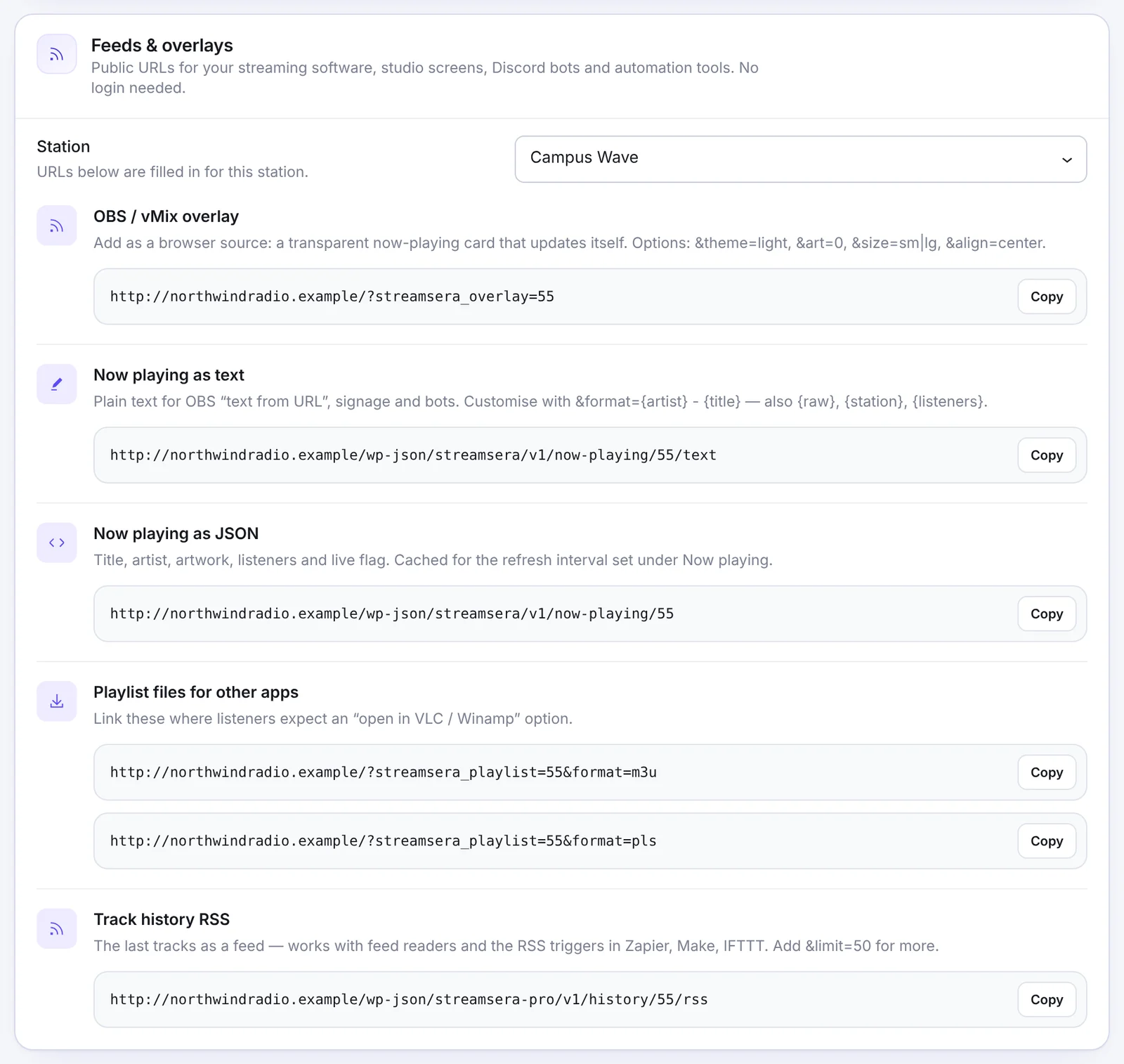
- Now playing as text: plain text for OBS “text from URL”, studio screens, signage and bots. Change the format with
&format={artist} - {title}(also{raw},{station}and{listeners}). - Now playing as JSON: title, artist, artwork, listeners and live flag for your own apps.
- Track history RSS [Pro]: the last tracks as a feed for feed readers and Zapier, Make or IFTTT.
These links are public and need no login.