On this page
StreamSera shows the song that is playing and, when your server reports it, the number of listeners. This guide explains where that information comes from and how to fix it when it is missing.
How it works#
Your WordPress site asks your stream server what is playing on a timer (every 15 seconds by default) and shares the answer with every listener. Your stream server gets one request per interval, however many people listen.
Choose where song titles come from#
Open a station (StreamSera → Stations → Edit) and scroll to Now playing.
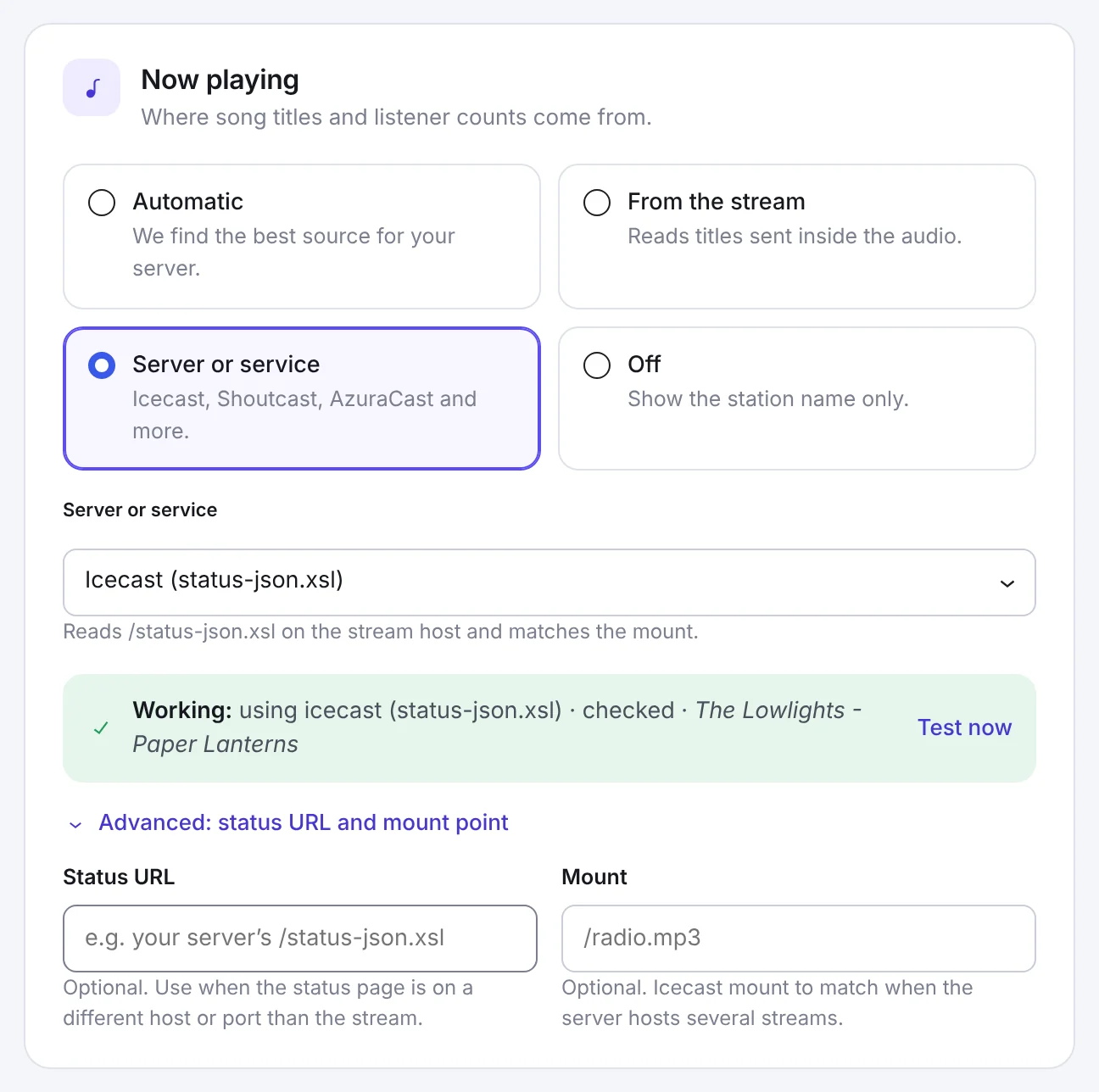
- Automatic (recommended): StreamSera tries the best source for your server.
- From the stream: reads titles sent inside the audio. Use this for hosts without a status page, such as Zeno or SurferNetwork.
- Server or service: choose your server or host from the list.
- Off: show the station name only.
Click Test now to check the source. A green Working box shows the source and the song it found.
Servers and services#
| Source | Free or Pro |
|---|---|
| Icecast (status-json.xsl) | Free |
| Shoutcast (stats / 7.html) | Free |
| From the stream (in-stream titles) | Free |
| AzuraCast, Centova Cast, SonicPanel | Pro |
| Radio.co, Live365, Zeno.fm, RadioKing | Pro |
| Custom JSON / XML endpoint | Pro |
| Push (incoming webhook) | Pro |
For services such as Radio.co or AzuraCast, enter the details the form asks for, such as your station ID or server address.
Advanced: status URL and mount#
Click Advanced: status URL and mount point if your status page is on a different host or port than the stream (Status URL), or if one Icecast server hosts several streams (Mount, for example /radio.mp3).
Refresh time#
Go to StreamSera → Settings → Streams & now playing.
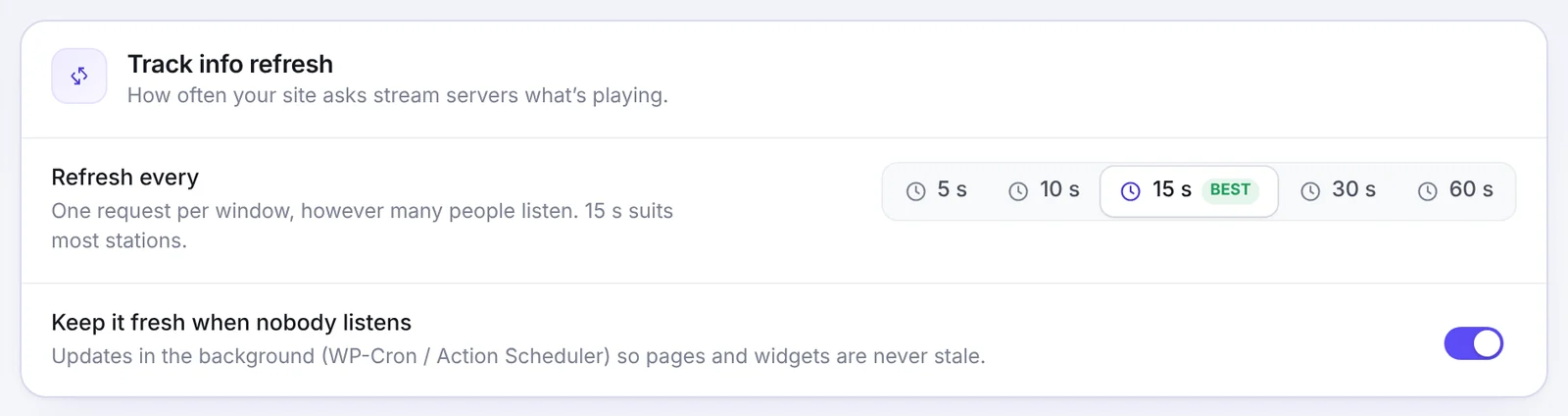
- Refresh every: 5, 10, 15, 30 or 60 seconds. 15 seconds suits most stations. Shorter is faster but asks your server more often.
- Keep it fresh when nobody listens: updates in the background so pages and widgets are never out of date. Turn it off to update only while someone is listening.
Pro: faster and richer song info#
Sources and real-time push#
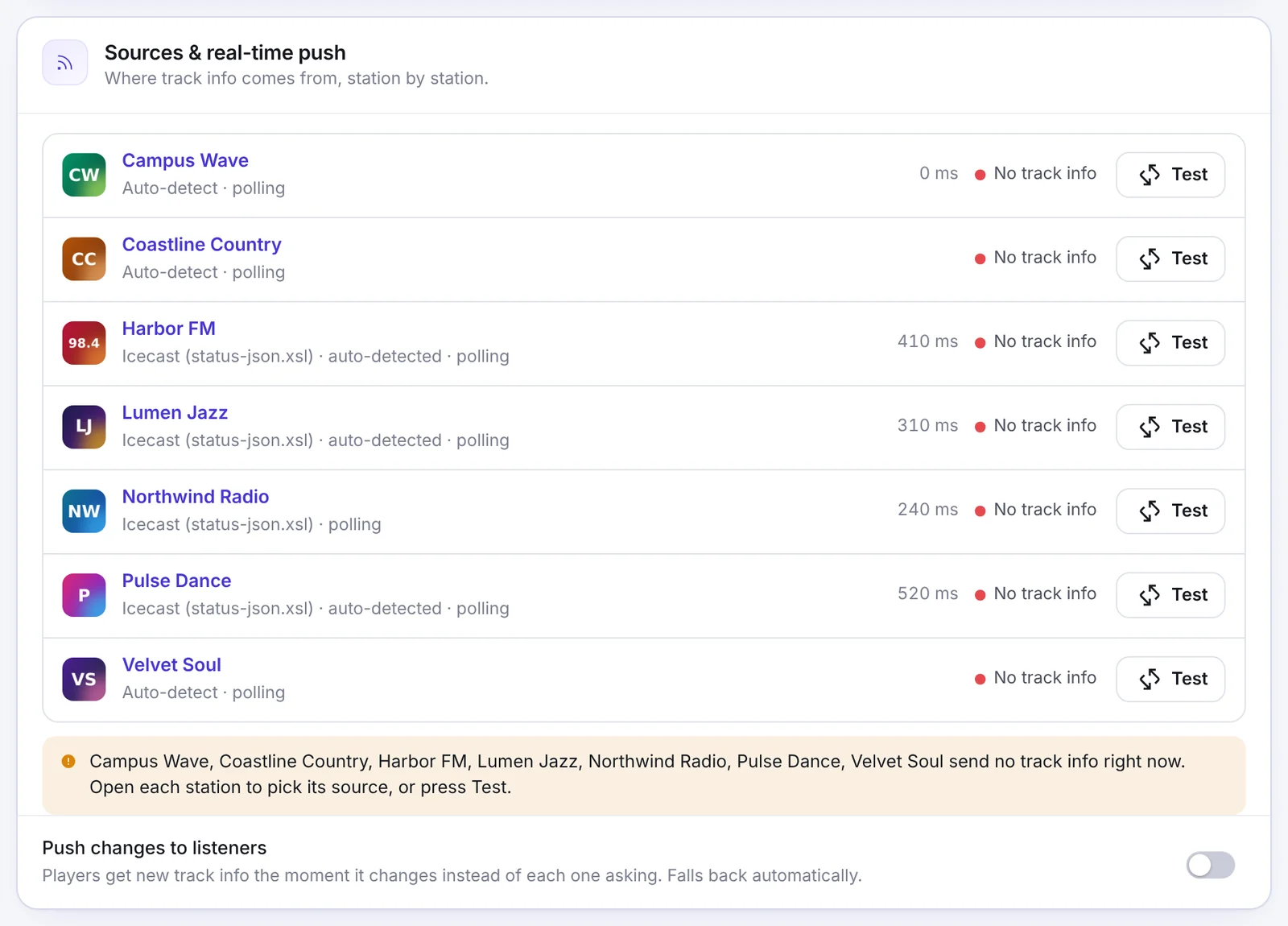
See the source of every station in one list and test each one. Turn on Push changes to listeners so players get new song info the moment it changes instead of asking for it. It falls back automatically if the push connection is not available.
Artwork and track details#
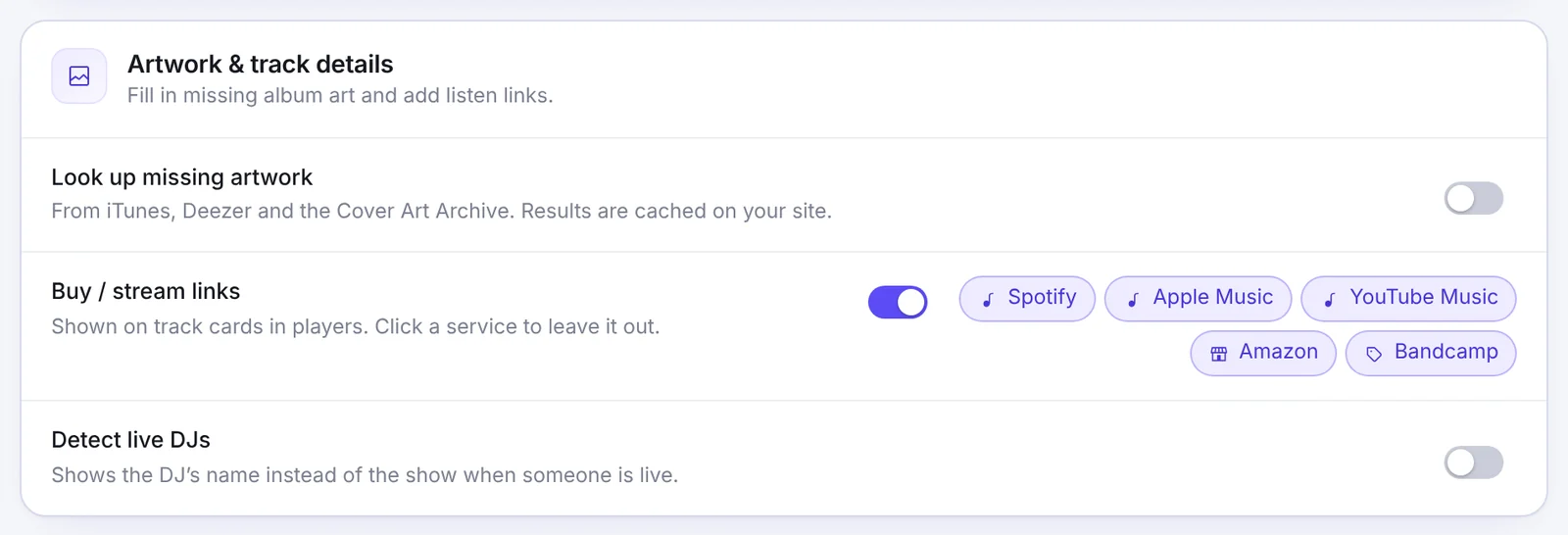
- Look up missing artwork: finds album art from iTunes, Deezer and the Cover Art Archive. Results are cached on your site.
- Buy / stream links: shows links to Spotify, Apple Music, YouTube Music, Amazon and Bandcamp on track cards. Click a service to leave it out.
- Detect live DJs: shows the DJ’s name instead of the show when someone is live.
Push now playing from your studio#
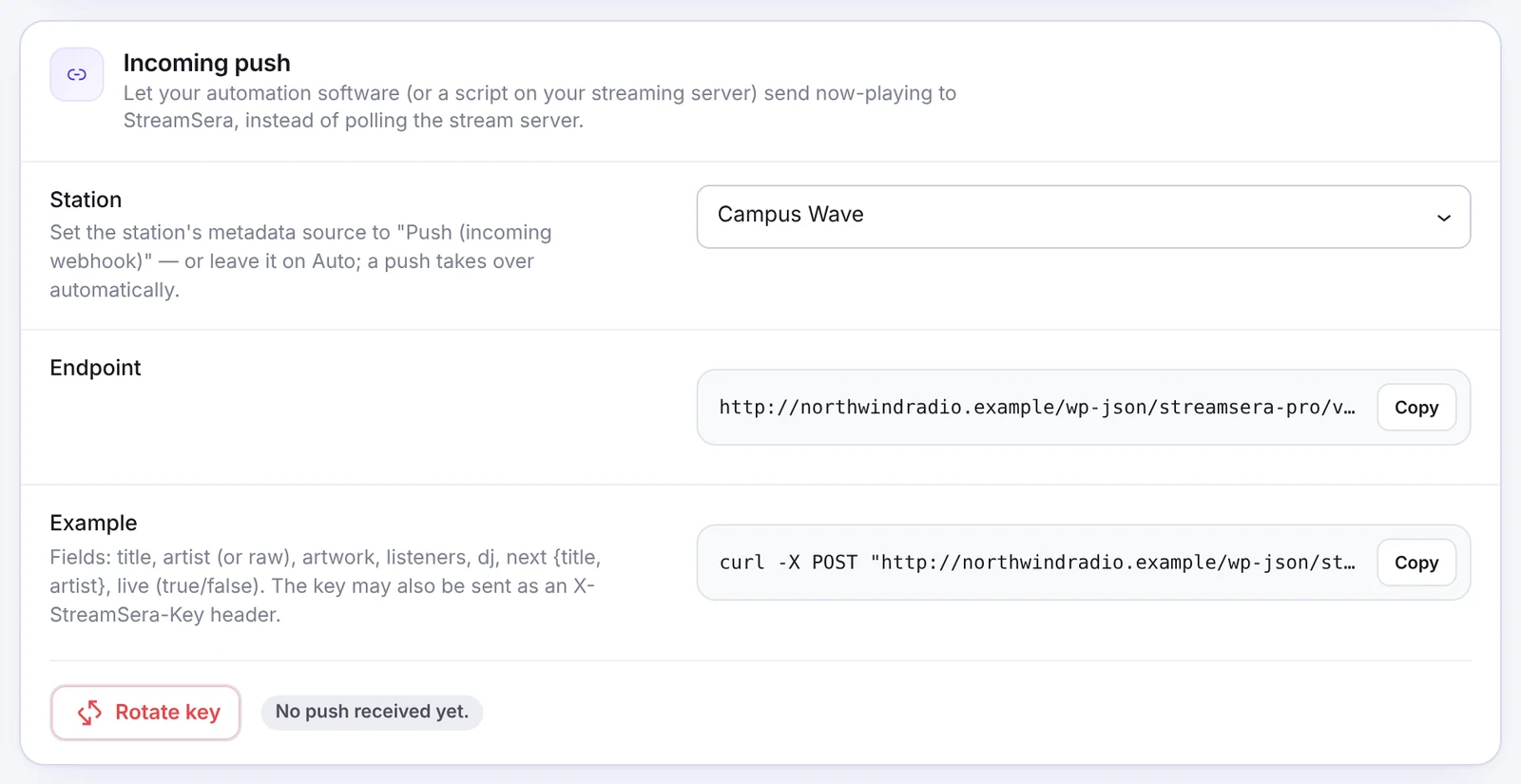
Instead of StreamSera asking your server, your automation software or a script can send the song to StreamSera. Go to Settings → Integrations → Incoming push, choose the station and copy the endpoint. Then set the station’s source to Push (incoming webhook), or leave it on Automatic.
curl -X POST "https://your-site.com/wp-json/streamsera-pro/v1/push/STATION_ID?key=YOUR-KEY" \
  -H "Content-Type: application/json" \
  -d '{"artist":"Artist","title":"Track title","listeners":42}'
You can send title, artist (or raw), artwork, listeners, dj, next (title, artist) and live (true or false). The key can also be sent as an X-StreamSera-Key header. Click Rotate key if the key ever leaks.
Song titles missing or late?#
- Click Test now in the station’s Now playing section and read the message.
- Try From the stream if your host has no status page.
- If several stations share one Icecast server, set the Mount under Advanced.
- Titles update on the refresh interval, so a few seconds of delay is normal. Pro’s real-time push makes it instant.
- Still old? Go to Settings → Access & data → Caches and click Clear.