On this page
A station in StreamSera is one radio stream with its name, logo and details. Players play stations, and every station can have its own page. You can add as many stations as you like.
Find your stream URL#
Your stream URL (also called stream link, listen URL or mount point) comes from your radio host or streaming server. It usually looks like one of these:
- Icecast:
https://stream.example.com:8000/live - Shoutcast:
https://stream.example.com:8000/;or/stream - HLS:
https://example.com/live/playlist.m3u8 - MPEG-DASH:
https://example.com/live/manifest.mpd
Look in your host’s control panel or welcome email for a link labeled “stream URL”, “listen URL”, “direct stream” or “mount point”. On AzuraCast it is listed on your station’s profile page. If you can’t find it, ask your host for the direct stream address (not the address of their web player).
Tip: If your website uses HTTPS, use the HTTPS address of your stream. Browsers do not play http:// streams on https:// pages. Pro users can turn on the stream proxy instead.
Add a station#
- Go to StreamSera → Stations and click Add station.
- Paste your stream link into the Stream box. StreamSera checks it and fills in what it can.
- Fill in the Profile: station name, logo and any details you want to show.
- Click Add station to publish it, or Save as draft to finish later.
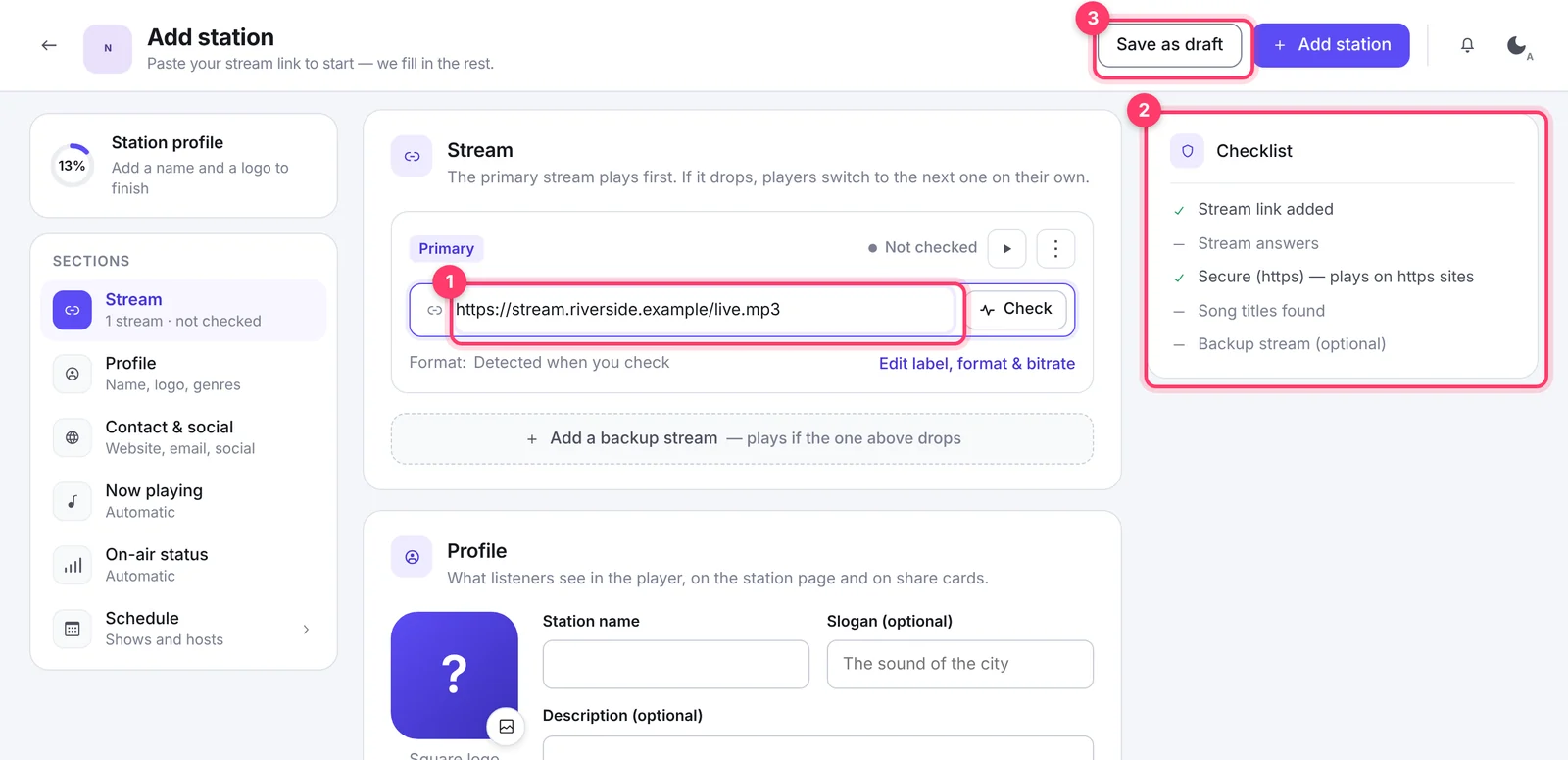
The Checklist on the right tells you whether the stream link is added, the stream answers, it plays on HTTPS sites, song titles are found and a backup stream is set.
Tip: The setup wizard (StreamSera → Dashboard → Run the setup wizard) also adds a station, together with a player.
Stream and backup streams#
The Stream section holds your stream links. The first one (Primary) plays first. If it drops, players switch to the next one on their own.
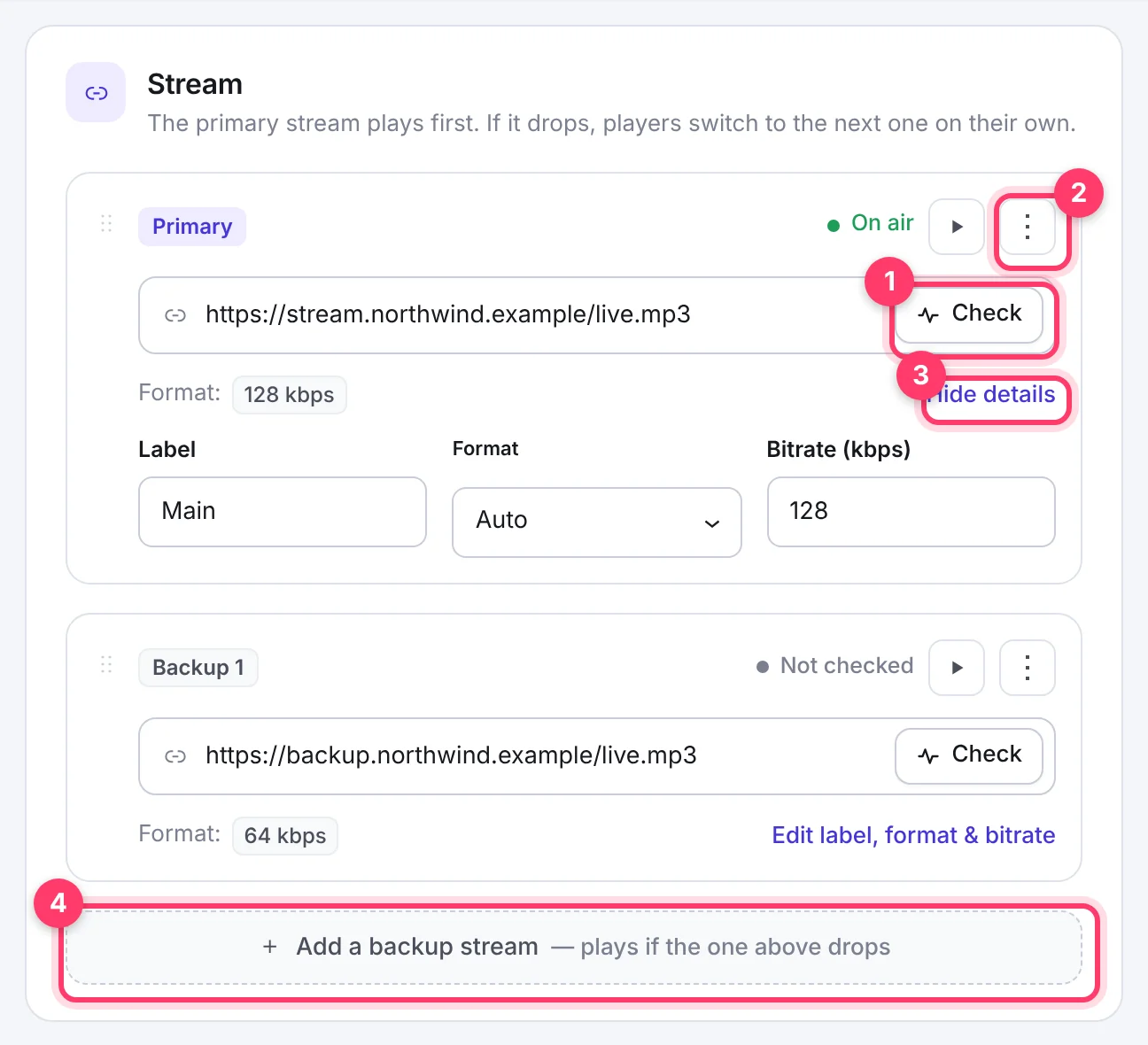
- Check tests the stream now and shows whether it is on air.
- The ⋮ menu moves a stream up or down, copies its link or removes it. You can also drag streams by the handle to reorder them.
- Edit label, format & bitrate lets you name the stream (for example “Main” or “Low data”), set the format and the bitrate. Leave the format on Auto unless your stream is detected wrongly.
- Add a backup stream adds another address that plays if the one above drops.
The ▶ button plays the stream right in the editor so you can listen to it.
Profile#
The profile is what listeners see in the player, on the station page and on share cards.
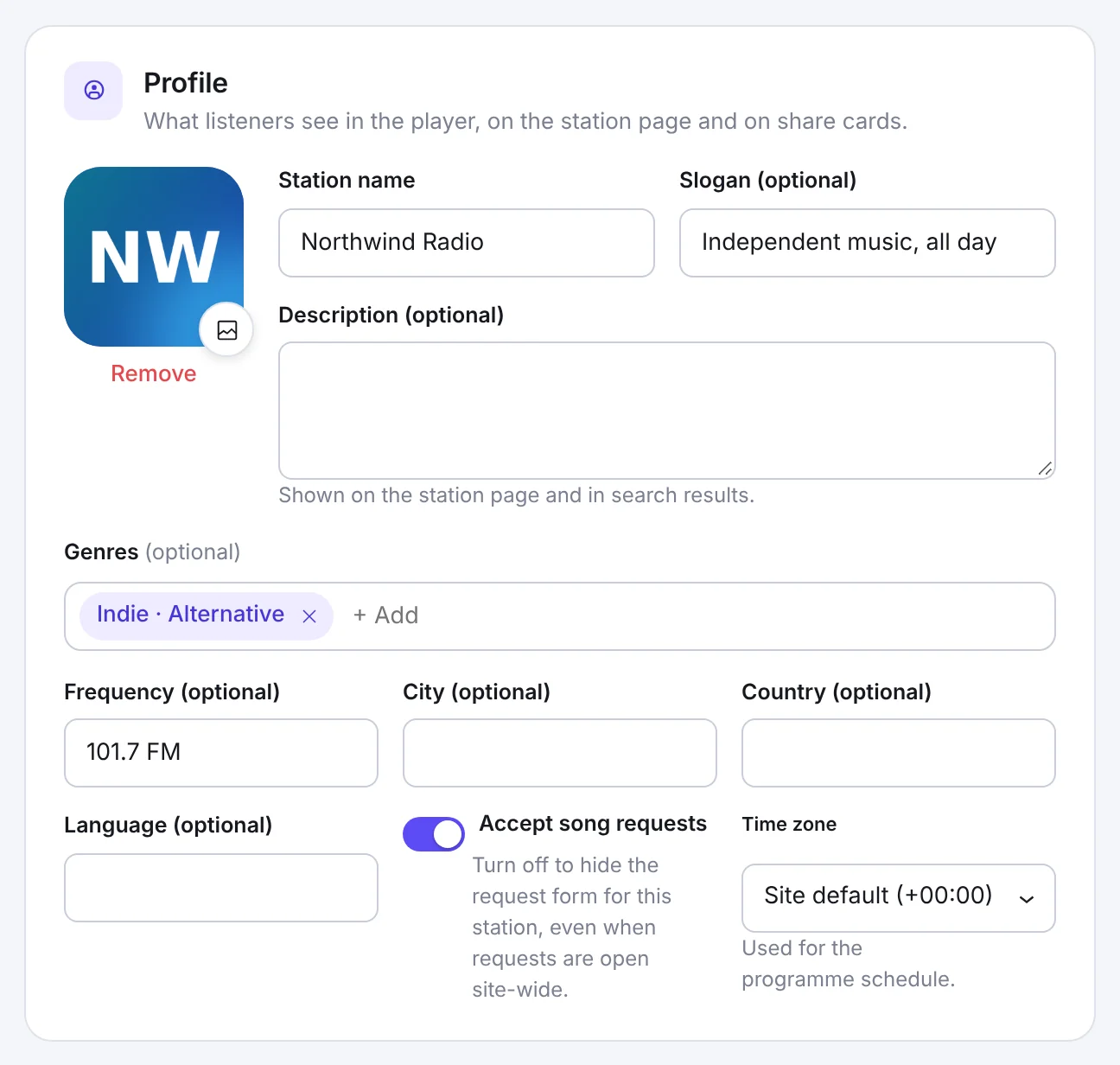
- Logo: a square image, 300 × 300 px or larger. It is shown when a song has no artwork.
- Station name and an optional Slogan and Description (shown on the station page and in search results).
- Genres: type a genre and press Enter. Genres are used by the station directory filters.
- Frequency, City, Country and Language: optional details for the station page and cards.
- Accept song requests [Pro]: turn off to hide the request form for this station.
- Time zone [Pro]: used for the station’s show schedule.
Contact & social#
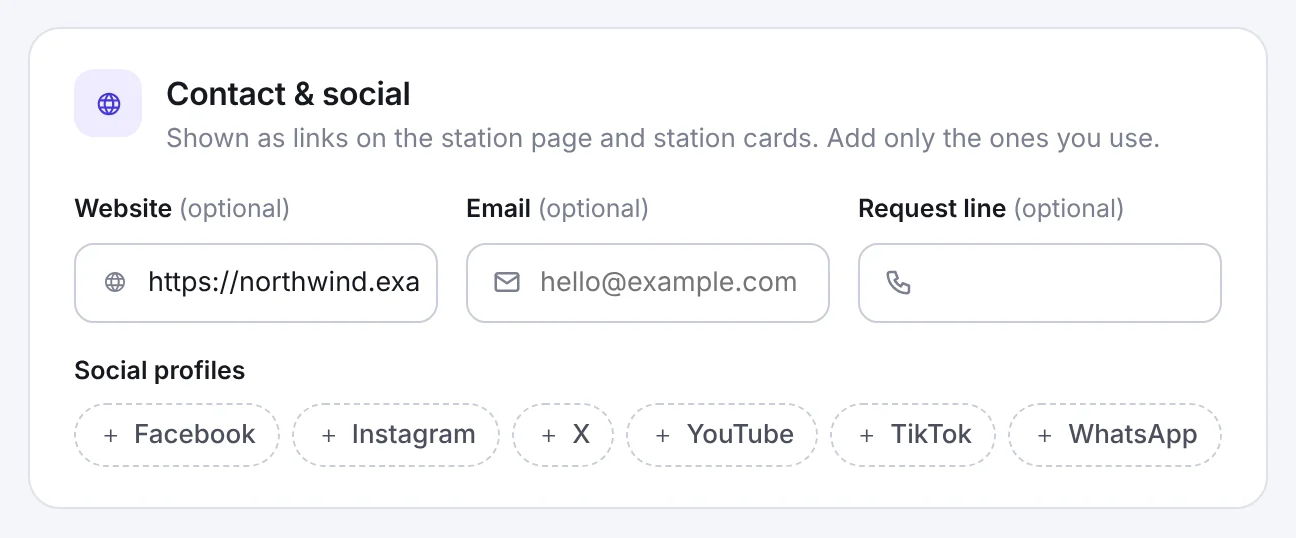
Add your website, email, request line phone number and social profiles (Facebook, Instagram, X, YouTube, TikTok, WhatsApp). They show as links on the station page and station cards. Add only the ones you use.
On-air status#
Normally players show LIVE when your stream server says the station is on air. You can override this without touching your server:
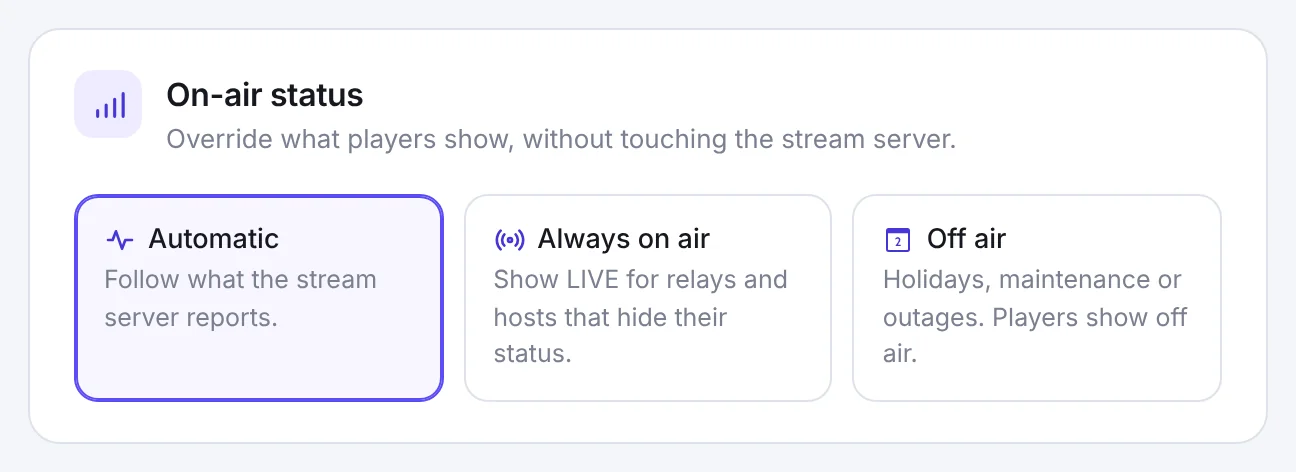
- Automatic: follow what the stream server reports.
- Always on air: always show LIVE, useful for relays and hosts that hide their status.
- Off air: for holidays, maintenance or outages. Players show the station as off air.
What players do while you are off air (play a standby track or show a message) is set per player. See How to Create and Customize Your Radio Player.
The station sidebar#
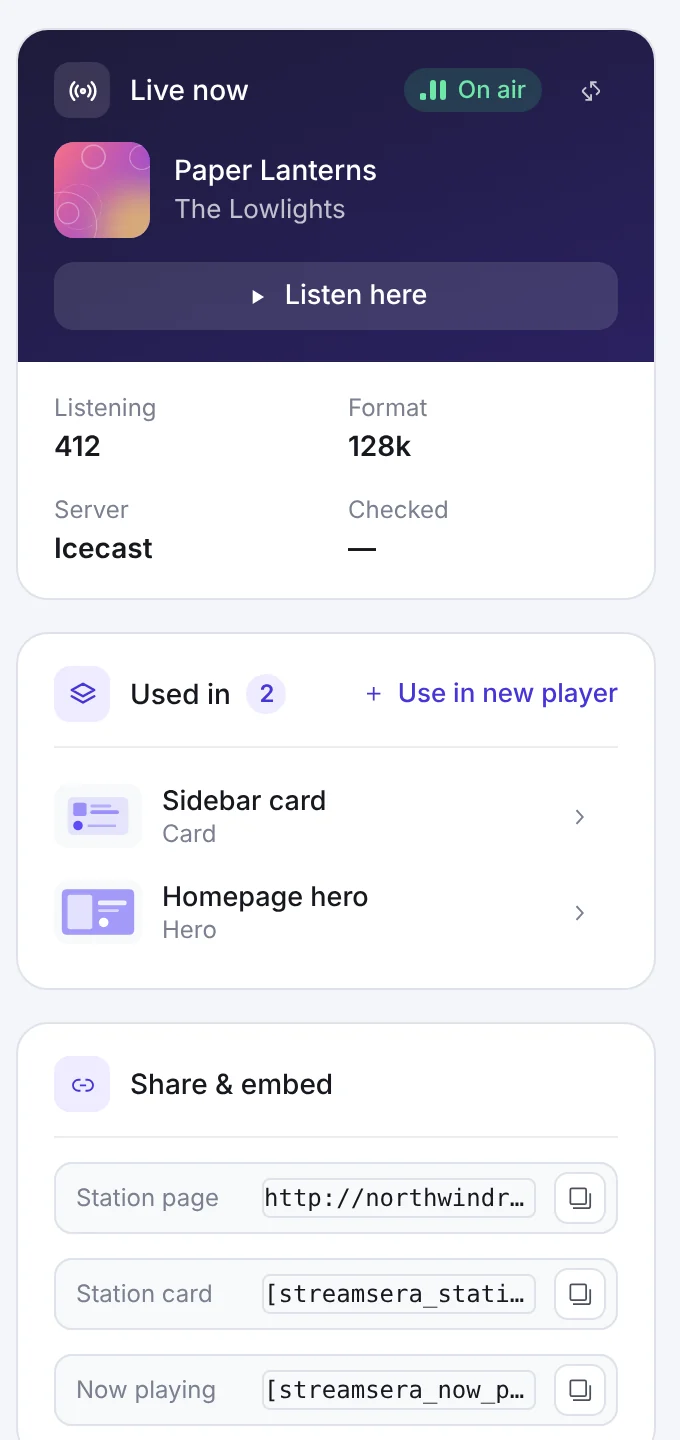
- Live now shows what is playing, the number of listeners, the format and the server type. Listen here plays the station.
- Used in lists the players that play this station. Use in new player starts a new player with this station.
- Share & embed has the station page link and ready-to-copy shortcodes for the station card and now playing.
On the left, the Sections list jumps to each part of the editor, and the Station profile ring shows how complete the profile is.
Manage your stations#
StreamSera → Stations lists every station with what is playing, listeners, streams and the players that use it.
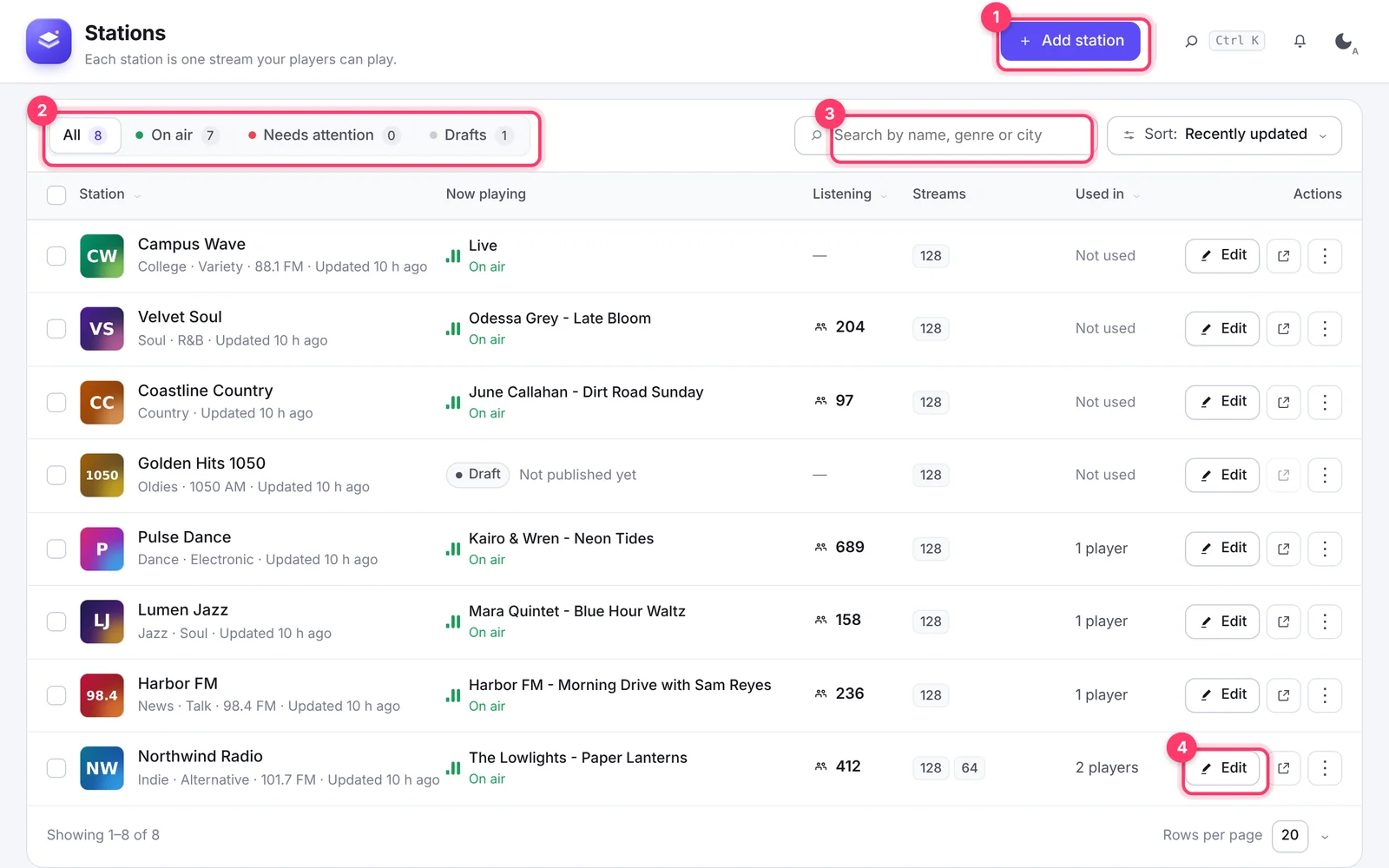
- Use the tabs All, On air, Needs attention and Drafts to filter the list.
- Search by name, genre or city, and sort with the Sort menu.
- Click Edit to open a station, or the arrow icon to view its station page.
The ⋮ menu on each row has more actions:
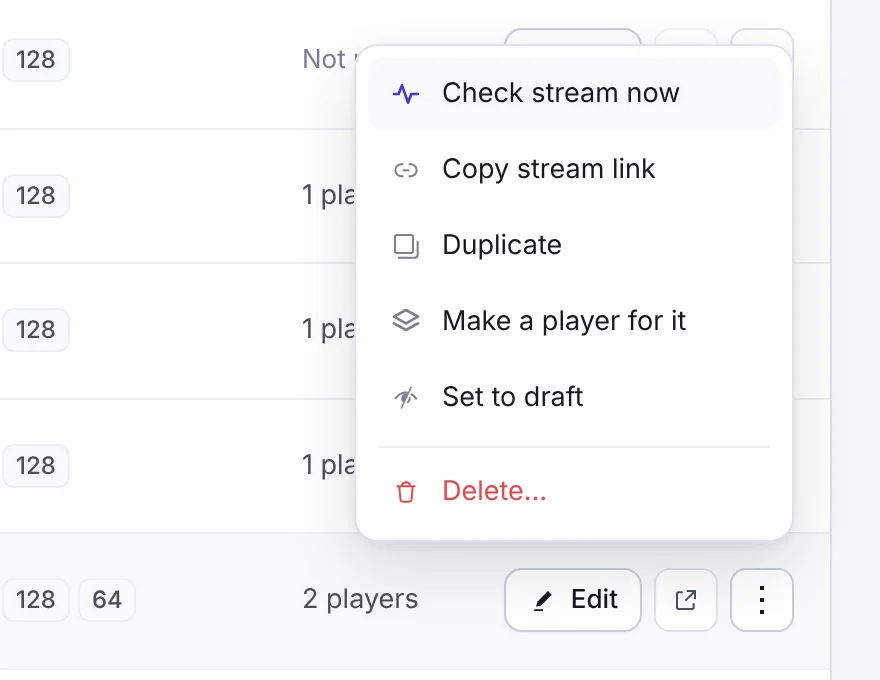
- Check stream now
- Copy stream link
- Duplicate: a copy to start a similar station
- Make a player for it: opens the builder with this station
- Set to draft: hides the station from your site without deleting it
- Delete
Bulk actions#
Tick the boxes in front of several stations to set them to draft (or publish them), duplicate them or delete them at once.

Import many stations#
- From a CSV file: use the command line,
wp streamsera station import-csv stations.csv. The file needstitleandstream_urlcolumns, and can haveslogan,website,genreandlogo(a Media Library ID). - From another StreamSera site: see How to Export, Import and Use StreamSera on Multisite.
- From TuneSera [Pro]: if you use the TuneSera radio directory plugin, StreamSera Pro can import its stations.