
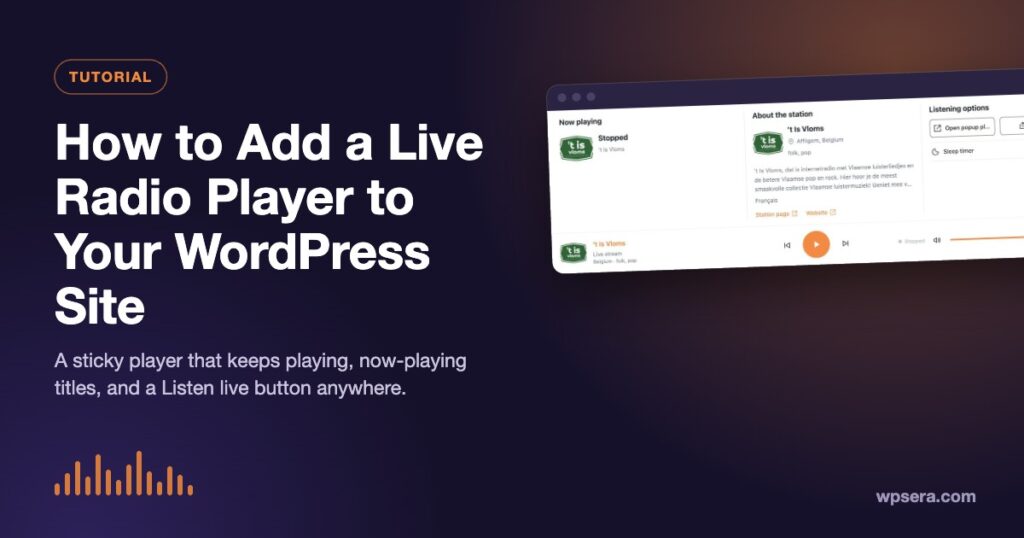
A live radio player turns a static website into somewhere people stay. Visitors press play, keep reading, click around, and the stream keeps going. In this tutorial you’ll learn how to add a live radio player to your WordPress site with TuneSera, from the free sticky player to a standalone “Listen live” player for your homepage.
What makes a good website radio player?
- It keeps playing while visitors browse. A player that stops on every page change is frustrating.
- It shows what’s on. Station name, logo and, ideally, the current song.
- It recovers on its own when a stream drops for a moment.
- It respects visitors. No autoplay, sensible volume, and controls that work on a phone.
TuneSera’s player is built around those four rules.
Option 1: The sticky player (free)
Install the free TuneSera plugin and you already have a player. As soon as a visitor presses Play on a station card, or Listen Live on a station page, the sticky player appears at the bottom of the screen and stays there as they move around your site.

Visitors can play and pause, jump to the previous or next station in the list they were browsing, mute or change the volume, and expand the player for more detail.

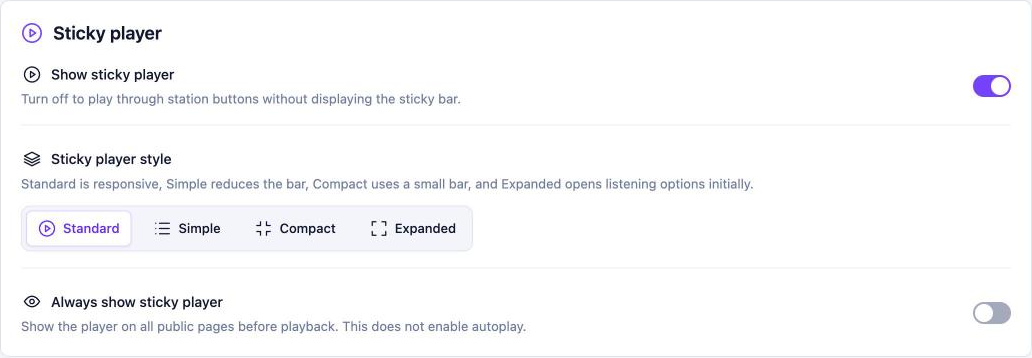
Turn the sticky player on or off
Go to TuneSera → Settings → Player and use Show sticky player. When it’s off, stations still play from their play buttons, but no bar is shown.
Configure controls and playback
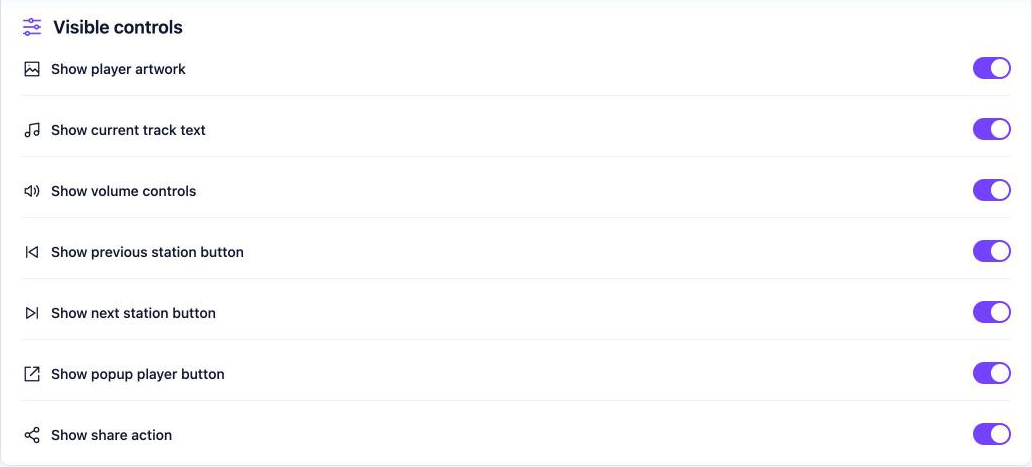
Under Settings → Player → Visible controls, choose which buttons appear in the player. Under playback settings you can set the starting volume for first-time listeners and turn on Resume playback, which tries to continue the station a visitor was listening to when they return.
Some things happen automatically with nothing to set up: each visitor’s volume and last station are remembered, and if a stream drops, the player reconnects on its own.
Why there’s no autoplay
Browsers block audio from starting until a visitor interacts with the page, and for good reason: unexpected sound is one of the fastest ways to lose a visitor. TuneSera never autoplays. Playback always starts with a click.
Show the song that’s playing now
Many stations send the current artist and title along with their stream. TuneSera reads it on your server and shows it in the sticky player and the On Air panel on station pages. It supports Icecast, SHOUTcast, ICY and Zeno streams, and you can turn it on or off in Settings → Metadata.
Song titles only appear when a station’s stream actually sends them. Many don’t, and that’s normal: the player shows the station name instead.

Privacy note: song information is requested by your server, not by visitors’ browsers, so visitor IP addresses aren’t sent to stream hosts for metadata.
Let listeners share
Turn on sharing in Settings → Advanced → Sharing and visitors can share a station by link, WhatsApp, Facebook, X, email or their phone’s native share sheet, right from the expanded player or a station page. Every share brings a new listener back to your site.
Option 2: Go further with TuneSera Pro
TuneSera Pro adds the features stations and busy directories ask for most:
- Player styles: choose a different look for the sticky player.
- Always show the player with a default station, so it’s ready to play on every page (still without autoplay). Perfect if you run your own station.
- Popup player: opens the station in its own small window that keeps playing even if the visitor closes your tab.
- Sleep timer: stops playback after a set time, with presets you choose.
- Track artwork: shows cover art for the current song.

Option 3: A “Listen live” player anywhere (Pro)
Want a big play button in your homepage hero or a “Listen live” section on your About page? The Pro [tunesera_player] shortcode places a standalone player for one station anywhere on your site:
[tunesera_player id="123" style="compact"]Leave out the id on a station page and it plays that page’s station. Elsewhere, it uses your default station. The Shortcode Builder in Settings → Shortcodes lets you search for a station by name and adds the ID for you.

Troubleshooting common player issues
- A station won’t play: the stream may be offline, have moved, or use a format the browser can’t play. Test it in the station editor and see A station won’t play.
- No song title: the stream probably doesn’t send metadata. See No song title or artwork.
- The player covers something: if a cookie banner or chat button sits at the bottom of the page, move that element in its own settings.
Get started
New to TuneSera? Follow our step-by-step guide to building a radio directory, then come back here to fine-tune the player. Not sure if you need Pro? Read TuneSera Free vs Pro.
Frequently asked questions
Does the radio player work on mobile?
Yes. The sticky player adapts to small screens, and you can minimize it to a smaller bar.
Can I add a player for just my own station?
Yes. Add your station by hand, then use the Pro player shortcode or set it as the default station with the always-on sticky player.
Does TuneSera host the audio?
No. The player streams directly from each station’s own server, so you don’t need extra bandwidth or a streaming server.

Join the conversation