
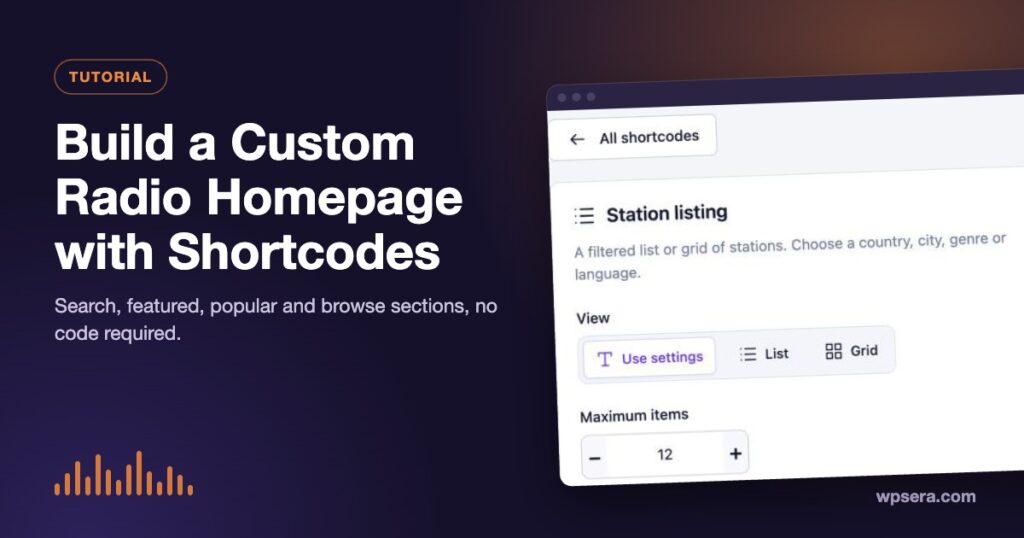
Your directory page lists every station, but your homepage has a different job: welcome visitors, show them what’s worth hearing, and get them listening in one click. TuneSera’s shortcodes let you build that homepage from ready-made sections, without writing code. Here’s how to plan and build a custom radio homepage.
The TuneSera shortcodes at a glance
| Shortcode | What it shows | Plan |
|---|---|---|
[tunesera_directory] | The full directory with search and filters | Free |
[tunesera_stations] | A list or grid of stations, filtered by country, city, genre or language | Free |
[tunesera_station] | A single station card | Free |
[tunesera_search] | A search box that opens your directory | Free |
[tunesera_browse_countries], [tunesera_genres], [tunesera_browse_languages] | Browse lists with A–Z filters and counts | Free |
[tunesera_player] | A standalone player for one station | Pro |
[tunesera_featured_stations] | Your hand-picked stations in your order | Pro |
[tunesera_popular_stations] | The most-played stations of the last 30 days | Pro |
[tunesera_locations] | Countries, divisions, cities or regions | Pro |
To add one, edit a page, add a Shortcode block (type /shortcode) and paste it in. Shortcodes always use your saved design settings, so everything matches.
Use the Shortcode Builder
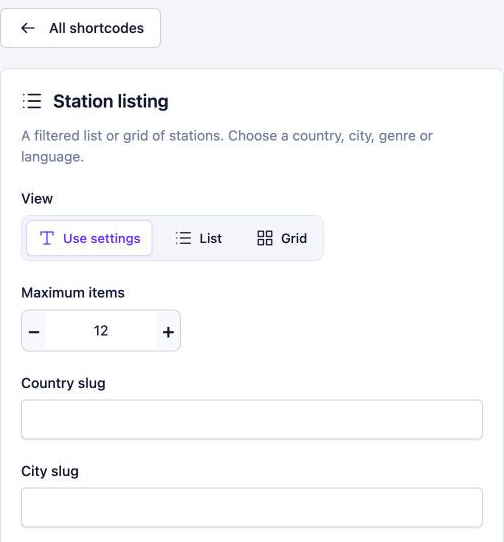
No need to memorize attributes. Go to TuneSera → Settings → Shortcodes, click the wrench on any card, choose your options and watch the live preview. Then click Copy shortcode.
A homepage blueprint
Here’s a layout that works for most radio sites. Build it top to bottom with your theme’s blocks (headings, columns, groups) and a shortcode in each section.
1. Hero: search and listen
A headline that says what your site is (“Live radio from Bangladesh, all in one place”) with a search box underneath:
[tunesera_search placeholder="Search 500+ stations…"]Running your own station? Put a “Listen live” player in the hero instead (Pro). See adding a live radio player.
[tunesera_player id="123" style="detailed"]2. Featured stations (Pro)
Your editorial picks, in the order you set under TuneSera → Stations → Featured stations:
[tunesera_featured_stations]
3. Popular right now (Pro)
Social proof that updates itself, ranked by real plays on your site:
[tunesera_popular_stations view="grid" columns="3" limit="6"]4. A themed collection
Highlight a genre or city your audience loves. Free, and endlessly flexible:
[tunesera_stations genre="news" view="grid" columns="3" limit="6"]Swap in country, city or language, set orderby="date" to show the newest stations, and turn pagination off for a tidy block.
5. Browse by country or genre
[tunesera_browse_countries title="Radio by country" columns="3"]Or, with Pro, group countries by region:
[tunesera_locations type="region"]
6. A link to the full directory
End with a clear button to your directory page for visitors who want to search everything.
Tips for a great radio homepage
- Keep it short. Four or five sections are plenty. The directory is one click away.
- Lead with listening. A play button or search box above the fold beats a long introduction.
- Refresh your featured list regularly so returning visitors see something new.
- Preview on mobile. Use fewer columns in shortcodes that feel crowded on phones.
Want the sections to look perfect? See Designing a beautiful radio directory.
Every shortcode is documented in the shortcodes reference.
Frequently asked questions
Can I use more than one [tunesera_directory] on my site?
Use the full directory on one page only, because station pages, archives and breadcrumbs link back to it. Use [tunesera_stations] for listings elsewhere.
Do shortcodes work in block themes and page builders?
Yes. Add them with a Shortcode block, or your page builder’s shortcode element.
Join the conversation